
What you can do after reading this article
- Know the six experience statuses
- Work with a Draft experience
- Schedule an experience
- Run an Active experience
- Pause and resume an experience
- Understand the Completed status
- Archive an experience
- Change the status
- Find out why your experience became Completed
- Change a running experience
- Know who can change the status and edit
The Six Experience Statuses
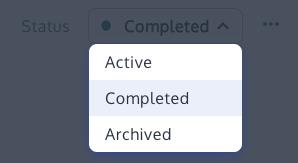
In Convert Experiences, every experience has one of six statuses: Draft, Scheduled, Active, Paused, Completed and Archived. The status decides whether the experience runs on your site and what you can still change. You can see and change it in the Status menu at the top right of the experience's Summary page.
| Status | Runs on your site? | In short |
|---|---|---|
| Draft | No | Not started yet. Build and preview it. |
| Scheduled | Not until its start time | Starts by itself at the date and time you set. |
| Active | Yes | Running. Visitors who qualify are bucketed into variations and the report collects data. |
| Paused | No | Stopped for now. You can resume it. |
| Completed | Only if a winning variation was kept running | Ended by Convert when one of its completion rules was met. You can restart or archive it. |
| Archived | No | Closed for good. You can clone it or delete it, but not start it again. |
Draft
Every new experience starts as a Draft. A draft doesn't run on your site, so you can change anything: variations, goals, audiences, locations and traffic. Use How Do I Preview Variations? to check your variations before you start.
From the Status menu, a draft can become Active, which starts it straight away, or Scheduled, which starts it later.
Once an experience has been Active, it can never go back to Draft. If you want a fresh draft of an experience that has already run, clone it. See How to Clone an Experiment?
Scheduled
A Scheduled experience starts by itself at the date and time you choose. You can also give it an end date, and choose whether it completes or pauses then. Until the start time, visitors don't see it.
- Only a draft can be scheduled. Choose Scheduled in the Status menu, set the Start Date, optionally click Add End Date, and click Save.
- To start it before the scheduled time, choose Active in the Status menu.
- To cancel the schedule, open the ⋯ menu next to the status, choose Edit Schedule, then Delete Schedule. The experience goes back to Draft.
For the time zone, the timing rules and how an end date works, see Scheduling Experiences and Setting an end date for running an experiment.
Active
Active means the experience is running. Convert buckets the visitors who match its audiences and locations into its variations, and the report collects data.
- An active experience can have running and stopped variations. You can stop and start single variations without pausing the whole experience. See How Do I Stop or Start Variations During an Active Test?
- In the Status menu, an active experience can only be paused. To archive it, pause it first.
- Convert can change the status by itself: it can complete the experience (see Why did my experience become Completed?), or pause it when it reaches its visitor limit.
- To edit it while it runs, see Change a running experience.
Paused
A paused experience doesn't run. Visitors see your page without any of its variations, and no new visitors enter it until you resume it. The data collected so far is kept.
An experience becomes Paused when:
- you choose Paused in the Status menu, or Pause Experience in the experience's row menu on the Experiences list;
- you stop its last running variation;
- it reaches its visitor limit: Max Visitors (0=Unlimited) in the experience's Stats & Settings, or Max. Experience Visitors (0=Unlimited) in the project settings;
- its scheduled end date arrives and Pause experience was chosen for it.
To resume it, choose Active in the Status menu. Convert then runs every variation that has a traffic share above 0%. A variation stopped automatically by Stop losing variations keeps its share, so it runs again too. If the experience was paused at its visitor limit, raise or remove the limit first, or Convert pauses it again.
A paused experience can also be Archived.
Completed
Completed means Convert ended the experience by itself. You can't choose Completed in the Status menu: Convert sets it when one of its completion rules is met. The rules are explained in Why did my experience become Completed?
When an experience completes, Convert stops all of its variations, including the Original. Visitors see your page unchanged, unless Keep winning variations kept the winner running.
Keep winning variations is an option in the Automations section of Stats & Settings. If it's on and a variation meets the winner rules when the experience completes, either because it won or because Max Days passed, that one variation keeps running. The experience shows Completed, and the variation's status on the Report tab stays Running. No variation is kept when the experience completes because only the baseline was left running.
On your website, while the winner keeps running:
- visitors who were already in the experience see the winning variation, including visitors who had been in a variation that stopped;
- in a Split URL experience, or when the winner redirects visitors, people who had been in another variation see your page unchanged instead;
To stop showing the winner, archive the experience. To run the test again, choose Active in the Status menu. Before you do, check the setting that completed it, or the experience can complete again at the next check. See Restarting your experiment.
Archived
Archived is final. An archived experience doesn't run and can never be started again. You can still open its report and summary, clone it into a new draft, or delete it.
- Only a Paused or Completed experience can be archived.
- Archiving a completed experience also stops a winning variation that was kept running.
- When you archive, Convert asks you to confirm. It may also offer to archive the goals and locations the experience uses.
- In the Status menu, an archived experience offers only Deleted. Deleting is permanent.
For the steps, see How Do I Archive / Delete an Experience?
Change an Experience's Status
- Open the experience's Summary page.
- Click the Status menu at the top right.
- Choose the new status. Most changes apply straight away. Scheduled opens the date picker first, and Archived asks you to confirm. If another pop-up appears, for example Archived Goals Detected, follow it to finish.
You can also pause, activate, archive and delete experiences from the three-dot menu in each row of the Experiences list.
The Status menu shows the current status and the statuses you can move to:
| Current status | You can change it to | Good to know |
|---|---|---|
| Draft | Active, Scheduled | Delete a draft from the Experiences list. |
| Scheduled | Active | Delete Schedule returns it to Draft. |
| Active | Paused | Pause it before you archive it. |
| Paused | Active, Archived | Resuming runs every variation with a traffic share above 0%. |
| Completed | Active, Archived | Only Convert can set Completed. |
| Archived | Deleted | It can't be started again. |
Before an experience can become Active or Scheduled, Convert checks it. If something is missing, you see a message and the status stays the same:
- It needs at least one goal: "Please add a minimum of one goal before activating". Deploy and Rollout experiences don't need a goal.
- A draft needs some traffic: "With zero experiment traffic, experience can't be active".
- Your plan's quota needs room for it.
- In a Full Stack project, it needs an environment: "Please set environment in summary before activating".
📒Note: Your account may require approval before an experience is activated, paused or changed while active. Then Convert asks you to send an approval request instead of applying the change. See Set Up and Use the Request Approval System
Why Did My Experience Become Completed?
Convert completes an active experience by itself when one of the rules below is met. It checks regularly, so the status can change a little while after the rule is met. Deploy and Rollout experiences are never completed this way.
- A variation won. Once Min Days has passed, a variation is ahead of the baseline on the primary goal and the test has finished for it. Both the variation and the baseline also need at least Min Visitors and Min Conversions. What finished means depends on the statistics method:
- Frequentist, fixed horizon: the planned sample size is reached and progress shows 100%. With Keep Running Until Confidence on, the variation must also be a statistically significant winner.
- Frequentist, sequential: the result is statistically significant.
- Bayesian: the variation reaches your Chance to Win and risk thresholds.
- Max Days passed. This is Max Days in Stats & Settings, or the end date of a scheduled experience. Min Days must have passed too. The experience completes, unless you chose Pause experience for the end date.
- Only the baseline is still running. For example, the other variations were stopped by Stop losing variations or by hand. There is nothing left to compare, so Convert completes the experience. This rule doesn't wait for Min Days.
Completed without a significant result? Convert judges the winner on the primary goal. In a fixed-horizon Frequentist test, Power Calculations is set to Dynamic by default: Convert projects the effect size the test can detect and sets the planned sample size from it, so the test can reach 100% progress before the primary goal is significant. Keep Running Until Confidence is on by default for Frequentist tests. Then the variation must also be a significant winner, so 100% progress alone isn't enough. If it's off, a variation that is ahead at 100% progress counts as the winner, and the experience completes. Sequential and Bayesian tests don't use this projection. For how it works, see Why an Experiment May Complete Earlier Than Expected and Statistical Methods Used.
To find out which rule applied, open the experience and check:
- the Report tab: the progress, the result of each variation and which variations are still running;
- Stats & Settings: Min Days, Max Days, Power Calculations and Keep Running Until Confidence;
- the experience's Change History, which shows when the status changed. See Track User Changes with Change History.
To keep an experience from completing too early:
- set Min Days, so Convert makes no automatic decision before then;
- turn on Keep Running Until Confidence for Frequentist fixed-horizon tests;
- switch Power Calculations to Fixed and enter your own Relative MDE;
- or check Disable automatic experience completion in project under Project Configuration > More Settings. It stops all three completion rules for the project. Visitor limits and a Pause end date still pause experiences. See Project Configuration.
💡Tip: To hear about it when it happens, turn on the Test Completion notification. See Configure Notifications in Convert App
For every automation setting in detail, see My Experiments Stopped, What Happened?
Change a Running Experience
You can edit an Active experience while it runs. There is no separate publish step: what you save goes to your site with the project's next CDN update, a short while after you save. The project header shows when the last update finished. See Understand CDN Update Status in Your Project Header.
In a website A/B experience, each variation's menu on the Summary page offers Stop Variation, Edit Variation Name, Edit Variation in Visual Editor, Edit Variation JS/CSS Code and Preview. Split URL and Full Stack experiences show Edit Variation instead of the two editor items.
⚠️ Important: Changes to a running variation reach real visitors. Preview them before you save. See How Do I Preview Variations?
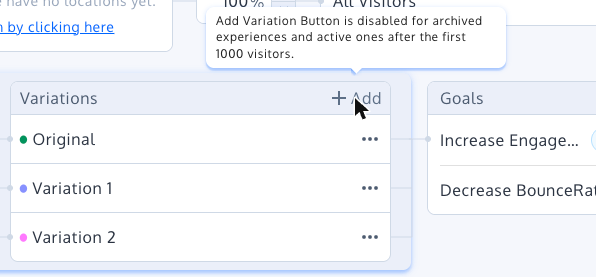
Adding variations and changing the traffic split. You can add a variation or change how traffic is split between variations only during the experience's first 1,000 visitors. After that, and in any archived experience, the Add button is greyed out with the tooltip "Add Variation Button is disabled for archived experiences and active ones after the first 1000 visitors." The same limit applies to versions in multivariate experiences and pages in multipage experiences. A/A experiences have no Add button. See When the Traffic Split Is Locked.
Big changes to a running test mix visitors who saw different versions, which makes the result harder to trust. For a clean comparison, clone the experience, make the changes in the copy and start it as a new test. See How to Clone an Experiment?
Who Can Change the Status and Edit
What you can do depends on your access level in the project:
| Action | Access levels that can do it |
|---|---|
| Change the status (start, schedule, pause, resume, archive) | Owner, Account Manager, Administrative, Publish |
| Stop or start a variation | Owner, Account Manager, Administrative, Publish |
| Change Stats & Settings | Owner, Account Manager, Administrative, Publish |
| Edit an Active experience | Owner, Account Manager, Administrative, Publish, Review |
| Edit a Draft, Paused or Completed experience | Owner, Account Manager, Administrative, Publish, Review, Edit |
| View only | Browse |
Without the right access level, the Status menu is greyed out. See access levels for the full list of permissions.