
THIS ARTICLE WILL HELP YOU:
- Ways to end an experience automatically
- Set an end date in the schedule
- Set a maximum number of days
- Set a maximum number of visitors
- What happens when the end is reached
Ways to end an experience automatically
You can let Convert end an experience for you:
- An end date, set in the experience's schedule. Convert turns it into a number of days counted from the start.
- Max Days, set in the experience's Stats & Settings. Use it to cap how long an experiment runs, counted from its start date.
- Max Visitors, also in Stats & Settings. Use it to stop an experiment after a number of visitors.
Set an end date in the schedule
- On the experience's Summary page, choose Scheduled in the status menu. If the experience is already scheduled, open the ⋯ menu next to the status and choose Edit Schedule.
- Select Add End Date and pick the day and time.
- Under When end date is reached, choose Complete experience or Pause experience.
- Select Save.
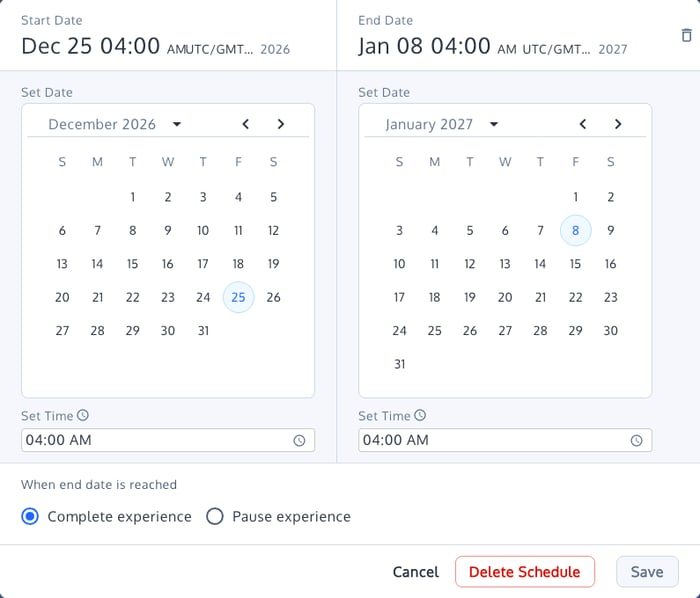
The end date is in your project's time zone and must be at least one hour in the future and after the start. Scheduling Experiences covers the start date and the other rules.
When the end date is on a later day than the start, Convert turns it into a number of days: the calendar days from the start date to the end date. The experience ends that many days after it actually starts, at the time of day it started, so the end time you pick isn't used. For example, a schedule from November 26 at 03:30 to November 28 at 17:15 ends on November 28 at about 03:30. If you set the experience to Active before its scheduled start, the days count from that moment and the end date is cleared.
You can add or change a schedule only while the experience is a draft or scheduled. For an experience that is already running, use Max Days or Max Visitors below.
Set a maximum number of days
- On the experience's Summary page, open the ⋯ menu next to the status and choose Stats & Settings.
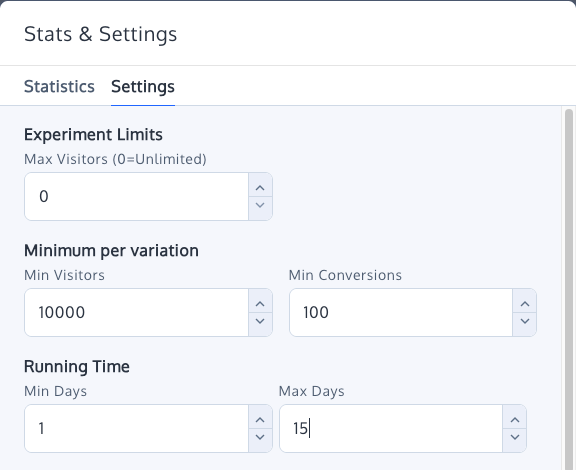
- Open the Settings tab and find Running Time.
- Enter the number of days in Max Days, from 0 to 999. 0 means no limit.
- Select Save.
Max Days counts 24-hour periods, so time zones don't change it. When you set or change it, Convert counts from the experience's start date. For example, an experience that started on January 1 at 10:00 with Max Days set to 15 ends on January 16 at about 10:00.
📒Note: A schedule's end date sets Max Days for you, so while the experience is scheduled with an end date, Max Days is locked. Change the end date in the schedule instead.
Set a maximum number of visitors
In the same Settings tab, Max Visitors (0=Unlimited) under Experiment Limits stops the experiment once that many visitors have entered it. 0 means no limit.
What happens when the end is reached
Convert checks running experiences regularly and changes the status shortly after an end is reached. An end date or Max Days takes effect only once the experience's Min Days have passed too.
- End date or Max Days: the experience becomes Completed, or Paused if you chose Pause experience in the schedule.
- Max Visitors: the experience becomes Paused.
The report keeps the data collected so far.
📒Note: If Disable automatic experience completion in project is turned on under More Settings in Project Configuration, Convert doesn't complete experiences on its own, so an end date or Max Days set to complete leaves the experience running. Pause experience still works.