
THIS ARTICLE WILL HELP YOU:
- Understand Convert Notifications
- Know who can set up notifications
- See every notification type
- Set up a notification
- Choose how often alerts arrive
- Statistical Significance Reached
- Metric Performance Alert
- SRM Detected
- Low Confidence
- Low Traffic
- Metric Stopped Recording
- Test Completion and Experience Activity
- Convert Report Summary
- Set up a Convert Report Summary
- Tracking Script Update
- JavaScript Change
- Configure delivery channels
- Read in-app notifications
- Turn off a notification
- Troubleshoot
- Know the limitations
Understand Convert Notifications
In Convert Experiences, Notifications send you alerts about your experiences and your account: statistical results, traffic problems, status changes, scheduled report summaries, tracking script updates and JavaScript changes. Each alert can arrive in the app, by email, in Slack or in Microsoft Teams.
You set notifications up once for the whole account. Open the account menu in the top right corner, click Account Settings, then open the Notifications tab.
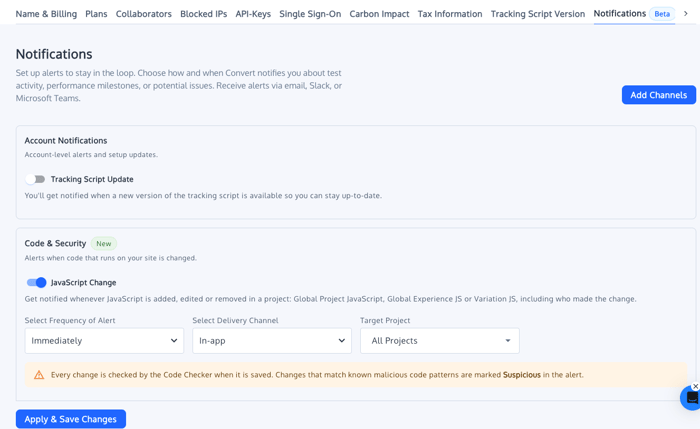
The page groups notifications into five sections: Account Notifications, Code & Security, Experience lifecycle, Statistical / Monitoring Alerts and Reports. Each notification has its own switch and its own settings, so you can send different alerts to different people and places.
📒Note: Notifications is marked Beta in the app. The settings live in Account Settings > Notifications. Project Configuration no longer has a Notification tab.
Know who can set up notifications
To open and change the Notifications settings, you need the Owner, Administrative or Account Manager role, with access to all projects in the account. Collaborators with other roles, and collaborators whose access is limited to specific projects, can't open these settings. See Collaborators.
The same three roles see the notification bell in the app header. If your access is limited to some projects, the bell and the inbox show only notifications for those projects, plus account-wide ones.
Email recipients don't need one of these roles. Any active collaborator who can access the projects the alert covers can receive it by email. See Email below.
See every notification type
The table lists every notification in the order the page shows them. Every notification can use any of the four delivery channels.
| Notification | Section | Convert sends it when | Frequencies |
|---|---|---|---|
| Tracking Script Update | Account Notifications | a new tracking script version is available for a project in your account | Immediately |
| JavaScript Change | Code & Security | someone adds, edits or removes JavaScript in a project, an experience or a variation | Immediately, Daily, Weekly, Monthly |
| Test Completion | Experience lifecycle | an experience changes to Completed | Immediately, Daily, Weekly, Monthly |
| Experience Activity | Experience lifecycle | an experience changes status, for example when it starts or is paused | Immediately, Daily, Weekly, Monthly |
| Statistical Significance Reached | Statistical / Monitoring Alerts | a variation becomes a winner or a loser on a goal | Immediately, Daily, Weekly, Monthly |
| SRM Detected | Statistical / Monitoring Alerts | Convert detects a Sample Ratio Mismatch | Immediately, Daily, Weekly, Monthly |
| Metric Performance Alert | Statistical / Monitoring Alerts | a variation shows a significant change on a goal other than the primary goal | Immediately, Daily, Weekly, Monthly |
| Low Confidence | Statistical / Monitoring Alerts | an experience is unlikely to finish within the limits you set | Immediately, Daily, Weekly, Monthly |
| Low Traffic | Statistical / Monitoring Alerts | an experience had no visitors in the last 48 hours | Immediately |
| Metric Stopped Recording | Statistical / Monitoring Alerts | a goal recorded no conversions in the last 48 hours while visitors kept arriving | Immediately |
| Convert Report Summary | Reports | a scheduled summary of your running experiences is ready | Daily, Weekly, Monthly |
The alerts in Statistical / Monitoring Alerts only check experiences that are Active. Paused, completed and draft experiences aren't checked.
Set up a notification
Every notification uses the same fields. To set one up:
- Open Account Settings > Notifications.
- Turn on the switch next to the notification. Its settings appear below it.
- In Select Frequency of Alert, choose when alerts arrive. See Choose how often alerts arrive.
- In Select Delivery Channel, choose In-app, Email, Slack or Microsoft Teams. Each notification uses one channel.
- In Target Project, keep All Projects or pick one or more projects.
- If you chose Email, pick up to five people in Email Recipients.
- Fill in any extra fields. Low Confidence has two limits, and Convert Report Summary has Report Type.
- Click Apply & Save Changes. The app confirms with Notification settings updated successfully.

Defaults when you turn a notification on
When you turn a notification on, it starts with In-app, All Projects and Immediately. Convert Report Summary starts with Weekly instead. Turning a notification off clears its settings, so turning it on again starts from these defaults. JavaScript Change is the only notification that is on before you change anything.
Choose the projects
- All Projects covers every project in the account, including projects you create later.
- Picking one or more projects limits the notification to the experiences in those projects. Picking a project replaces All Projects, and choosing All Projects again clears the projects you picked.
- The list shows active projects only. Type in the field to search.
- Tracking Script Update covers the whole account, so it has no Target Project field.
- If you use Email and change the projects later, recipients who can't access the new projects are removed from Email Recipients.
Choose how often alerts arrive
Select Frequency of Alert decides when an alert is delivered:
- Immediately: Convert sends the alert as soon as it detects the event. Status changes and JavaScript changes are detected when they happen. Statistical and traffic alerts are found during Convert's regular checks of running experiences, so they arrive after the next check.
- Daily: the alert waits until midnight at the end of the day the event happened. An event on Tuesday afternoon arrives after midnight, at the start of Wednesday.
- Weekly: the alert waits until the Monday after the week (Monday to Sunday) in which the event happened.
- Monthly: the alert waits until the first day of the next month. An event on March 15 arrives on April 1.
Daily, Weekly and Monthly use calendar days in the time zone of the project the alert is about. You set that time zone in Project Configuration > General Settings > Time Zone. These frequencies only change when alerts arrive. Each alert still arrives as its own message.
Some notifications have fixed frequencies, and the help icon next to the field explains why:
- Low Traffic, Metric Stopped Recording and Tracking Script Update only offer Immediately: This alert is always delivered immediately and cannot be changed to a scheduled frequency.
- Convert Report Summary offers Daily, Weekly and Monthly: Report summaries are delivered on a schedule. Immediate delivery is not supported for this notification type.
Statistical Significance Reached
Statistical Significance Reached alerts you when a variation becomes a winner or a loser against the original on one of an experience's goals.
- Convert checks Active experiences in the projects you selected.
- Every goal on the experience counts, the primary goal and the others. Results are measured on the experience's primary metric.
- Convert uses the experience's own statistics settings, the same ones its report uses. For Frequentist experiences, that includes the confidence level and the minimum visitors and conversions. For Bayesian experiences, it uses Chance to Win and the risk threshold. See Statistical Methods Used.
- The alert names the goal, the metric, the variation and the direction (Up or Down). It also shows the significance level, or the Chance to Win for Bayesian experiences, with a link to the experience.
If Metric Performance Alert is also on, a winner or loser on a goal other than the primary goal can send both alerts.
Metric Performance Alert
Metric Performance Alert alerts you when a variation shows a statistically significant change, up or down, on a goal other than the experience's primary goal.
- It checks Active experiences with the same statistics settings as Statistical Significance Reached, measured on the experience's primary metric. A result with no change doesn't send it.
- There's no threshold to set. Convert decides from the experience's statistics settings.
- The alert names the goal, the metric, the direction, the variation and the change in percent, with the significance level or Chance to Win.
Use it to follow your secondary goals. If Statistical Significance Reached is also on, expect two alerts for the same result on a secondary goal.
SRM Detected
SRM Detected alerts you when Convert finds a Sample Ratio Mismatch (SRM) in an Active experience. An SRM means the traffic split between variations differs from the split you set. It helps you catch traffic or targeting issues early. See What is SRM?.
- SRM checking must be on. For a project, that is the Experience Report SRM Check checkbox in Project Configuration > More Settings. See Project Configuration.
- Experiences that use Multi-Armed Bandit (MAB) allocation don't send this alert.
- The alert says that the observed traffic allocation differs from the expected allocation, and shows the p-value when one is available.
If a project in Target Project has SRM checking turned off, the settings page shows a note like this: SRM checking is disabled for one or more selected projects. SRM Detected alerts may not be sent for experiences in those projects.
Low Confidence
Low Confidence alerts you when an Active experience is unlikely to reach a result soon at its current traffic. It has two required fields:
- Max Estimated Progress (%): a number from 0 to 100.
- Max Days to Complete: a whole number, 1 or higher.
Convert sends the alert when all of these are true:
- The experience has been running for at least 48 hours.
- It had visitors in the last 48 hours. With no visitors at all, Low Traffic covers it instead.
- Its estimated progress is below Max Estimated Progress.
- The days it still needs at current traffic are more than Max Days to Complete.
Convert looks at the variation that is furthest from finishing. For example, with 25 and 60, you get an alert when an experience is below 25% progress and needs more than 60 more days. The alert shows the estimated progress and the days remaining.

Low Traffic
Low Traffic alerts you when an Active experience stops getting visitors. Convert sends it when the experience has been running for at least 48 hours and recorded zero visitors in the last 48 hours.
- Any visitor in those 48 hours, even one, means no alert.
- It is always sent Immediately.
- If the experience still has no visitors in a later 48-hour period, you can get the alert again.
Metric Stopped Recording
Metric Stopped Recording alerts you when visitors keep arriving but a goal stops converting. Convert sends it when all of these are true:
- The experience is Active and has been running for at least 48 hours.
- It had at least 5 visitors in the last 48 hours.
- One or more of its goals recorded zero conversions in the last 48 hours.
You don't pick goals. Convert checks every goal on the experience and lists all the affected goals in one alert. It is always sent Immediately. Zero visitors is a Low Traffic case, so this alert stays quiet then.
Test Completion and Experience Activity
Both notifications are in the Experience lifecycle section and work with all four frequencies.
Test Completion
Test Completion alerts you when an experience changes to Completed, whether someone completed it or Convert completed it automatically. The alert says the experience has completed and links to it. It doesn't include results, so open the report to see them.
If automatic completion is turned off in a selected project, the settings page shows a note like this: Automatic experience completion is disabled for one or more selected projects. Test Completion alerts may not be sent for those projects. The setting is Disable automatic experience completion in project in Project Configuration > More Settings.
Experience Activity
Experience Activity alerts you when an experience changes status: when it starts, when it is paused, or when it moves to another status. The alert says whether the experience was started, stopped or updated, and names the teammate who did it when Convert knows who did. Edits to an experience's content don't send this alert.
When an experience is completed, you get Test Completion only, not Experience Activity as well.
Convert Report Summary
Convert Report Summary, in the Reports section, sends a CSV summary of your running experiences on a Daily, Weekly or Monthly schedule.
What it covers
- Experiences that are Active in each project you selected when the summary is built. Paused, completed and draft experiences are not included.
- Deploy experiences are not included, because they have no A/B report.
- Experiences with no data for the period are left out. If none has data, that project gets no summary.
Which period, and when it arrives
- Daily: the previous day, delivered every day.
- Weekly: the previous week, Monday to Sunday, delivered on Monday.
- Monthly: the previous calendar month, delivered on the first day of the month.
Summaries arrive after midnight in the project's time zone.
What you receive
- One summary per project. Each message covers up to 20 experiences. A project with more experiences gets several messages, each marked with its part number.
- With Email, the CSV file is attached to the email.
- With In-app, Slack or Microsoft Teams, the message lists the period, the project and the experiences, with a link to Convert. It has no file.
💡Tip: To get the CSV file, choose Email as the delivery channel.
Set up a Convert Report Summary
- Open Account Settings > Notifications and scroll to Reports.
- Turn on Convert Report Summary.
- In Select Frequency of Alert, choose Daily, Weekly or Monthly. Weekly is selected when you turn it on.
- In Select Delivery Channel, choose Email to get the CSV file, then pick up to five people in Email Recipients.
- In Target Project, keep All Projects or pick projects.
- In Report Type, choose the CSV format.
- Click Apply & Save Changes.
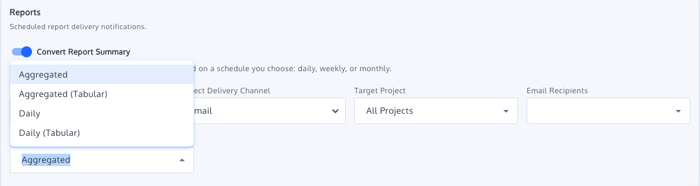
Report Type offers the same CSV formats as the experience report export:
- Aggregated (selected by default): totals for the period, one row per variation and goal.
- Daily: one row per day, variation and goal.
- Aggregated (Tabular) and Daily (Tabular): the same data as one flat table with column headers in the first row, for importing into other tools. See Use Tabular CSVs.
Tracking Script Update
Tracking Script Update, in Account Notifications, alerts you when a new version of the tracking script is available for a project in your account. The alert shows the new version number.
- It covers the whole account, so it has no Target Project field.
- It is always sent Immediately.
To choose how each project takes new versions, see Tracking Script Version Management.
JavaScript Change
JavaScript Change, in Code & Security, alerts you when someone adds, edits or removes JavaScript that runs on your site:
- Global Project JavaScript, for each environment. See How to Use Environment-Specific Global JavaScript in Convert.
- Global Experience JS.
- Variation JS.
The alert says who made the change and where. A save that doesn't change the code sends no alert.
The settings page shows this note under the notification: Every change is checked by the Code Checker when it is saved. Changes that match known malicious code patterns are marked Suspicious in the alert. In the bell and the inbox, those alerts carry a Suspicious label.
JavaScript Change is on before you change anything, with In-app, Immediately and All Projects. You can change its channel, frequency and projects, or turn it off, like any other notification.
Configure delivery channels
Each notification uses one channel, chosen in Select Delivery Channel. Different notifications can use different channels, so you can send Low Traffic to email and Statistical Significance Reached to Slack.
In-app
In-app alerts appear under the bell in the app header and in the Notification Inbox. See Read in-app notifications.
- When you choose Email, the Email Recipients field appears. Pick up to five people. Once five are picked, the other names are greyed out.
- The list shows active collaborators who can access at least one of the projects in Target Project. For All Projects and for Tracking Script Update, it shows every active collaborator.
- You can't type an outside email address. Invite the person as a collaborator first. See Collaborators.
- A recipient only gets emails about projects they can access.
- Emails come from Convert Experiments, and the subject starts with Notification: followed by the notification type.
Connect Slack or Microsoft Teams
Slack and Microsoft Teams alerts go to a channel through an incoming webhook. Connect the tool once, then choose it for any notification:
- On the Notifications page, click Add Channels.
- At the top of the Add Channels dialog, click Slack or Microsoft Teams.
- Turn on the switch on the card.
- Paste the incoming webhook URL for your channel into Webhook URL. See Instructions opens Slack's or Microsoft's guide to creating one.
- Click the check mark next to the field. Convert posts a test message to your channel: Convert Experiments: your notification webhook has been connected successfully. The app confirms with Slack connected or Microsoft Teams connected.
- Close the dialog. In Select Delivery Channel, choose Slack or Microsoft Teams for each notification that should go there, then click Apply & Save Changes.
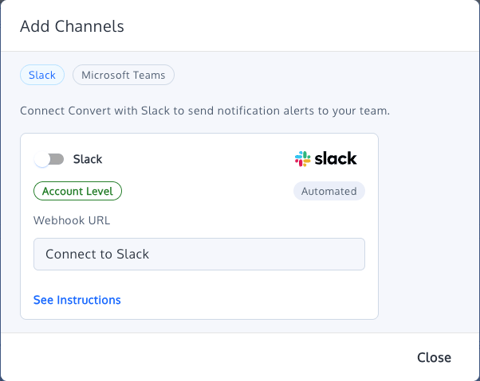
- The card is marked Account Level: the account has one Slack webhook and one Microsoft Teams webhook, so all Slack alerts go to the same Slack channel.
- Until a tool is connected, it is greyed out in Select Delivery Channel. Hovering it shows Slack isn't connected yet. Use Add Channels above to connect or the same message for Microsoft Teams.
- If Convert can't post the test message, the app says it could not verify the webhook URL. Check the URL and try again.
Disconnect Slack or Microsoft Teams
Open Add Channels, pick the tool and turn off the switch on its card. If any notification still uses it, the app shows Channel is currently in use. Switch those notifications to another channel, click Apply & Save Changes, then disconnect.
Read in-app notifications
In-app alerts appear under the bell in the app header. Owners, Administrative users and Account Managers see the bell. A dot on the bell means you have unread alerts.
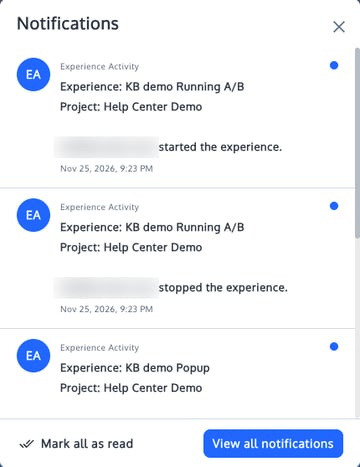
- Click the bell to see your five most recent in-app alerts, with the notification type, the experience and project, the message and the delivery time. Unread alerts have a dot.
- Click an experience alert to open the experience's Summary. Click a JavaScript Change alert to open the changed code. Either way, the alert is marked as read.
- Click Mark all as read to clear the dot, or View all notifications to open the Notification Inbox.
Notification Inbox
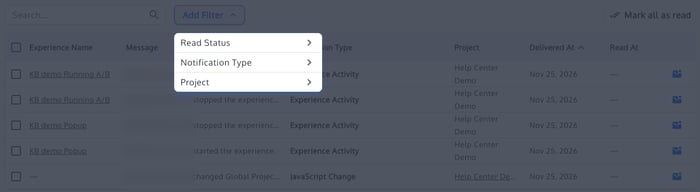
- The table shows Experience Name, Message, Notification Type, Project, Delivered At and Read At.
- Search by title or message text. Filter by Read Status (Unread or Read), Notification Type and Project.
- Mark one alert, or the alerts you select, with Mark as read or Mark as unread. Mark all as read marks everything.
- Read status is personal. Marking an alert as read doesn't mark it for your teammates.
- Only In-app alerts appear here. Email, Slack and Microsoft Teams alerts are not copied to the inbox.
- Two types have different names in the inbox: Tracking Script Update shows as Tracking Script Updated, and Convert Report Summary as Report Summary.
Turn off a notification
- Open Account Settings > Notifications.
- Turn off the switch next to the notification.
- Click Apply & Save Changes.
Turning off one notification doesn't change the others. Its settings are cleared, so turning it on again starts from the defaults. To stop email for one person only, remove them from Email Recipients instead.
Troubleshoot
I can't open or change the Notifications settings
You need the Owner, Administrative or Account Manager role, with access to all projects. If you hover the Notifications tab and see This screen is not available for your current plan or access permissions, ask the account owner or an administrator to update your access, or to set up the notification for you.
Slack or Microsoft Teams is greyed out
The tool isn't connected yet. Connect it with Add Channels. See Connect Slack or Microsoft Teams.
Convert can't verify my webhook URL
Convert posts a test message when you save the URL, and the save fails if that message can't be posted. Copy the incoming webhook URL again from Slack or Microsoft Teams, check that the webhook is still active, and paste it again.
I can't disconnect Slack or Microsoft Teams
Channel is currently in use means a notification still sends there. Switch that notification to another channel, click Apply & Save Changes, then disconnect.
Saving shows an error
Apply & Save Changes checks every notification that is on. The message names the notification to fix, for example:
- Select at least one email recipient for "Test Completion"
- Low Confidence: max estimated progress is required or Low Confidence: max days to complete is required
A teammate is missing from Email Recipients
The list only shows active collaborators who can access at least one project in Target Project. Give the person access to one of those projects, or invite them as a collaborator. If five people are already picked, remove one first.
The Slack or Teams report summary has no CSV
The CSV is attached only to email. Choose Email for Convert Report Summary to get the file.
My report summary is missing, or an experience is missing from it
Report summaries include Active experiences only, leave out Deploy experiences, and skip experiences with no data for the period. Weekly summaries arrive on Monday and Monthly ones on the first day of the month.
I didn't get an SRM Detected alert
- Check that the experience is Active and in a project selected in Target Project.
- Check that Experience Report SRM Check is on for the project.
- Experiences that use Multi-Armed Bandit allocation never send this alert.
Traffic dropped but I got no Low Traffic alert
Low Traffic needs zero visitors in the last 48 hours, after the experience has run for at least 48 hours. Low but non-zero traffic doesn't trigger it. For a slow experience, use Low Confidence.
I didn't get a Test Completion alert
Check whether the project has automatic completion turned off. The settings page shows a note when it does. Also check that the project is in Target Project.
I got two alerts for the same result
A winner or loser on a goal other than the primary goal sends both Statistical Significance Reached and Metric Performance Alert when both are on. Turn one of them off if you only want one.
Know the limitations
- Notifications is in Beta.
- Only Owners, Administrative users and Account Managers with access to all projects can change the settings.
- Each notification uses one delivery channel.
- Email goes to up to five active collaborators per notification. Outside addresses can't be added.
- Target Project is All Projects or a list of projects. You can't pick single experiences in the app.
- Slack and Microsoft Teams connect through one incoming webhook each for the whole account.
- Statistical / Monitoring Alerts only check Active experiences.
- Low Traffic, Metric Stopped Recording and Tracking Script Update are always sent Immediately. Convert Report Summary can't be sent Immediately.
- Convert Report Summary covers Active experiences only, leaves out Deploy experiences, and attaches the CSV only to email.
- The Notification Inbox only lists In-app alerts.