
THIS ARTICLE WILL HELP YOU:
- Understand Archive an Experience
- Understand Delete an Experience
- See what you can archive or delete for each status
Understand Archive an Experience
Archiving is final. An archived experience can't be reactivated or started again. You can clone it to use in a new experiment, or delete it. If you may want to run the experience again, leave it Paused instead of archiving it.
We recommend archiving over deleting. An archived experience keeps its report and its summary, and you can still clone it. Archiving also keeps your experiences list tidy, because you can filter archived experiences out.
To archive an experience:
- Open the Experiences tab of your project. If the experience is Active, pause it first: open the three-dot menu in its row and click Pause Experience. Only a Paused or Completed experience can be archived.
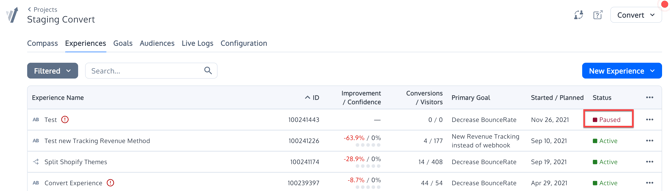
- Open the three-dot menu of the Paused or Completed experience and click Archive Experience. On the Experience Summary, you can instead open the Status dropdown and choose Archived.
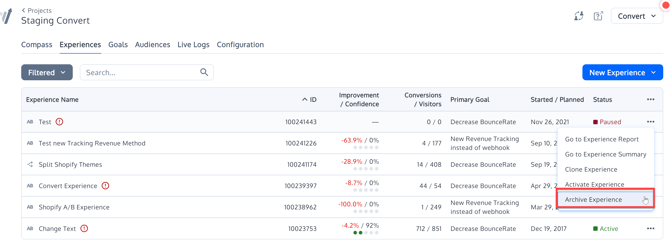
- Convert asks: "Do you want to archive experience “name”? This cannot be recovered or activated later." If you also want to archive the experience's goals and locations, check Archive goals and locations associated with this experiment first. Leaving them unarchived can cause performance issues, and goals and locations are not archived if another experiment uses them. Then click Yes, archive it, or Cancel archive to stop.
- If the experience uses the Google Analytics 4 integration, Convert may also ask whether to delete or keep its GA4 audiences. See Integrate Convert Experiences with Google Analytics 4.
📒Note: To archive several experiences at once, use the Actions menu on the Experiences list. Only Paused or Completed experiences can be archived this way. See Bulk Actions on Experiences.
To see your archived experiences, open the filter at the top left of the Experiences list and select Archived under Status. Clear it to see all your experiences again.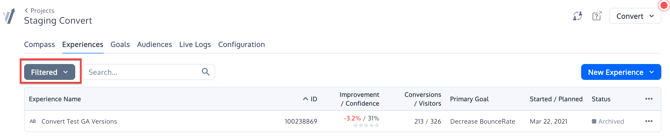
Understand Delete an Experience
Deleting an experience removes it for good. You can't restore a deleted experience, and you can't clone it either, so use archive when you may need it again.
You can delete an experience only while its status is Draft or Archived. An experience that has run has the status Active, Paused or Completed, and it must be archived before you can delete it:
- If it is Active, pause it.
- Archive it.
- Delete it.
A draft has never run, so you can delete it straight away.
To delete an experience:
- Open the Experiences tab of your project.
- Open the three-dot menu of the experience and click Delete Experience. The menu shows this item for Draft and Archived experiences only. On the Experience Summary of an archived experience, you can instead open the Status dropdown and choose Deleted.
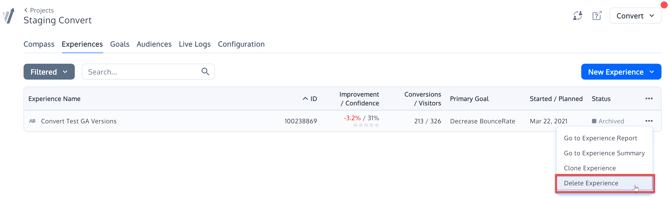
- Confirm in the pop-up. In the list, click Yes, Delete it. On the Experience Summary, the pop-up says: "Do you want to permanently delete experience “name”? This action cannot be undone." Click Yes, delete it.
⚠️ Important: Deleted experiences can't be restored or cloned. Archived experiences can be cloned.
To delete several experiences at once, use the Actions menu on the Experiences list. It accepts Draft and Archived experiences only. See Bulk Actions on Experiences.
What You Can Archive or Delete for Each Status
- Draft: you can delete it. A draft has never run.
- Scheduled: the app doesn't offer Delete for a scheduled experience.
- Active: pause it first. You can't archive or delete an active experience.
- Paused: you can archive it. You can't delete it until it is archived.
- Completed: you can archive it. You can't delete it until it is archived.
- Archived: you can delete it or clone it. You can't change its status back.
For all the statuses, see What Status Options do an Experiment or Test Have?.