
THIS ARTICLE WILL HELP YOU:
- Stop a variation
- Restart a stopped variation
- Know what happens to your report data
- Know when the traffic split is locked
- Get a clean comparison
Stop a Variation
When you stop a variation, new visitors are no longer assigned to it. You can stop and start variations while the experience is active, paused or completed.
- Open the experience and click the Report tab.
- Click the variation's status, Running. You can also open the variation's menu and click Stop Variation.

- In Traffic allocation at Pause, choose how to share the traffic once the variation stops. The dialog previews the result under New Variation Distribution.
- The first option keeps the experience's total traffic and splits the stopped variation's share equally between the variations that are still running. It's selected by default.
- The second option drops the stopped variation's share. The other variations keep theirs, so the experience gets a smaller part of your site's traffic.
- Custom Allocation lets you set each variation's share yourself.
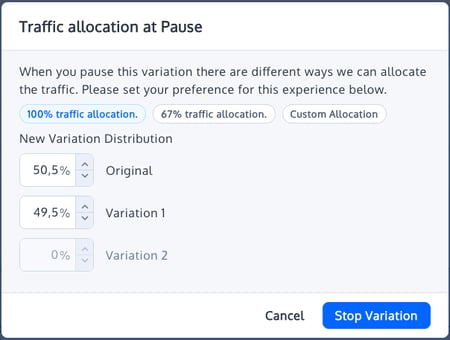
- Click Stop Variation.
- If the variation is the baseline, Convert asks you to choose a new baseline before it stops.
- If it's the last running variation, stopping it also pauses the experience.
- In A/A, multivariate and Deploy experiences, clicking the status usually stops or starts the variation straight away, without the traffic step.
Stopping a variation changes the conditions of the experiment. The original traffic split and randomization no longer hold, so don't treat the results from before and after the stop as one continuous test.
📒Note: To stop or start variations, you need the Owner, Account Manager, Administrative or Publish access level. See access levels.
Restart a Stopped Variation
- On the Report tab, click the variation's status, Stopped. You can also open the variation's menu and click Start Variation.
- In Traffic allocation on restart, set each variation's share under Variation Distribution. The shares must add up to 100%. The variation you're restarting needs a share above 0%, and any variation left at 0% stays stopped.
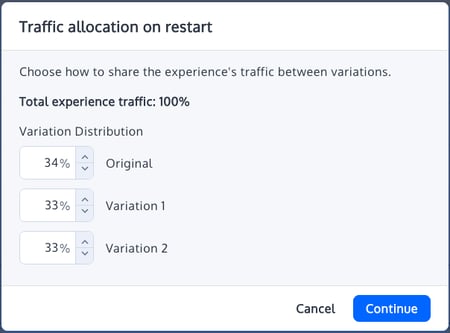
- Click Continue.
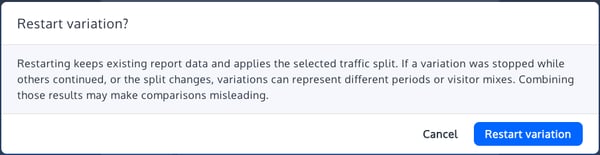
- Confirm with Restart variation. If every variation was stopped, the button says Restart experience, and restarting also activates the experience.
What Happens to Your Report Data
Restarting a variation keeps its existing report data. Nothing is reset: Convert applies the new traffic split from that point on, and the confirmation dialog says so.
The variation's results then cover two periods. If a variation was stopped while others kept running, or the split changed, the variations can represent different periods or a different mix of visitors. Comparing their combined results can be misleading.
To clear an experience's data on purpose, see Reset Experiment Data.
When the Traffic Split Is Locked
You can change how traffic is split between variations only during the experience's first 1,000 visitors. After that, the share boxes in the restart dialog are locked, and a tooltip says variation traffic distribution is disabled after the first 1,000 visitors. The boxes are also locked for archived experiences, and for experiences that use automatic traffic allocation.
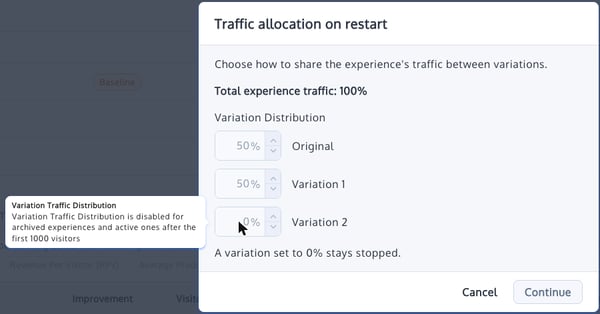
This matters when you restart. A stopped variation has a 0% share, and once the split is locked you can't give it a share again, so you can't restart it on its own. To change the split after that, clone the experience and start a new test (see below).
Get a Clean Comparison
If a clean comparison matters, clone the experience and start a new test instead of stopping and restarting variations. The original keeps its results, and the new test starts with its own traffic split and its own report. See How to Clone an Experiment?.