
THIS ARTICLE WILL HELP YOU:
- Understand how the check works
- Know what each status means
- Check a website
- Know what the check can't do
- Fix a status that looks wrong
Overview
The Active Websites section of your project configuration shows whether Convert can find your tracking code on each website you list. Next to each website you see a status icon. Click the icon to see what the check found and what you can do next.
How the Verification Works
Convert opens your page and checks that the Convert tracking script starts running.
- Convert opens the page from its own servers, in a browser with no window, as a visitor who isn't signed in. The browser identifies itself as "Convert.com tracking code checker."
- The page has to answer with a success status. A 401 or 403 answer counts as blocked, and any other error status counts as a failed check.
- After the page loads, Convert waits about five seconds for the tracking script to start.
- If the script started, the status is Tracking code installed. If the page loaded but the script didn't start, the status is Tracking code not found.
Convert runs the check when:
- You click the refresh icon at the end of a website's row.
- You click Check again in the status popover.
- You change the URL of a saved website. Convert saves it and then checks the new URL.
- Someone who can edit websites opens an experience's Report or Summary page, or the project's Experiences list, for a page on that website. This check runs in the background. If it doesn't find the code, you see a banner that says "Don't forget to install your project code into the header of your experience/goals pages."
Status Indicators and What They Mean
Each website shows one of four statuses. Click the icon inside the website's field to open the popover. It shows the status, why Convert chose it, when Convert last checked, and the actions that fit.
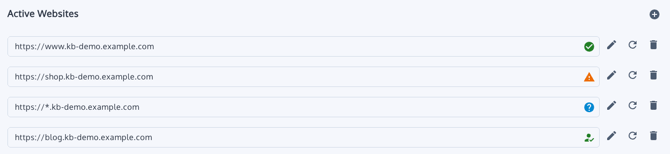
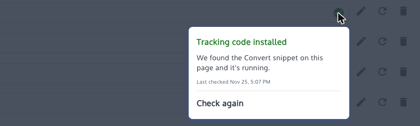
Tracking code installed (green check mark)
- The popover says: "We found the Convert snippet on this page and it's running." For a website where Convert has no stored check result but knows the code is installed, it says: "The convert tracking script is installed and working correctly on this website."
- Meaning: the tracking script started on your page during the check.
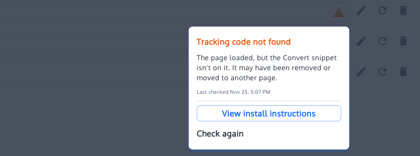
Tracking code not found (orange warning triangle)
- The popover says: "The page loaded, but the Convert snippet isn't on it. It may have been removed or moved to another page." If Convert has no check result yet, it says: "No Convert tracking script detected on this website. Install the script to track data."
- Meaning: the page loaded, but the tracking script didn't start. A missing snippet is one cause. An inactive account is another, even when the snippet is on the page. See Troubleshooting.
- Actions: View install instructions shows your project's tracking code. Check again runs the check once more.
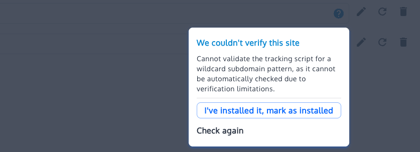
We couldn't verify this site (blue question mark)
- The check couldn't finish, so Convert doesn't know whether the code is there. The popover gives the reason, then adds: "This doesn't mean the code is missing, so the status hasn't changed."
- "Your site blocked our check." Your site answered with a 401 or 403 status.
- "Our check timed out before the page finished loading."
- "Something went wrong while checking this site." The page answered with another error status, or Convert couldn't open it.
- For a website with a wildcard in its URL, such as https://*.example.com, the popover says: "Cannot validate the tracking script for a wildcard subdomain pattern, as it cannot be automatically checked due to verification limitations."
- Actions: Check again, and I've installed it, mark as installed if you know the code is on your site.
Marked installed by you (green person icon)
- The popover says who confirmed the install and when, for example "Confirmed by <name> on <date>", and, if Convert has checked the site before, what its last automatic check found.
- Meaning: someone on your team confirmed the install by hand. A later automatic check that does or doesn't find the code replaces that confirmation.
📒Note: Check again, the refresh icon and I've installed it, mark as installed are for people who can edit websites: the Edit, Review, Publish, Administrative, Account Manager and Owner access levels. With Browse access you can read the status only.
How to Use It
- Open your project and click the Configuration tab.
- In the left menu, click Active Websites.
- To add a website, click the plus button at the top right and enter a fully qualified URL, for example https://www.example.com. Convert adds
https://if you leave it out. If the URL isn't valid, the field says "Please enter a valid URL". - Click the refresh icon at the end of the website's row. Its tooltip says: "Click to check if the Active Website has tracking script installed".
- Click the status icon inside the field to read the result.
- After you fix something on your site, open the popover again and click Check again.
Important Notes
- Convert checks the exact page URL you saved for the website. If you saved a URL with a path, it checks that page.
- Wildcard websites, such as https://*.example.com, can be saved but not checked. They show "We couldn't verify this site".
- Pages behind a login can't be verified, because Convert opens the page as a visitor who isn't signed in.
- If your firewall or bot protection blocks automated visitors, the check shows "Your site blocked our check." If you know the code is on your site, use I've installed it, mark as installed.
- The check waits about five seconds after the page loads. If a tag manager, a consent tool or a script loader starts Convert later than that, the check can say "Tracking code not found" although the script works for your visitors.
- Each website can only be checked a limited number of times per hour. If Convert says too many checks ran, wait and try again later.
Troubleshooting
The snippet is on your page, but the status says "Tracking code not found"
Check first that your Convert account is active. While your free trial has ended, or your subscription is canceled or paused, or your account is paused for going over quota, Convert doesn't deliver your project's configuration to your pages. The tracking script on your page can't start, so your experiences don't run and the check has nothing to find. The snippet can be exactly where it should be and the status still says "Tracking code not found".
- Look for the red banner at the top of the app: "Error: Your subscription is currently inactive. Some features may not work properly until you reactivate." Its Reactivate Now link opens your billing details. After a free trial ends, a second red banner says your free trial has expired, with a Click to Upgrade your Account link. You can also open Name & Billing in your account settings. See Where Do I Find My Billing Details?.
- Find your case in the table and follow it.
- Go back to Active Websites, click the status icon, then click Check again.
| If this is your case | Do this |
|---|---|
| Your free trial ended | Reactivate your account from Name & Billing. The banner's Reactivate Now link opens it. If you need more trial time, contact support. |
| Your subscription is canceled | Reactivate your subscription by selecting a plan in Name & Billing. |
| Your subscription is paused | Reactivate it with the banner's Reactivate Now link or from Name & Billing. |
| Your account is paused for going over quota | The red banner doesn't appear for this case. Allow/Disable Over Quota Usage explains how over-quota pausing works, how to allow over-quota usage, and when to upgrade. |
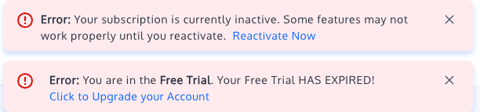
⚠️ Important: The red banner appears only on main accounts, and only for canceled, paused and expired-trial accounts. If you don't see it, your account can still be inactive, so check Name & Billing. If the status doesn't change after you reactivate, contact support.
The account is active, and the status says "Tracking code not found"
- Click View install instructions and compare your project's tracking code with the snippet on your page.
- Make sure the snippet is in the
<head>section of the exact page you saved for the website. See How to Install the Main Tag. - If you load Convert through a tag manager, a consent tool or a script loader, make sure it starts Convert within a few seconds of the page loading.
The status says "We couldn't verify this site"
- Your site blocked our check: your firewall or bot protection turned the check away, or the page needs a login, which Convert can't verify. If you know the code is there, use I've installed it, mark as installed.
- The check timed out: the page took too long to load. Try again, and look at what slows the page down.
- Something went wrong: open the saved URL in a private browser window. If the page shows an error, fix the URL or the page, then click Check again.
- Wildcard website: Convert can't check wildcard URLs. If the code is installed, click I've installed it, mark as installed.
The field says "Please enter a valid URL"
- Use a full web address such as https://www.example.com.