
THIS ARTICLE WILL HELP YOU:
- Find Your Billing Details
- Update Billing Details and Invoice Emails
- Change Your Payment Method
- Change Your Plan or Add-ons
- View and Download Invoices
- Cancel Your Subscription
- Reactivate a Canceled Subscription
Find Your Billing Details
Click your account name at the top right of the app and choose Account Settings. It opens on the Name & Billing tab.
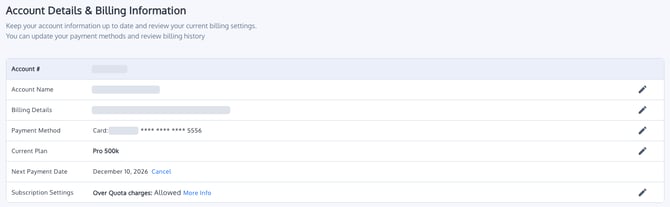
Each row covers one part of your billing:
- Account #: your account number. Have it handy when you contact support.
- Account Name: click the pencil icon to rename the account.
- Billing Details: the company details we use on your invoices.
- Payment Method: your card, shown with the cardholder name and last four digits, or another payment type.
- Current Plan: the plan you're on. During the free trial, it also shows how many days are left.
- Add-ons: your add-ons and their quantities. This row only appears if you have add-ons.
- Next Payment Date: the date of your next payment, with the link to cancel or reactivate.
- Subscription Settings: whether over-quota charges are allowed. Click the pencil icon to change it. See Allow/Disable Over Quota Usage.
Only the account owner and collaborators with the Account Manager access level can open Name & Billing. If you can't open it, ask your account owner.
Update Billing Details and Invoice Emails
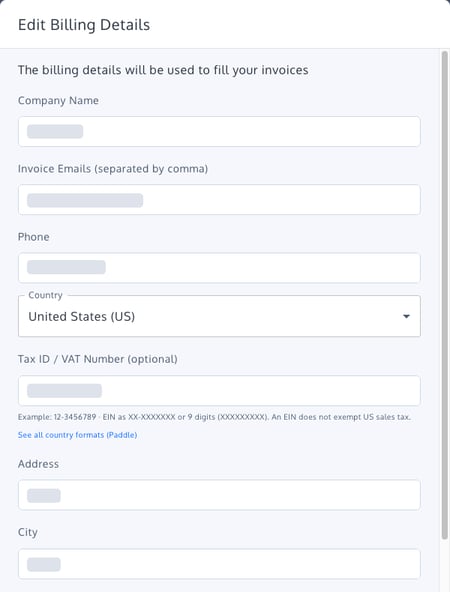
Click the pencil icon in the Billing Details row. In Edit Billing Details, fill in:
- Company Name, Phone and your address: Country, Address, City, State / Province / Region and Zip / Postal Code.
- Invoice Emails: the addresses that should get your invoices. Separate them with commas.
- Tax ID / VAT Number (optional): it appears on your invoices and is used for tax exemption where it applies. Once you choose your country, the field shows an example of the format.
Click Save Changes. Your invoices use these details.
Change Your Payment Method
Click the pencil icon in the Payment Method row to update your payment method, or the add icon if none is saved. If your billing address is missing its country or ZIP/postal code, the app asks you to complete it first.
If you pay by invoice or wire transfer, the row has no edit icon. Contact support to change how you pay.
Change Your Plan or Add-ons
Click the pencil icon in the Current Plan or Add-ons row. Both take you to the Plans tab, where you choose your plan and add-ons. See How Do I Upgrade My Subscription? and How Do I Save Money by Switching to Yearly Billing?
View and Download Invoices
If you see a Manage Billing link below the table, click it to open your billing portal, where you can view and download your invoices. If there's no such link, contact support and we'll help you get your invoices.
Only the account owner and collaborators with the Account Manager access level see the Manage Billing link, because only they can open Name & Billing. Collaborators with any other access level, including Administrative, don't see it. Ask your account owner or an Account Manager to download the invoice for you.
Invoices are also sent to the addresses in the Invoice Emails field (see Update Billing Details and Invoice Emails). The Manage Billing link doesn't show on sub-accounts.
Cancel Your Subscription
How you cancel depends on what the Next Payment Date row shows.
If you see Cancel
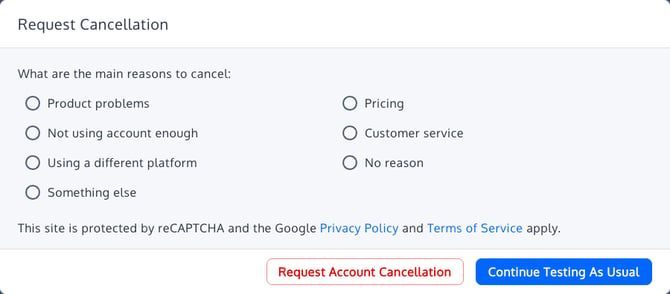
- Click Cancel.
- If you have more than one plan or add-on, select what you want to cancel.
- Choose your main reason for canceling. If you choose Something else, tell us more in the text box.
- Click Request Account Cancellation.
When you cancel everything, your plan stays active until the end of the current billing period. Until then, the row reads This plan will cancel with the end date, and you can still reactivate.
On the free trial with no payment method saved, clicking Cancel shows a message instead of the form: you don't need to cancel, because the trial ends on its own.
If you see Contact Support to Cancel Subscription
Our support team cancels yearly plans. Click the link to open a chat with a cancellation message already filled in, then send it. You can also hover over the icon next to your plan name and click Contact Support.
If you see neither link
You can't cancel this plan from this page. Contact support to cancel.
Reactivate a Canceled Subscription
While a cancellation is pending, the row reads This plan will cancel and shows Reactivate. Click it to keep your plan. If no payment method is saved, the app asks you to add one.
After your plan has ended, the row reads Account canceled on and can still show Reactivate. Click it and add a payment method to restart your plan. If there's no Reactivate link, choose a plan on the Plans tab.