
THIS ARTICLE WILL HELP YOU:
- Know what the QA Overlay is
- See what you can do with it
- Check what you need
- Open the overlay from the QA link
- Use the panel
- Use each tab
- Know what the overlay can't check
- Fix common overlay problems
What the QA Overlay Is
In Convert Experiences, the QA Overlay is a panel that opens on top of your own website so you can test experiences there. It lists the experiences, variations and goals on the page, lets you turn experiences and variations on and off, and shows each goal as it fires. It works with Draft, Scheduled, Active, Paused and Completed experiences, and your test visits don't count in your reports.
For the full QA process, from the first preview to launch, see the QA Guide.
What You Can Do with the QA Overlay
- See what runs on the page: the Current View tab lists the experiences, variations and goals running on the page, and the tracking script's status.
- Choose what runs: in the QA Experience tab you turn experiences on or off and pick a variation for each one. Only the experiences you turn on run during your QA session.
- Test goals: trigger goals on the page and see each one fire in Live Logs.
Keep in mind:
- The overlay ignores audience rules, so you don't need to match them. An experience still runs only on pages its location covers.
- Nothing you do in the overlay is sent to your report. To check that visits and conversions reach the report, use a normal visit with a QA audience (see the QA Guide).
- The session stays with you as you move between pages in the same browser tab.
What You Need
Prerequisites
- The current tracking script. The QA Overlay doesn't open with the Legacy tracking script, and projects on the Legacy script don't get the QA Overlay tab in the Preview window. See Migrate from the Legacy Tracking Script to the New Tracking Script. The overlay appears only once the tracking script is running on the page, so it can't tell you whether the script is installed. To check that, use Tracking Script Installation Verification.
- A QA link. You get it from the QA Overlay tab of the experience's Preview window (see Open the Overlay from the QA Link). Collaborators with Browse or Review access see the tab locked, with the note "This feature is not available with your current access level." The tab isn't available for Archived experiences.
- Convert Experience Tools (optional). The QA Overlay doesn't need the Convert Experience Tools Chrome extension. With version 1.11.0 or later, the extension adds QA helpers such as automatic Incognito launching, Convert QA cookie controls, User-Agent overrides and more debugging options. See Chrome Debugger Extension For Convert Experiences.
Open the Overlay from the QA Link
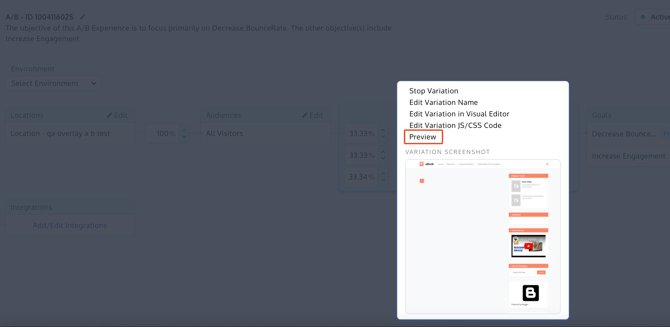
- On the experience's Summary page, open the ⋯ menu next to the variation you want to check and choose Preview.
- Go to the QA Overlay tab. On projects that use the current tracking script, the window opens on this tab.
- If your site moves between sub-domains, for example from
domain.comtocheckout.domain.com, tick Allow cross-domain navigation. - Copy the link or open it in a new window. With Convert Experience Tools installed, you can also open it in a new Incognito window. To test on a phone, scan the QR code with it.
- Your page opens with that variation turned on. Click the gear icon on the page to open the panel if it isn't open yet.
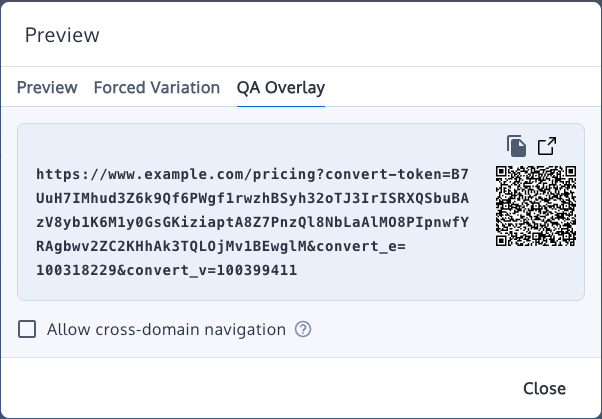
The QA link is valid for 24 hours. After that, the QA Overlay tab says "This QA Overlay link has expired"; click Get a new link. For how the QA link differs from the Preview and Forced Variation links, and which one to use for each experience status, see Previewing Your Variations in Any URL.
📒Note: If you open your site in another tab and the overlay isn't there, open the QA link again in that tab. With Allow cross-domain navigation ticked, the session isn't limited to the tab, so end it with the exit button in the panel (see Use the Panel).
Use the Panel
The QA Overlay sits on top of your page:
- Click the gear icon to open the panel, and the X in its top-right corner to hide it again.
- Drag the panel by its top bar to move it, and drag its edges to resize it. On a phone, it fills most of the screen; hide it with the X to see your page.
- The panel remembers where you left it, its size, and whether it was open.
Welcome screen
The first time you open the panel in a browser tab, it shows Welcome to Convert Experiences QA with the line "This QA Overlay includes all active, scheduled, paused and draft experiments." In Chrome it also tells you whether Convert Experience Tools is installed and turned on. If the extension is on but doesn't list your domain yet, Click here adds it. Click Start to open the tabs: Current View, QA Experience and Live Logs.

Reload messages
- After you turn an experience or variation on or off, a yellow bar says "Your recent changes require a page reload". Click reload now to see the page with your choices.
- If the experience or project changed in Convert since the page loaded, the bar says "There is a fresh experiment / project data available". Click reload now to load the change.
End a cross-domain session
When you opened the link with Allow cross-domain navigation, an exit button with the tooltip "Close current QA session" appears next to the tabs. Click it to end the QA session; the page reloads. Without cross-domain navigation, the session ends when you close the browser tab.
Using Each Tab in the QA Overlay
The panel has three tabs. Current View shows what runs on the page, QA Experience lets you change it and test goals, and Live Logs lists the goals that fired.
1. Current View Tab
This tab shows the page as it runs right now: "This is the page with all the experiences as current users see it." To change what runs, use the QA Experience tab. The tab has five sections:
- Project: the project name and its websites.
- Running Experiences: each experience running on the page, with its status, type and ID. Hover over the type icon to see the experience type.
- Running Variations: the variation you're in for each running experience, with its ID.
- Goals Tracked: the project's goals loaded on the page. The count shows how many belong to the running experiences. Goals that no running experience uses are marked [not tracked], and goals that fired are marked [triggered].
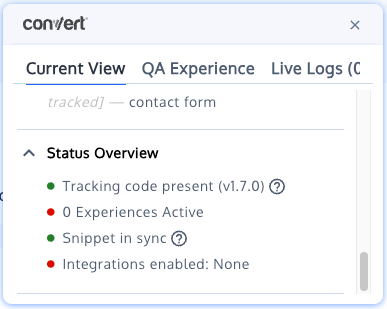
- Status Overview: the tracking script status, the number of experiences active on the page, Snippet in sync, and Integrations enabled, which shows the project's Google Analytics or Kissmetrics integration, or None.
Tracking script status
The first line of Status Overview shows one of three states:
- Tracking code present (green), with the script version: the current tracking script is running on this page.
- Tracking present but blocked (red): the script runs, but it can't send tracking events. Hover over the help icon to see the reason.
- Legacy tracking script (red), with an upgrade recommendation: the page runs an older tracking script. Upgrade it for full QA Overlay support.
A known limitation
Tracking code present only tells you about the page you're on. The overlay can only appear once the tracking script runs, so it can't show you a page where the script is missing. To check your installation, use Tracking Script Installation Verification and Check if Convert Experiences Is Installed Correctly.
Tracking Events Are Blocked
When the tracking script reports that it can't send tracking events, the overlay opens a window titled "Warning: Tracking Events are Blocked". Its Possible reason line shows a code:
cookies_consent: your site told Convert to wait for cookie consent. Accept your consent banner and reload. See Convert Consent Capabilities.cookies_blocked: the browser blocks cookies on this page, so Convert doesn't run experiences. Allow cookies for your site, or use a browser window that allows them.network_error: a request from the tracking script to Convert failed, for example because an ad blocker or a network filter stopped it. Turn the blocker off for your site and reload.
Important Note on Goals in QA Overlay
The overlay only shows goals that the tracking script loads on your page. When no Active or Scheduled experience uses a goal, Convert stops loading it after the period set in Do not track unused goals after in your project's configuration (30 days by default):
- With a QA link, goals of Draft experiences still load, so they appear in the overlay.
- Goals used only by Paused or Completed experiences don't load once that period has passed, so they don't appear.
- A goal loads again once an Active or Scheduled experience uses it, or if you lengthen that period or turn it off.
2. QA Experience Tab
The QA Experience tab is where you choose what runs on the page and test goals. Only the experiences you turn on here run during your QA session.
Find experiences
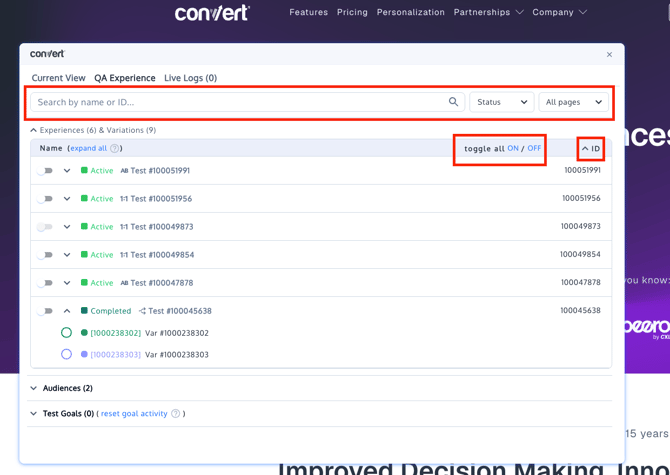
The bar at the top filters the list:
- Search by name or ID... finds experiences by name or ID.
- Status shows only the statuses you tick: Active, Paused, Completed, Scheduled or Draft, each with its count.
- All pages, On this page or Not on this page filters by whether the experience's location covers the current page.
- The X next to the filters clears them.
Turn experiences and variations on or off
- Experiences & Variations lists each experience with a switch, its status, type, name and ID. Click a column header to sort by name or ID.
- Use the switch to turn an experience on or off. Turning it on selects its first variation.
- Click the arrow or the name to show the experience's variations, then pick one with its radio button. One variation runs per experience. expand all and collapse all show or hide the variations of every experience.
- toggle all ON or OFF turns on or off every experience whose location covers the current page.
- If an experience's location doesn't cover the page, its switch is greyed out with the note "This experience cannot be enabled with the current page URL: location mismatch". Go to a page the location covers.
- After each change, click reload now in the yellow bar to see the result.
Audiences and pages
- Audiences lists the audiences your experiences use, with their IDs. The overlay ignores audience rules, so you can't test audiences here; use a QA audience on a normal visit instead (see the QA Guide).
- Pages appears when the project has multi-page experiences. It lists each multi-page experience with its page URLs. Click a URL to open that page in your QA session.
Test goals
- Test Goals lists the goals of the experiences running on the page.
- Do what should trigger a goal on your page. When it fires, the goal is marked [triggered] and appears in Live Logs.
- To fire a goal by hand, open its ⋯ menu and click Trigger. Use it to confirm that the goal is attached to the experience. To test what triggers the goal on your page, do the action yourself.
- reset goal activity clears the goal log and starts again as a new visitor.
✒️Tip: Each status has its own color in the list, so you can tell Draft, Paused, Scheduled, Active and Completed experiences apart at a glance.
3. Live Logs Tab
The Live Logs tab lists every goal that fired in your QA session, newest first. The number in the tab name is the count of entries. Each entry shows:
- Time (GMT) and the Event, Goal Triggered.
- The Variation, Project, Experience and Goal, each with its ID.
Click reset goal activity to clear the log and start again as a new visitor.

📒Note: Live Logs shows goal triggers only. To see the tracking script's full log, turn on Convert Experience Tools and open your browser's console. See Chrome Debugger Extension For Convert Experiences.
What the QA Overlay Can't Check
The QA Overlay helps you test experiences, variations and goals once the Convert tracking script runs on the page. It can't:
- Find a page where the tracking script is missing or never loads.
- Test audience rules, because it ignores them.
- Show visits and conversions in your report, because it doesn't send them.
- Open inside an iframe, so you won't see it inside the Visual Editor.
For installation checks, use Tracking Script Installation Verification. For audiences and the report, follow Stages 2 and 3 of the QA Guide.
Fix Common QA Overlay Problems
The overlay doesn't appear
- The page runs the Legacy tracking script, or the tracking script isn't on that page.
- The QA link is more than 24 hours old. Get a new link from the QA Overlay tab.
- You opened your site in another tab. Open the QA link again in that tab.
- Look for a gear icon on the page: the panel may be hidden.
An experience can't be turned on
Its location doesn't cover the page you're on. Go to a page the location covers, or check the location's rules.
A goal is missing
It may not be attached to any experience running on the page, or it may have stopped loading because no Active or Scheduled experience uses it. See Important Note on Goals in QA Overlay.
Your latest change in Convert doesn't show
Reload the page. When the panel says "There is a fresh experiment / project data available", click reload now.