
THIS ARTICLE WILL HELP YOU:
- How to test multi-page Experiments
-
Choose the right preview method for Active, Scheduled, Draft, or Paused experiences
- Troubleshoot issues when previewing variations
- Tips for better previewing
How to test multi-page Experiments
With multi-page experiments, you can create a variation that can be applied to a set of pages with a similar HTML structure. This guide also explains how to avoid common previewing issues related to location-based experiments (e.g. /products/*) and how to resolve them.
Before putting live a multi-page experiment you may want to test your variations, not just on the web page that you included when creating the experiment, but on other pages included on it.
You can preview any variation of an experiment on any web page of that experiment. The only requirement is that the URL of that web page be included in the "Location" of the experiment that you are testing. Make sure the page URL is part of the "Location" of the experiment, or the variation will not load properly.
To perform the preview, you would have to add some parameters to the URL of the web page that you want to test the variation on.
The parameters would be: "?convert_action=convert_vpreview&convert_e=experiment_id&convert_v=variation_id"
Where we need to replace the experiment_id with our experiment id, and variation_id with our actual variation id. You can find out how to find that id in this other article.
For example, We may want to create an experiment in which we change the same menu that is shared by the whole site. This is possible with Convert Experiments.
Let’s say, that we want to preview the variation on the URL http://mydomain.com/webpage.html.
So if our experiment id was XXXXX and our variation id was YYYYY, then the URL we would need to load to preview the experiment, would be:

http://mydomain.com/webpage.html?convert_action=convert_vpreview&convert_e=XXXXX&convert_v=YYYYY
Which Preview Link Should I Use?
On the experience's Summary page, open the ⋯ menu next to a variation and choose Preview. The Preview window has three tabs, and each one gives you a different link:
- Preview (
convert_action=convert_vpreview): shows the variation even if the page doesn't meet the experience's location and audience rules. It covers the page you open; the preview may stop when you go to another page. - Forced Variation (
_conv_eforce): forces the variation on a normal visit, so the location and audience rules still apply. See Quick Force Link below. - QA Overlay (
convert-token): opens the page with the QA Overlay panel instead of a plain preview, and keeps it as you move around your site. On projects that use the current tracking script, the Preview window opens on this tab, so check which tab you copy the link from. See QA Link below.
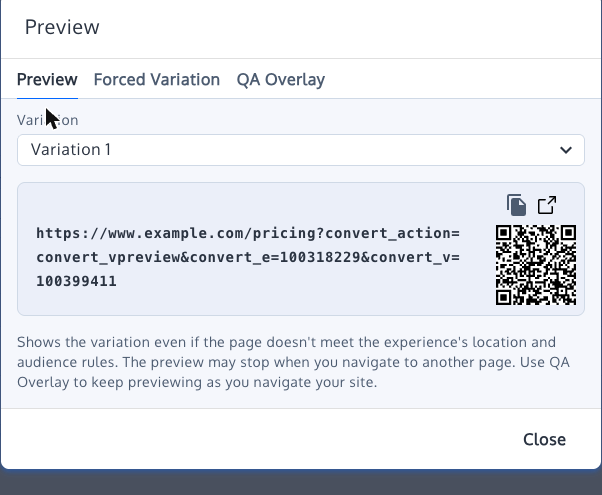
All three links open the experience's Experience URL, or for a multi-page experience the page you pick in the window. If a link opens your homepage or a page you didn't expect, check the Experience URL. With the QA Overlay link you can also go from there to the page you want to check. Changing the Experience URL only changes where previews and the Visual Editor open. Which pages visitors see the experience on is set by its locations, so changing it doesn't fix a variation that looks different on your live site.
Choose the link by the experience's status and what you want to check:
Quick Force Link (_conv_eforce)
A Quick Force Link is useful when you want to force a particular variation on an experience that is already Active or Scheduled.
Example:
https://www.example.com/?_conv_eforce=EXPERIMENT_ID.VARIATION_ID
Keep the following in mind:
- Quick Force Links work only for Active and Scheduled experiences.
- They do not work for Draft or Paused experiences.
- They stop working when the project reaches its own tested-visitors limit (Max. Project's Tested Visitors in Project Configuration, when it's set above 0), because the configuration served after that contains only Deploys. They also stop while the account is paused for going over its quota; see Allow or Stop Over-Quota Charges in Convert.
- A Quick Force Link only chooses the variation. The experience's location and audience rules, and its location trigger, still apply, so the variation shows only on a page that meets them. To check a variation on a page that doesn't match the locations, use the preview link described above. A QA link skips only the audience rules.
QA Link (convert-token)
The QA link is the one on the QA Overlay tab. It opens the page with the QA Overlay panel, where you check variations, goals and logs (see QA Overlay Widget User Guide). It ignores the experience's audience rules, but the page still has to match its locations. On a page outside them, the QA Overlay shows that the experience can't be enabled because of a location mismatch; use the Preview link to check a page outside the locations. The page needs the current tracking script; you can't use this tab on projects with the Legacy script or for Archived experiences.
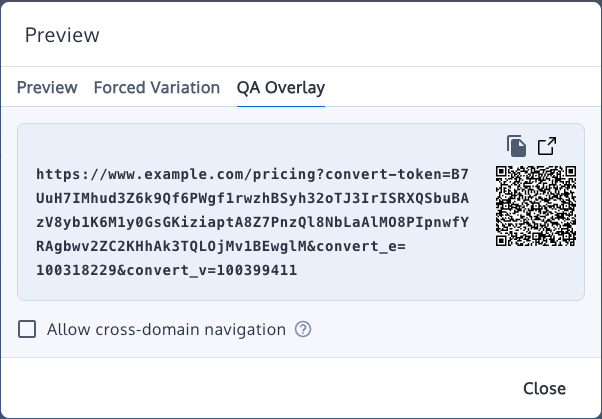
Use the QA link when you need to preview experiences that are not currently live, including Draft or Paused experiences. The preview link described above also works for Draft and Paused experiences, for a single page, unless your site's Content Security Policy blocks it (see Content Security Policy and Preview Links below).
QA links also continue to work when a project has reached its own tested-visitors limit.
A QA link:
- Works with Draft and Paused experiences
- Works for projects that have reached their tested-visitors limit
- Remains valid for 24 hours. After that, the QA Overlay tab says "This QA Overlay link has expired" and offers Get a new link.
- Is shared at the Project level
Because of these differences, if a preview does not show your changes, first confirm that you are using the correct type of link for the current status of the experience.
Previewing Across Multiple Domains
If your site moves between sub-domains during the test, for example from domain.com to checkout.domain.com, tick Allow cross-domain navigation on the QA Overlay tab before you copy the link. It adds multi-domain=true to the QA link; it has no effect on the other two links. The QA session then isn't limited to the browser tab, so end it with the exit button in the QA Overlay panel. QA Overlay may not stay open when you move to an entirely different domain.
Cloned Experiences Need a New Preview Link
If you clone an experience, generate a new preview or QA link for the cloned experience.
Do not reuse the link from the original experience, because the clone has its own experience and variation identifiers.
Common Issue: Variations Not Appearing on Intended Pages
In some setups, when previewing experiments that target multiple pages (e.g. /products/*), the preview may incorrectly open on the homepage or another unrelated page. Additionally, the variation query parameters may be lost during navigation, resulting in the variation not being applied as expected.
Why This Happens:
This usually occurs when the "Experience URL"—which defines the entry point for both the Visual Editor and the preview link—is set to a generic page like the homepage. If this entry point does not reflect the actual page(s) being targeted by the experiment (e.g. a specific product page), the preview behavior may be inconsistent.
Solution:
Set the Experience URL to a specific page that falls within the experiment’s targeting rules. For example, if your location targets /products/*, ensure that the URL used in the Visual Editor and the preview reflects an actual product page within that path. This ensures:
-
The preview opens on the intended page
-
Query parameters are preserved
-
The variation is correctly applied and visible
Content Security Policy and Preview Links
If your website enforces a Content Security Policy (CSP) and script-src does not allow 'unsafe-eval', preview links for experiences that are not live may fail to display the variation.
This limitation affects previewing non-live experiences; it does not affect visitors viewing an Active experience normally.
To allow these preview links to work, add 'unsafe-eval' to the site's script-src CSP directive for the QA environment.
Review this change with your security team before modifying your site's CSP.
Tips for Better Previewing
- Always use a URL within the Site Area scope.
- Ensure the full variation preview URL is copied and used.
- Use a Quick Force Link for Active or Scheduled experiences when you want to force a particular variation.
- Use the QA link for Draft or Paused experiences, or when the project has reached its tested-visitors limit.
- Generate a new preview link after cloning an experience.
- Add
multi-domain=trueif the preview needs to persist across domains. - If the variation still does not appear, check whether your site's CSP is blocking
'unsafe-eval'. - For mobile previewing, log into your Convert account on your mobile device and paste the preview URL directly.
- Be aware of screen overlays on mobile. The QA overlay may take up significant space.