
THIS ARTICLE WILL HELP YOU:
- How Convert records revenue
- What the Currency Symbol setting does
- Report revenue in one currency
- Currency in the Convert Shopify app
- Questions
How Convert Records Revenue
Convert adds up the revenue amounts that your tracking sends. An amount is a plain number. It has no currency attached, and Convert does not convert between currencies.
So if your site sends 100 for an order paid in US dollars and 100 for an order paid in euros, the report counts 200. Revenue per Visitor (RPV) and Average Order Value (AOV) are calculated from the same plain numbers.
This is true for revenue you send with the manual revenue call (pushRevenue, see Add Revenue Tracking to Your Site) and the same applies to the JavaScript SDK. The Convert Shopify app can convert checkout amounts for you. See Currency in the Convert Shopify app.
What the Currency Symbol Setting Does
The Currency Symbol project setting is a label. It sets the symbol the app shows next to revenue amounts, for example on Revenue per Visitor charts and tables in the experience report and in Live Logs. It does not change, convert or round any amount.
To change it:
- Open your project and click the Configuration tab.
- Under General Settings, find Currency Symbol. The default is $.
- Enter the symbol you want. It is required and can be up to 10 characters.
- Click Apply and Save Changes.
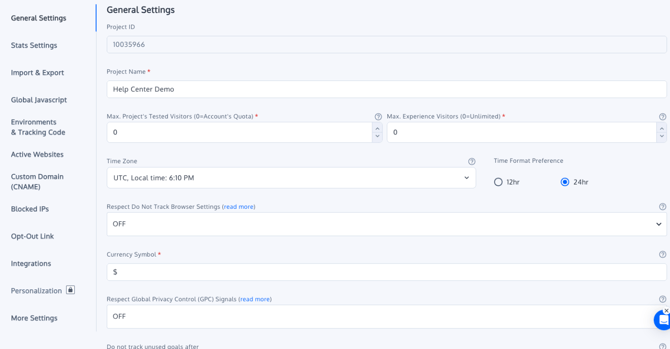
The symbol belongs to the whole project, and the app applies it when it shows a report. Changing it relabels the amounts in every experience of the project, past and future. Set it to match the currency your revenue is sent in. For example, if you send euros, enter €.
To change it you need permission to edit the project. See Project Configuration for the other settings on this page.
📒Note: Entering € does not turn dollar amounts into euros. It only changes the symbol shown.
Report Revenue in One Currency
If you sell in more than one currency, send every amount in the same currency and set the Currency Symbol to match. Otherwise the report adds amounts in different currencies as if they were one.
- Shopify store: choose a currency in the Shopify app. See Currency in the Convert Shopify app.
- Any other site: convert the amount to your reporting currency in your own code before you send it.
If you limit order value outliers in Stats Settings, the Min Order Value and Max Order Value limits are compared with the amounts as sent, so enter them in the same currency. See Setting limits for Order Outliers.
Currency in the Convert Shopify App
In the Convert Shopify app, the Currency Selection dropdown on the Project Configuration tab sets the currency Convert reports checkout revenue in.
- If you choose a currency and a shopper checks out in a different one, the app converts the amount with Shopify’s exchange rates before it sends it to Convert.
- If it matches the shopper’s checkout currency, the amount is sent as is.
- Checkout revenue is the order subtotal, before shipping, duties and taxes.
- Subscription and non-subscription goals, if you mapped them, are converted the same way.
- If the app cannot load Shopify’s exchange rates when an order is recorded, it records that order’s amount unconverted.
Choose a currency here, even if your store sells in only one. If you choose your store’s own currency, amounts in that currency are sent as is. If your store sells in more than one currency, this is how you get one currency in your reports.
If you turn on the order webhook with the Setup Order Completed Webhook or not option on the same tab, it converts with the same rule.
Currency Selection does not change the project’s Currency Symbol. After you choose a currency, set the Currency Symbol under General Settings to match, as described above.
For the full app setup, see Integrate with Shopify through our Shopify Convert App.
Questions
Q: Does Convert convert revenue to my project currency?
- No. Convert reports the numbers it receives. The Convert Shopify app converts checkout amounts when you choose a Currency Selection.
Q: I changed the Currency Symbol and my revenue numbers did not change. Is that a problem?
- No. The setting only changes the symbol shown.
Q: My reports show $ but we sell in euros.
- The Currency Symbol is still the default $. Change it under Configuration > General Settings. If your store sells in more than one currency, also make sure every amount is sent in one currency.
Q: Is the revenue in my report the order total?
- For the Convert Shopify app, no. It is the order subtotal, before shipping, duties and taxes.