
THIS ARTICLE WILL HELP YOU:
- What is the Post-Segmentation feature?
- How to use the Post-Segmentation feature?
- Filter reports for a specific
utm_sourcevalue
What is the Post-Segmentation feature?
The Post Segment feature allows you to analyze experiment reports and results on basis of segments like browser used, device used, new v/s old visitors and so on.
Convert offers segmentation as part of all paid plans.
Advanced Post-segmentation feature includes all basic post-segmentation segments, plus segmentation by
- traffic source,
- continent, and
- custom segments.
How to use the Post-Segmentation feature?
After your experiment starts receiving traffic, you can analyze the experiment reports by clicking on the Add filter option.
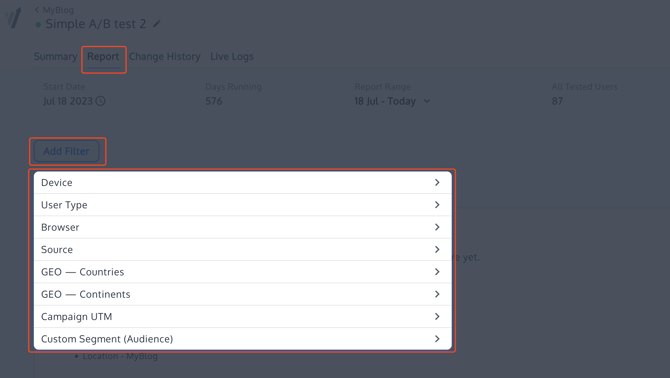
You can choose to either filter and analyze the results by a single segment or you can choose multiple filters to analyze results with a combination of segments.
When using the advanced post-segmentation filters, it is important to distinguish between Source, Campaign UTM, and Custom Segment:
- Source groups visitors into broad traffic-source categories: Campaign, Search, Referral, and Direct. It does not list individual
utm_sourcevalues such asgoogle,facebook, ornewsletter. - Campaign UTM lists campaign names captured for visitors.
- Custom Segment lists the segments saved in the current Convert project.
How to filter for a specific utm_source
If you want to analyze results for one particular utm_source value, do not use the Source filter.
Instead:
- Create an Audience with a UTM Source condition.
- Set the condition to the
utm_sourcevalue you want to analyze, for examplefacebook. - Save the Audience as a Segment.
- Open the experiment report and click Add filter.
- Select the saved segment from Custom Segment.
For example, if a visitor arrives through a URL containing utm_source=facebook, the Source filter will not show facebook as an option. To report specifically on those visitors, create a segment using the UTM Source condition and then filter the report using that saved segment.
⚠️ Important: when visitors qualify for a segment
Post-segmentation using a saved segment only classifies visitors who qualified for that segment before they were bucketed into the experience. A segment created or matched after a visitor has already been bucketed does not retroactively classify that visitor for this purpose.
Want to learn more about Post-segmentation feature? Get in touch with us to discuss more.