
THIS ARTICLE WILL HELP YOU:
What scheduling does
Scheduling starts an experience at a date and time you choose, for example the morning a sale begins. You can also give the schedule an end date, so the experience completes or pauses on its own.
Convert starts the experience for visitors at the scheduled time. Until then its status is Scheduled and visitors don't see it.
Schedule an experience
- Open the experience's Summary page.
- In the Status menu at the top right, choose Scheduled. Only a draft has this option. An experience that is already Active, Paused or Completed can't be scheduled to start or stop. To end a running experience on its own, see Setting an end date for running an experiment.
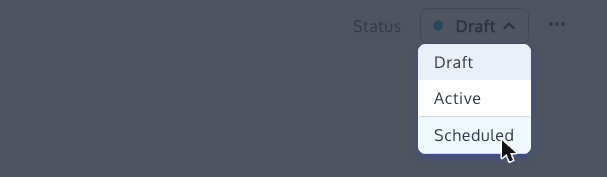
- Under Start Date, pick the day in the calendar and the time.
- To end the experience on a date as well, select Add End Date, pick the end day and time, and choose what happens When end date is reached: Complete experience or Pause experience.
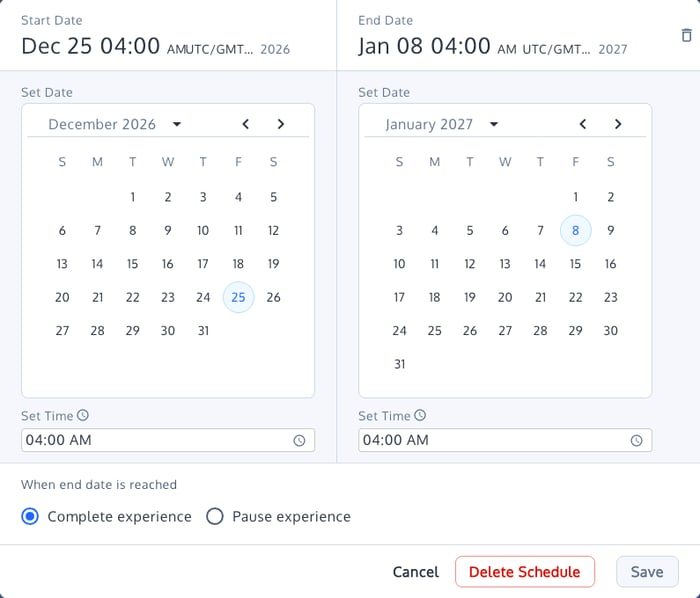
- Select Save.
When the end date is on a later day than the start, Convert turns it into a number of days: the calendar days from the start date to the end date. The experience ends that many days after it actually starts, at the time of day it started, so the end time you pick isn't used. For example, a schedule from November 26 at 03:30 to November 28 at 17:15 ends on November 28 at about 03:30. If you set the experience to Active before its scheduled start, the days count from that moment and the end date is cleared.
Before you can schedule, the experience needs the same things it needs to go live: at least one goal (Deploy experiences excepted), some traffic, room in your plan's quota, and for Full Stack projects, an environment. If something is missing, Convert shows a message and keeps the status unchanged.
Time zone and timing rules
- Dates and times are in your project's time zone, which the date picker shows next to the date. You set the zone under General Settings in Project Configuration.
- The start time must be at least one hour in the future. An end time must also be at least one hour in the future and later than the start time.
- The experience can start up to five minutes after the scheduled time while Convert processes it.
Save stays unavailable until the times follow these rules.
Change or delete a schedule
On the experience's Summary page, open the ⋯ menu next to the status and choose Edit Schedule. Change the dates and select Save.
To cancel the schedule, select Delete Schedule and confirm. The experience goes back to Draft and won't start until you schedule it again or set it to Active.
The end date sets the experience's Max Days for you, so while the experience is scheduled with an end date, Max Days in Stats & Settings is locked. Change the end date in the schedule instead. Setting an end date for running an experiment explains every way to end an experience automatically.