
| Author: | Roshan G N |
IN THIS ARTICLE YOU WILL:
- Get an Overview of the Feature
- Know Who can Use
- Understand What Version History Includes
- Know How to Access it
- Browse Previous Versions
- Compare Versions
- Understand Scroll-Lock
- Restore Previous Version
- Understand an Example
- Know Expected Behavior and Limitations
Overview
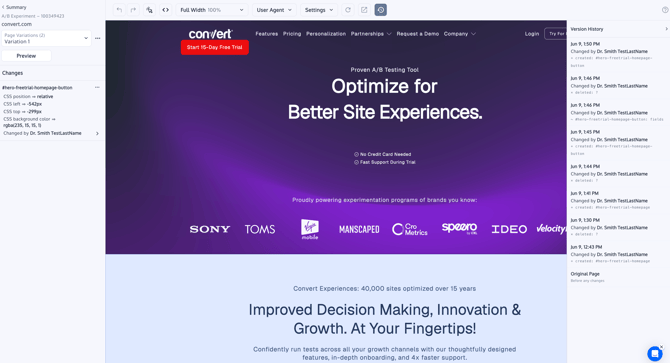
Version Control in the Visual Editor helps you review, compare, and restore previous saved versions of a variation while editing an experience in Convert.
This is useful when you are working on the some experience and you want to review what changed over time, or when you need to safely return a variation to an earlier design. The feature keeps a version history for each variation and shows the change made and when it was saved. Internal implementation notes confirm that users can view past versions per variation, see timestamp and editor attribution, restore a previous version, and receive a confirmation prompt before overwriting the current design.
Who can use Version Control?
Version Control in the Visual Editor is available for specific plans only. Please check Convert’s pricing page lists Versioning Roll-Out. If you do not see Version Control in your account and believe your plan should include it, contact Convert Support from inside your account.
What Version History Includes
Each saved version includes metadata to help you understand what happened before restoring or comparing it:
- Date and time the version was saved
- Editor name
- The saved state of the selected variation at that point in time
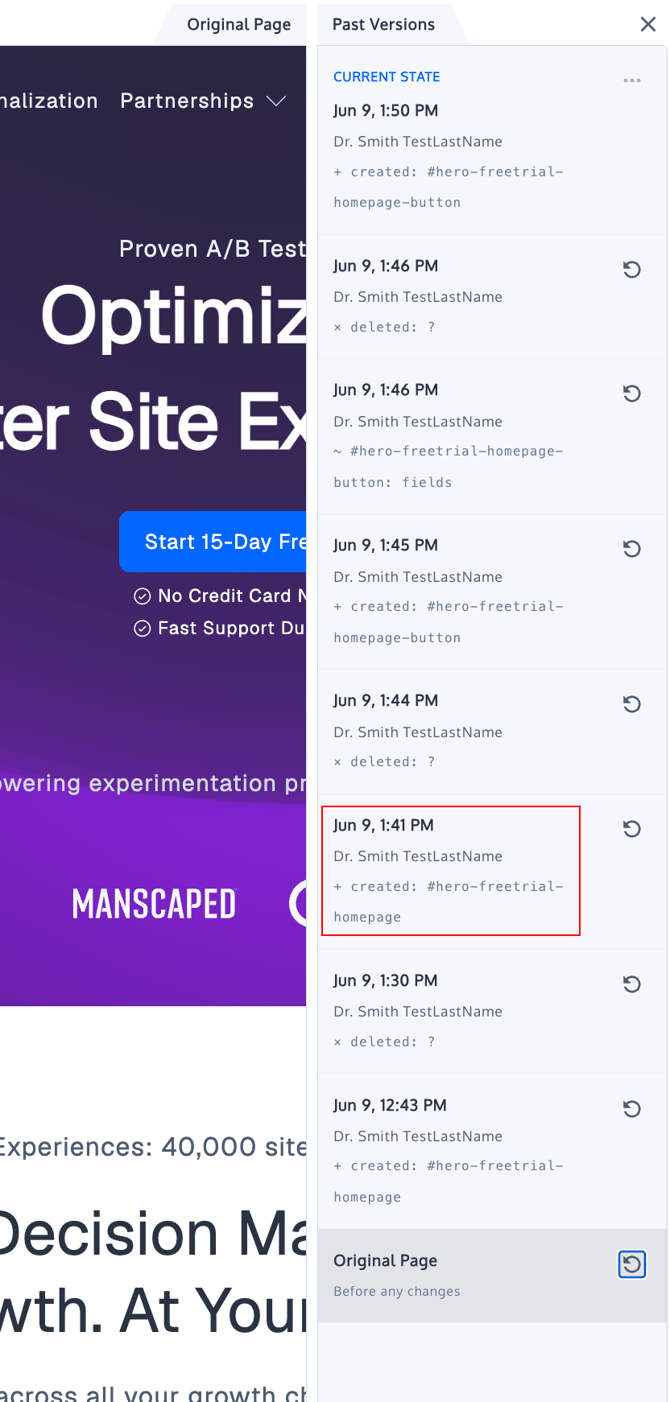
Version history is generated from the change history data that is also available on the Change History page of the experience. This means it has the saved changes made inside the Visual Editor, so you can review the evolution of a variation over time.
How to Access Version History
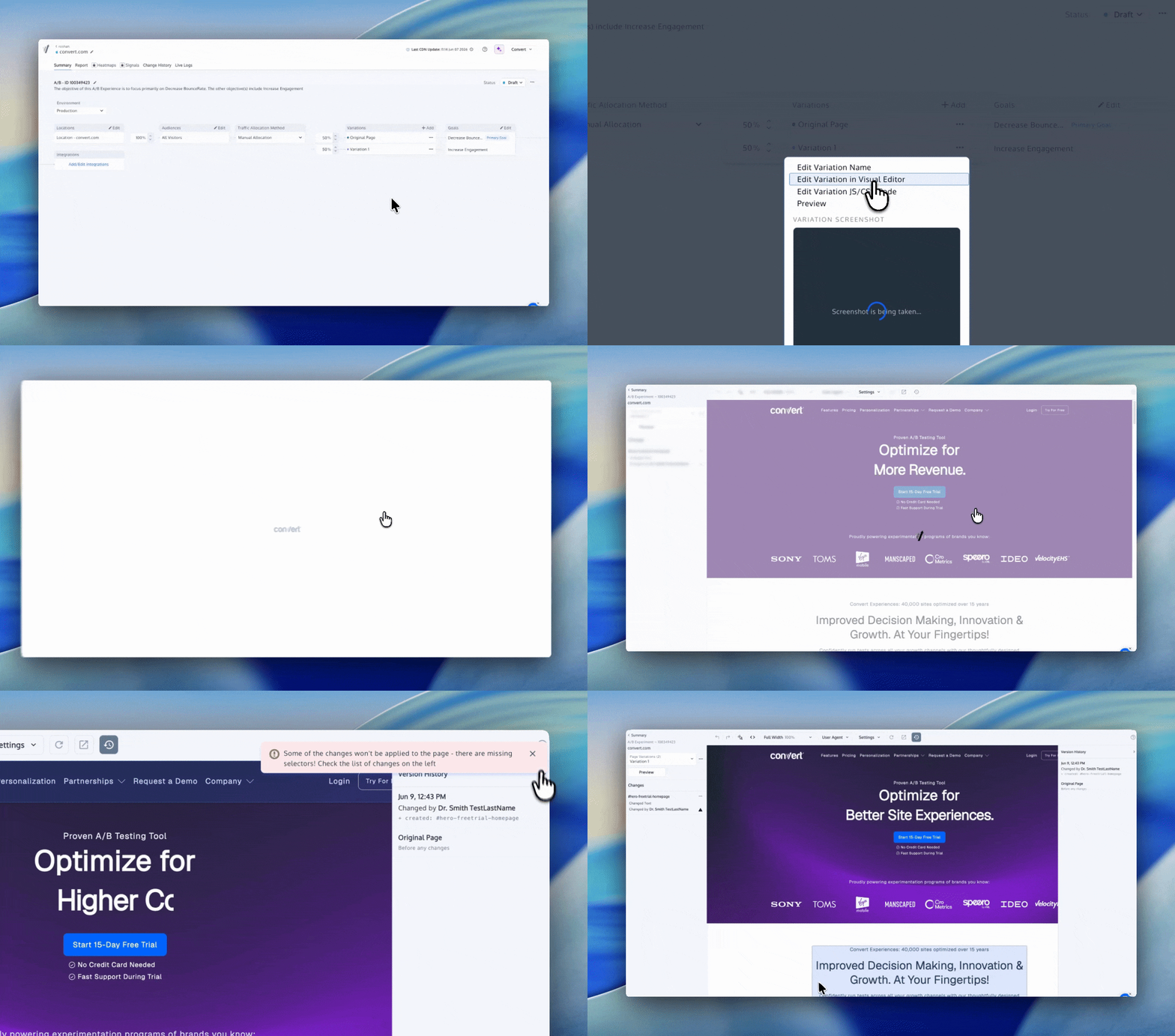
- Open your Convert experience.
- Open the variation in the Visual Editor.
- Open the Version History or Change History panel.
- Browse the list of previous versions.
Version history is shown in the context of the variation you are editing. If your experience has multiple variations, make sure you are viewing the correct variation before comparing or restoring.
Browse Previous Versions
Use the version list to move through previous saved states of the selected variation.
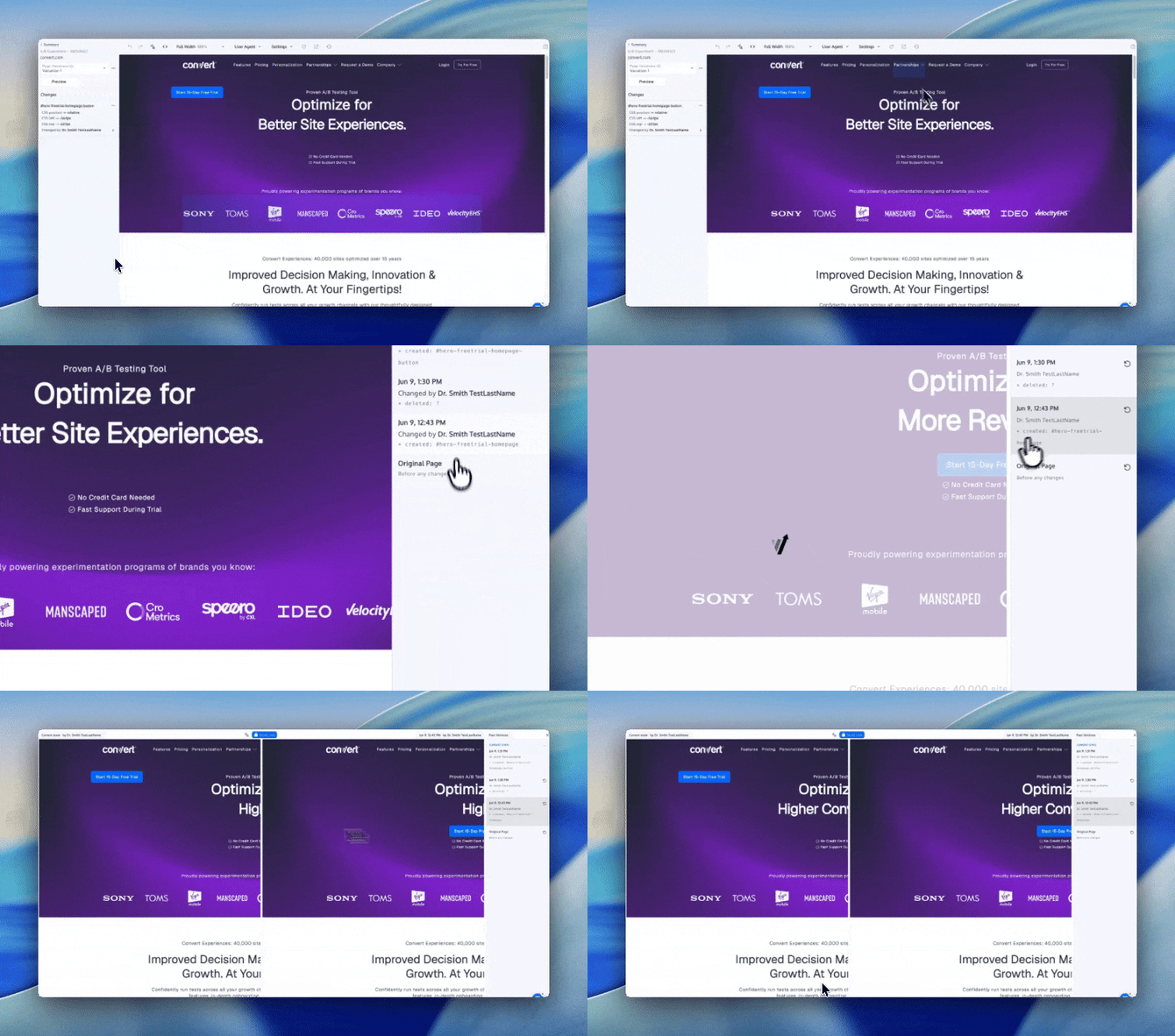
When you select a previous version, the Visual Editor displays that historical version for review. This lets you inspect the page visually without immediately restoring it.
The current version remains the active version unless you choose to restore a previous version.
Compare a previous version with the current version
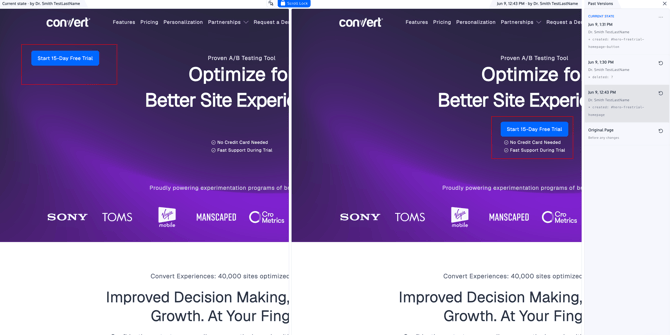
To compare a previous version against the current state:
- Open Version History.
- Select a previous version from the list.
- Review the selected version in the Version History popup window.
- Switch between the selected previous version and the current version as needed.
Comparison happens through selection-based viewing. In other words, selecting a previous version lets you view that version against the current state of the variation. This helps you understand what changed before deciding whether to restore.
Some changes may be highlighted or easier to identify visually depending on the type of change. For example, text, style, image, JavaScript, or CSS changes may be easier to compare than layout changes caused by removed elements.
Scroll-lock Behavior while Browsing Versions
When browsing previous versions, the Visual Editor may lock or coordinate scrolling between views.
This is expected behavior. Scroll-lock helps keep the selected previous version and the current version aligned while you review changes across the page. It is designed to make comparison easier, especially on long pages or when changes appear lower on the page.
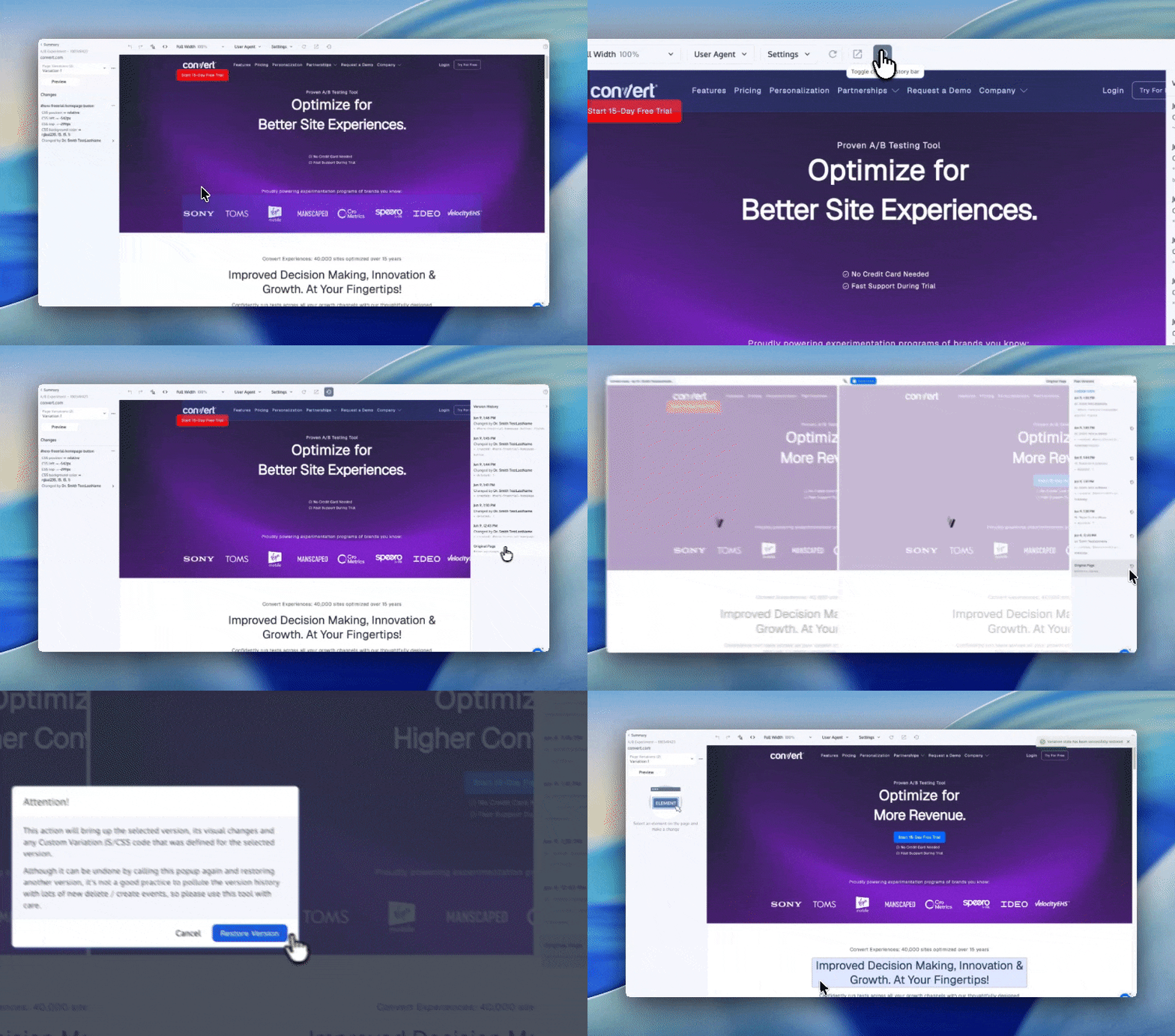
Restore a Previous Version
Restoring a previous version replaces the current visual design of the selected variation with the version you choose.
To restore:
- Open the variation in the Visual Editor.
- Open Version History.
- Select the previous version you want to restore.
- Click Restore button.
- Confirm the restore action when prompted.
After confirmation, the restored version is applied instantly. The restore action updates the selected variation but does not break the experiment setup. Your experience, variation structure, goals, locations, and other experiment configuration remain intact.
A confirmation prompt is shown before the restore is applied, so you can avoid accidentally overwriting the current design.
Example Restoration Workflow
Imagine you are editing a variation. You updated the hero text, while another changes the styling of a button. Later, you decide that the previous hero layout performed better during QA.
You can open Version History, select the version saved before the hero layout change, compare it with the current version, and restore it if needed. Once confirmed, the previous design is applied immediately to the selected variation.
After restoring, we recommend previewing or QA testing the variation before launching or resuming traffic. Convert’s QA documentation notes that Live Preview is useful while developing in the Visual Editor, while Force Variation URLs are better for final testing because they serve the variation closer to what a visitor experiences.
Expected Behavior and Limitations
Restore applies immediately
When you confirm a restore, the selected previous version is applied instantly to the variation. Review carefully before confirming.
Restore does not break experiment setup
Restoring a version changes the selected variation’s visual/editor state. It does not remove the experience, variation, goals, locations, audiences, or core experiment setup.
Comparison is selection-based
You compare versions by selecting a previous version and reviewing it against the current version. There may not be a separate side-by-side comparison screen in every workflow.
Version history is variation-specific
Version history is shown for the variation you are editing. If you switch variations, the available history may change.
Some visual differences may be easier to inspect than others
Text, styling, inserted images, CSS, and JavaScript edits are usually easier to identify. If an element was removed and no longer exists in the DOM, the Visual Editor may not always be able to show the exact previous position in the same way. Internal implementation discussion specifically notes that removed elements can be difficult to locate visually because the page layout may have changed.
Scroll-lock is intentional
When comparing or browsing versions, scroll-lock behavior is expected and helps keep the review context aligned. Note that this is an optional feature. You could manually disable this in the top toolbar.
Access depends on the plan
Version Control is available on Pro and Enterprise plans for customers on the March 2025 pricing structure or newer.