
IN THIS ARTICLE YOU WILL:
- What is Convert Intelligence?
- How to open Convert Intelligence
- What Convert Intelligence can help with
- Account scope and permissions
- Uploading documents
- Chat history
- Credit visibility
- Example prompts to try
- Best practices
- Troubleshooting
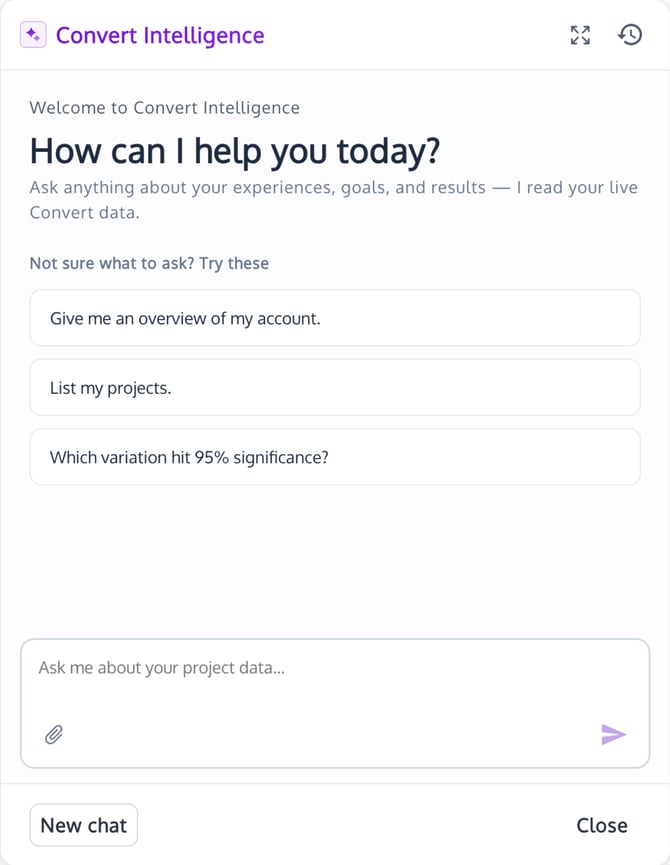
What is Convert Intelligence?
Convert Intelligence is your AI assistant inside the Convert app. It helps you use Convert faster by reading the page you are on, answering questions in plain language, and helping you take the next step.
You can use Convert Intelligence to:
- Analyze experience reports and explain performance.
- Help debug results, goals, audiences, and test setup.
- Create and edit experiences, goals, audiences, and locations through conversation.
- Answer questions using Convert’s documentation.
- Guide you through onboarding and creating your first experiment.
- Edit draft variations in the Visual Editor.
- Suggest CRO ideas, hypotheses, and next steps for future tests.
- Upload documents that add more context to your prompt.
Convert Intelligence is designed for non-technical users, so you can ask questions naturally. For example:
“Which variation hit 95% significance?”
“Create an A/B test for my pricing page.”
“Why is this report showing low conversions?”
“Give me a hypothesis for improving product-page engagement.”
How to open Convert Intelligence
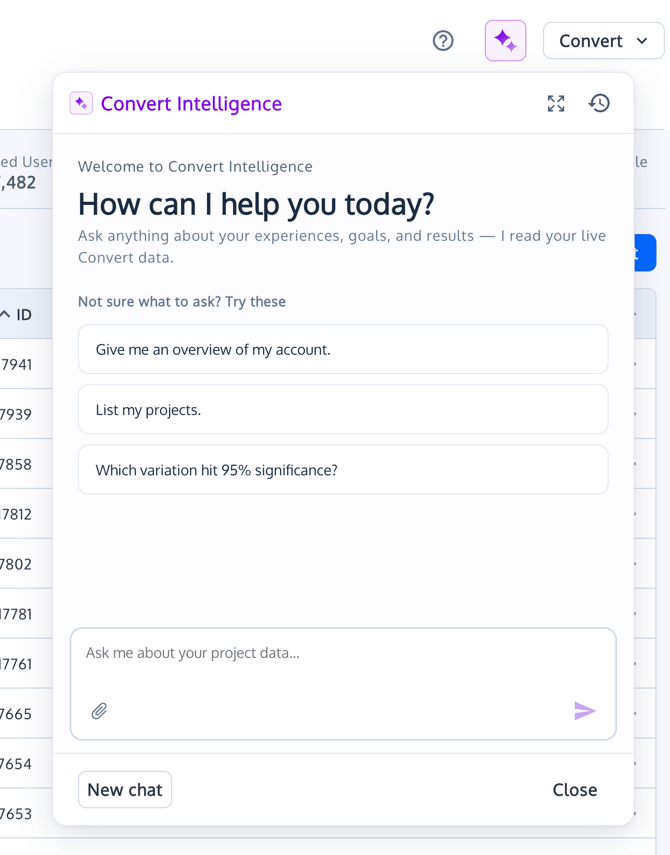
You can open Convert Intelligence from the purple Convert Intelligence icon at the top of main Convert pages.
- Log in to Convert Experiences.
- Go to any main page, such as your project dashboard, Experience Summary, Report, Configuration, or Visual Editor.
- Click the Convert Intelligence icon in the top navigation.
- The chat panel opens on the right side of the screen.
- Type your question or choose one of the suggested prompts.

To close it, click Close at the bottom of the panel or use the close option in the expanded view.
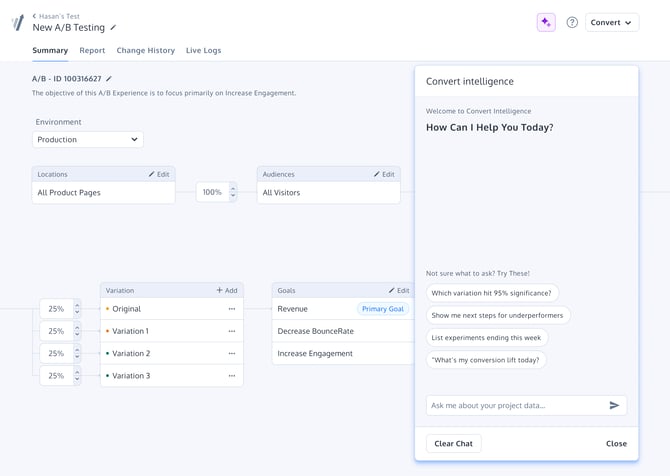
When closed, the chatbox is removed from the screen. You can open it again by clicking the Convert Intelligence icon. The assistant stays with you as you move around the app Convert Intelligence can stay open while you move between pages in Convert. This lets you ask a question on one screen, move to another screen, and continue the same conversation.
For example, you can ask about an experience from the Summary screen, open the Report tab, and continue asking questions about the same experience.
You stay in control with the propose-and-accept flow
Convert Intelligence can analyze data, look up information, and navigate instantly. When it needs to make a change in your account, it uses a propose-and-accept flow.
This means:
- The assistant can suggest or prepare a change.
- The change is shown in the Convert UI.
- You review what will be changed.
- The change is applied only after you accept it.
This keeps you in control. Convert Intelligence can help you move faster, but it should not replace your review of important experiment setup decisions.
Examples of changes that may require your approval include creating or editing an experience, changing a goal, updating an audience, modifying a location, or editing a draft variation.
What Convert Intelligence can help with
1. Read and debug reports
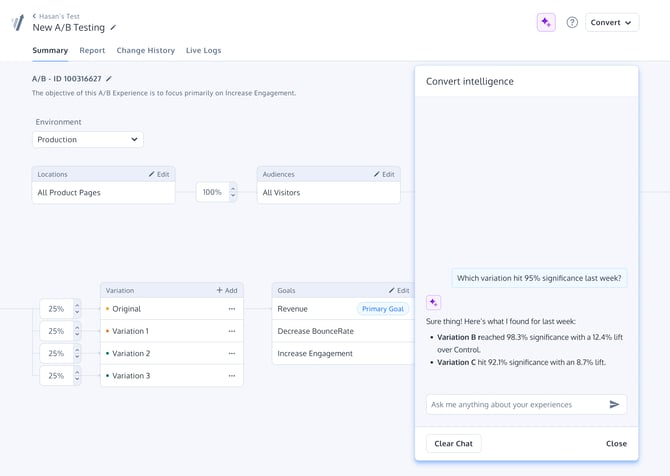
You can ask Convert Intelligence to explain report results, identify winning or underperforming variations, summarize lifts, and suggest what to do next.
Example prompts:
“Which variation hit 95% significance?”
“Why is Variation 2 underperforming?”
“Summarize this report for my team.”
“What should I check before declaring a winner?”
Convert Intelligence can help you understand whether a result looks promising, whether a test may need more time, or whether you should review goals, traffic allocation, or audience targeting.
2. Create an item by conversation
You can ask Convert Intelligence to help create or update Convert items such as:
- Experiences
- Goals
- Audiences
- Locations
Example prompts:
“Create an A/B test for the homepage hero section.”
“Create a goal for clicks on the pricing CTA.”
“Create an audience for returning visitors from paid search.”
“Set the location to all product pages.”
The assistant may ask follow-up questions if it needs more details, such as the project, page URL, goal type, audience rules, or traffic split.
3. Ask platform questions
Convert Intelligence can answer questions about how Convert works by using Convert’s documentation.
Example prompts:
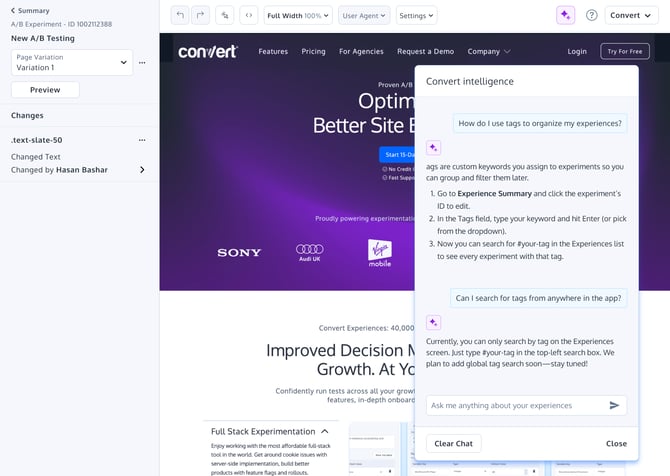
“How do I add tags to experiences?”
“How do I check if my tracking code is installed?”
“What is a traffic distribution?”
“How do I use goals in a report?”
This is useful when you are in the middle of setup and do not want to leave the app to search the knowledge base.
4. Get guided onboarding help
New users can ask Convert Intelligence to guide them through their first experiment.
Example prompts:
“Help me create my first A/B test.”
“What do I need before launching this experiment?”
“Walk me through setting up a goal.”
“What should I QA before starting this test?”
Convert Intelligence can help you understand what to configure next, including locations, audiences, variations, goals, traffic distribution, and report checks.
5. Edit draft variations in the Visual Editor
When you are working in the Visual Editor, Convert Intelligence can help you make changes to a draft variation.
Example prompts:
“Change this button text to Start Free Trial.”
“Make the headline shorter.”
“Add a trust message under the CTA.”
“Suggest a clearer version of this product-page copy.”
Any edit that affects your variation should be reviewed before you accept it.
6. Ask for CRO guidance and test ideas
Convert Intelligence can help you turn observations into test ideas and hypotheses.
Example prompts:
“Give me three hypotheses for improving checkout completion.”
“Suggest next steps for underperforming variations.”
“Create a hypothesis from this report.”
The assistant can suggest practical next steps so you always have a clear action to take after reviewing results.
Account scope and permissions
Convert Intelligence is scoped to your own Convert account. It cannot be used to access another customer’s account data.
The assistant also respects your existing role-based permissions. If your user role does not allow a certain action in Convert, Convert Intelligence should not be able to complete that action for you.
Uploading documents
You can attach a file to your prompt when you want Convert Intelligence to use extra context.
Use document upload when you want to share supporting information such as:
- A test brief
- Research notes
- A QA checklist
- A CRO strategy document
- A report export
- A screenshot or design reference
To upload a document:
- Open Convert Intelligence.
- Click the attachment icon in the message box.
- Select the file you want to attach.
- Confirm that the correct file is attached.
- Add your prompt and send the message.
To remove a file before sending:
- Find the attached file in the message composer.
- Click the remove option next to the file.
- Send your prompt after the file has been removed.
Maximum file size: 5 MB per file.
Supported file types: PDF, TXT, CSV, DOCX, Markdown and JSON.
Editorial note before publishing: please confirm the final supported file-type list in the live implementation before publishing this section.
Chat history
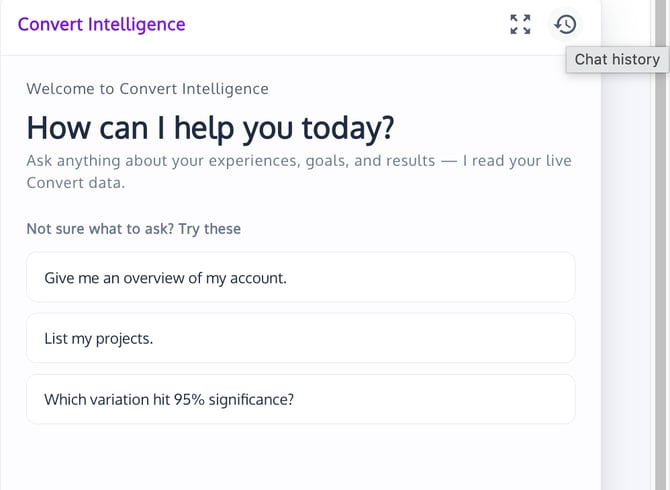
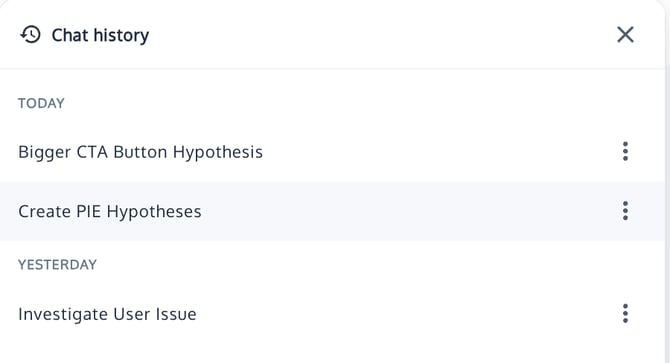
Convert Intelligence keeps chat history per account, so you can return to previous conversations later.
You can use chat history to:
- Revisit an earlier report explanation.
- Continue a setup conversation.
- Review previous recommendations.
- Start a new chat when you want a clean conversation.
To view chat history, open Convert Intelligence and use the history icon.
Credit visibility
Convert Intelligence may show credit usage or credit availability in the assistant interface, depending on your account setup.
Use credit visibility to understand how much assistant usage is available to your account. If you have questions about your plan or available usage, contact Convert Support.
Example prompts to try
Here are a few prompts you can try inside Convert Intelligence:
Reports and analysis
“Which variation hit 95% significance?”
“Summarize this report and tell me what to do next.”
“Show me underperforming variations.”
Setup and onboarding
“Help me create my first experiment.”
“Create a click goal for the main CTA.”
“What should I check before launching?”
Visual Editor
“Rewrite this headline to be clearer.”
“Change the CTA text to Start Free Trial.”
“Suggest a variation for this hero section.”
CRO strategy
“What should I test next?”
“Suggest next steps for underperformers.”
Best practices
Use Convert Intelligence as a working assistant, not as a replacement for your own review.
Before accepting changes, check:
- The correct project is selected.
- The correct experience is being edited.
- The correct location and audience are applied.
- Goals match what you want to measure.
- Draft variation changes look correct in preview.
- Any recommended action makes sense for your test strategy.
For best results, be specific in your prompts. Include the experience name, goal, page, audience, or time period when relevant.
Example:
“Summarize the Revenue goal performance for this experience over the last 14 days and suggest whether I should keep running it.”
Troubleshooting
I do not see the Convert Intelligence icon
Make sure you are logged into Convert and viewing a main Convert page. If the icon is still not visible, your account may not have access yet or your user role may not include the feature.
The assistant is taking time to respond
Some requests take longer because the assistant may be reading report data, checking setup details, or preparing a change. A loading state appears while Convert Intelligence is working.
The assistant cannot make a change
You may not have permission to make that change, or the change may require review before it can be applied. Check your user role or ask an account admin for help.
The assistant’s answer does not match what I expected
Try asking again with more detail. Include the experience name, project, goal, date range, audience, or page URL where possible.
Getting help
If Convert Intelligence cannot answer your question or you need help with your account, contact Convert Support.