
| Author: | Jacob Solis |
THIS ARTICLE WILL HELP YOU:
- Understand Convert CDN
- Know where to find CDN Update Indicator
- Learn how the CDN Update Works
- Locate Different CDN Status Types
- Know what Actions Trigger it
- QA
- Troubleshoot
Introduction
Convert serves your experiment configuration (experiences, goals, audiences, Javascript/CSS, etc.) from a global Content Delivery Network (CDN). The CDN hosts a “snippet” file that the tracking script downloads at page load.
Every time you make certain changes in a project (for example editing a variation, toggling an experience, or updating global JS), a new version of this snippet needs to be generated and pushed to the CDN. Until that update has finished, your latest changes will not be available to real visitors.
The CDN Update indicator in the project header makes this process visible, so you can quickly answer:
“Has my latest change already reached the CDN and gone live?”
Where to Find the CDN Update Indicator
You can see the CDN status for each project directly in its header.
- Go to Projects and open the project you’re working on.
- In the top-right of the project view (next to the help icon and account menu), you’ll see the CDN status text, such as:
- Last CDN Update: 11:15 Jan 27 2026
- or Next CDN Update: ~3 mins
- A small clock/info icon next to the label shows more details on hover (see below).
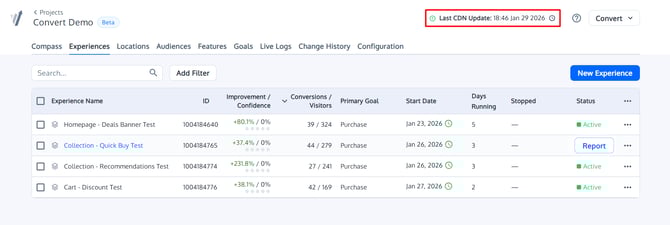
Example project header showing “Last CDN Update” with a green icon.
How CDN Updates Work (High Level)
- The Convert app stores all your project configurations.
- When you change something that affects what runs on your site (for example: turn an experience Active, edit variation code, change Global JS, modify locations/audiences/goals), Convert queues a new snippet build for that project.
- Once built, the snippet is uploaded to our CDN (Akamai) so it can be served quickly worldwide.
- Browsers then download this new version the next time they load your pages (subject to normal browser / intermediate caching).
Because building and propagating a new snippet takes time, you’ll sometimes see a short delay between saving a change in the UI and seeing it live on your site. The CDN indicator shows where you are in that process.
CDN Status Types Explained
The indicator can show three main states:
- Last CDN Update
- Next CDN Update
- Pending CDN Update
Each state is per-project. If you switch projects, you’ll see the status and timestamps for that specific project only.
1. Last CDN Update
What you’ll see
- Text label such as: Last CDN Update: 11:15 Jan 27 2026
- Green “success” icon.
What it means
- The most CDN publish for this project finished successfully.
- All snippet changes that were ready at that time are now live on the CDN.
- Any experiences, goals, or configuration edits saved before this timestamp are available to your visitors (assuming they match normal targeting conditions).
Timezones and hover details
- The time displayed next to the label uses the same format as other timestamps in the app.
When you hover the small clock/info icon you’ll see a tooltip with:- System (your computer) time
- Project time
- UTC time
This helps you line up the update with your own local time zone without guessing.
Typical workflow
- Make an update in the Visual Editor or Experience Summary.
- Wait until the indicator switches to “Last CDN Update” with a new, later timestamp.
- Then QA on a normal (non-editor) page load or with a Force Variation URL, knowing your changes have reached the CDN.
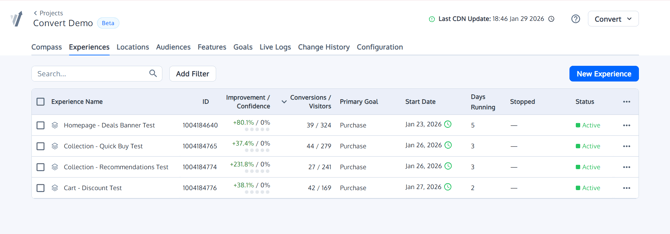
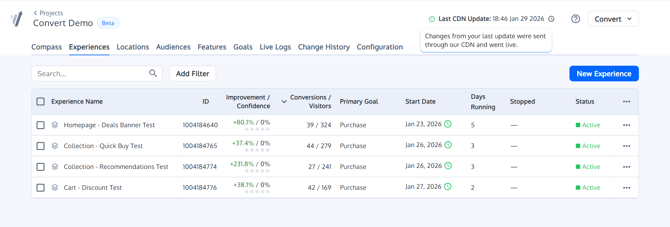
Hover tooltip for “Last CDN Update” showing system, project, and UTC times.
2. Next CDN Update
What you’ll see
- Text label such as: Next CDN Update: ~3 mins
- Orange “clock” icon.
What it means
- You have unpublished changes in this project that require a new snippet version.
- Convert has detected the changes and scheduled the next CDN publish.
- Your most recent edits are not yet live for regular visitors.
Once the publish completes, the status will switch to “Last CDN Update” with the new timestamp.
The tilde (~) indicates that the time is an estimate, not an exact countdown. CDN propagation and queues can introduce a bit of variance.
What to do while you see this state
- You can continue editing experiences, goals, or configuration; they will be included in the next snippet build.
- For “is it live yet?” questions, rely on the Last CDN Update timestamp. If it’s earlier than your last important change, that change is still in the queue.
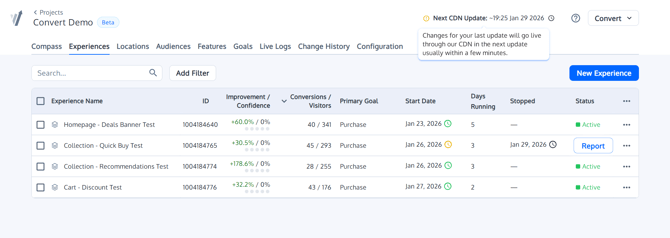
“Next CDN Update: ~3 mins” status indicating scheduled publishing of new changes.
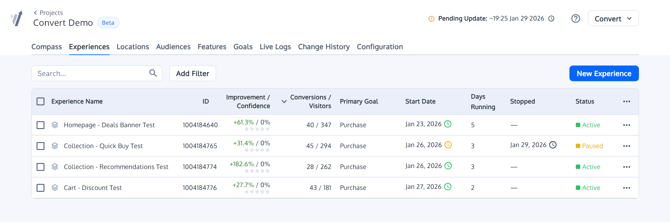
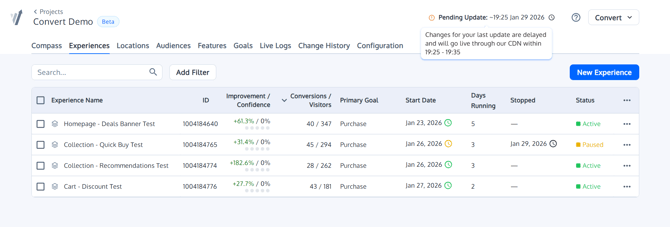
3. Pending CDN Update
What you’ll see
- Text label such as: Pending CDN Update
- Usually combined with a neutral or warning icon.
What it means
- The system has detected project changes that affect the snippet, and it is preparing them for publishing.
- This is the short state between “you changed something” and “we know exactly when the next CDN publish will run”.
- It should normally transition to “Next CDN Update” (with an approximate time) and finally to “Last CDN Update” once the process completes.
If “Pending CDN Update” seems stuck
- First, confirm you’re looking at the correct project.
- If the status stays on “Pending CDN Update” for an unusually long time and never moves to “Next” or “Last CDN Update”, please contact support so we can investigate the queue for your project.
Which Actions Trigger a CDN Update?
Most actions that change what runs on your live site will trigger a new snippet build, for example:
- Starting, pausing, or archiving an experience
- Editing variation HTML/CSS/JS
- Changing Global Experience JS or Project Global JS
- Modifying Locations, Audiences, or Goals that are attached to active experiences
Changes that are purely analytic or UI-only (for example, changing report filters or how data is viewed in the app) generally do not trigger a CDN update.
If in doubt, assume that anything which could alter what visitors see or how they are bucketed will require a CDN publish.
How the CDN Indicator Helps with QA
The CDN indicator is especially useful when:
- You save new variation code and don’t see it live yet.
- You are debugging “variation blink / no change” issues and want to rule out an outdated snippet.
You are coordinating with stakeholders and want to be sure the changes they’re checking are already on the CDN.
Best practices
- Use Preview / QA tools (QA Overlay, Live Preview, or Force Variation URLs) during drafting, but rely on “Last CDN Update” to confirm that published changes are actually available to normal traffic.
- If someone reports “I don’t see the change”, check:
- Is the experience Active and targeting their page/audience?
- Is the Last CDN Update timestamp later than the last time you edited that experience?
Are there any aggressive caches on your side (e.g. your own CDN, Cloudflare, server cache)?
Common Questions & Troubleshooting
Q1. My experience is Active but I still see the old page. What should I check?
- Confirm Last CDN Update shows a timestamp after your last edit. If it doesn’t, your changes are still preparing or queued.
- Ensure the experiment’s Locations and Audiences match the page and visitor you’re testing.
- Use a fresh incognito window without ad-blockers and try again, as existing cookies/segments may affect bucketing.
- Still facing issues, contact our Support team and we can check the issue for you.
Q2. Do I need to flush my own CDN or caches after a Convert CDN update?
- Convert’s snippet is hosted on our CDN, but your site may also use its own caches. In most setups, you do not have to clear your site’s cache for Convert changes, since the tracking code fetches our latest snippet directly from our CDN domain.
- If you have strict caching or proxy rules around third-party scripts, make sure *.convertexperiments.com requests are not cached too aggressively.
Q3. Does the CDN indicator affect how my experiments run?
- No. It is purely informational.
- Experiments run the same way as before; the indicator simply exposes when the underlying snippet file was last updated.
Summary
- Last CDN Update tells you when your snippet was last successfully published to the CDN.
- Next CDN Update appears when there are queued changes and shows an approximate time when the next publish will happen.
- Pending CDN Update is an intermediate state while we prepare the next publish.
- Use the indicator in the project header to confirm that your latest changes are live before QA or sharing results.