
| Author | Ahmed Abbas |
IN THIS ARTICLE YOU WILL:
- Get an Overview
- Know What This Feature Does and Does Not Do
- See How “Free” or Cheaper Shipping Tests Work
- Understand Requirements
- Quick Start
- Understand Advanced: Code-Based Configuration
- Test Your Setup
- Know Where to See Results
- Get Fallback and Safety Behavior
- Important Notes
- Troubleshoot
- Ready to Launch Checklist
- How to Get Help
Overview
Shipping A/B Testing lets eligible Shopify merchants test different shipping options at checkout without coding.
Use the Convert app UI to hide a pre-configured Shopify shipping rate for a selected experiment variation. Convert buckets visitors into your experiment variations, and the checkout shows the appropriate shipping options for each visitor.
For example, you can test whether showing only an “Economy” or “Free Shipping” option improves conversion compared with showing the usual “Standard” shipping option.
📒 Important:
Shipping Rules can only hide a shipping rate that already exists in Shopify. They do not create, discount, rename, reorder, raise, or set shipping prices.
What This Feature Does and Does Not Do
It can:
- Hide one pre-configured shipping rate for a non-control variation.
- Match a shipping rate by its exact checkout name.
- Keep at least one shipping option available.
- Fall back to normal Shopify shipping if anything goes wrong.
- Report results in standard Convert reporting.
It cannot:
- Create a new shipping rate.
- Discount a shipping rate.
- Set a shipping price.
- Raise a shipping price.
- Rename shipping rates.
- Reorder shipping rates.
Every shipping price a shopper sees must already exist in Shopify Admin → Settings → Shipping and delivery.
How “Free” or Cheaper Shipping Tests Work
Because Convert does not create or discount shipping rates, you must set up the rates you want to test in Shopify first.
Example: Test cheaper shipping for Variation 1
In Shopify, configure two shipping rates in the same shipping zone:
- Economy - $0 or a cheaper shipping rate
- Standard - your regular shipping rate
Then, in Convert:
- Control: no shipping rule, so shoppers see Shopify’s default shipping options.
- Variation 1: hide Standard, so shoppers only see Economy.
This creates the shopper experience of “cheaper shipping for Variation 1,” but the cheaper rate itself still comes from Shopify. Convert is only hiding the higher rate for the assigned variation.
Requirements
Before you start, make sure you have:
Shopify Plus or an otherwise eligible Shopify store
Shipping Rules use Shopify delivery customization functionality. This requires Shopify Plus account environment.
Convert app installed
The Convert app must be installed and connected to your Shopify store.
A Convert experiment with at least two variations
You need a Control plus at least one test variation. Shipping rules can only be added to non-control variations.
Pre-configured shipping rates in Shopify
This is the most important setup step.
Go to:
Shopify Admin → Settings → Shipping and delivery
Create the rates you want to test before adding rules in Convert.
You need at least two shipping rates in the shipping zone you are testing. If there is only one available rate and Convert tried to hide it, checkout would be left with no shipping option, so the hide action is skipped.
Permission to manage delivery customizations
The Convert app may ask you to grant the write_delivery_customizations permission. Approve this permission when prompted.
Optional: permission for rate-name suggestions
The app may also ask for read_shipping. This permission allows Convert to suggest configured Shopify rate names in the dropdown. If it is not granted, you can still enter the rate name manually.
Quick Start
Step 1: Create your shipping rates in Shopify
Go to:
Shopify Admin → Settings → Shipping and delivery
Create the shipping rates you want to test.
Example:
- Economy
- Standard
Make a note of the exact checkout names. Rate names are case-sensitive and spacing-sensitive.
Step 2: Open the Shipping Rules tab
Go to:
Shopify Admin → Apps → Convert → Shipping Rules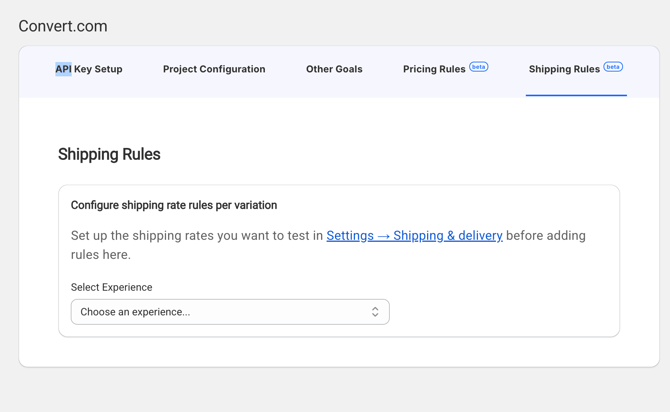
You may see one of these notices:
- Shopify Plus required: your store is not eligible for this feature.
- Grant permission: approve the requested delivery customization permission.
- No rates set up yet: add shipping rates in Shopify first.
Step 3: Select your experience
Use the Select Experience dropdown to choose the Convert experiment you want to use.
After selecting the experience, you will see one card per variation.
The Control card is locked and shows:
Default shipping — no changes
This is expected. The Control always uses Shopify’s default shipping behavior.
Step 4: Configure a test variation
On a non-control variation card:
- Set Operation to Hide a rate.
- Under Rate to hide, select the Shopify shipping rate you want to hide.
- Save the rule.
Example:
- Variation 1
- Operation: Hide a rate
- Rate to hide: Standard
Visitors assigned to Variation 1 will not see the Standard shipping rate at checkout, as long as another rate remains available.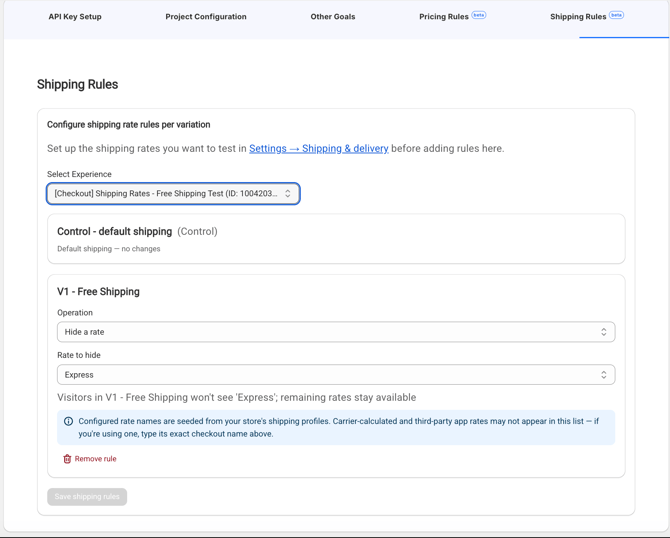
Step 5: Save your rules
Click Save shipping rules.
Once saved, Convert writes the shipping rule to the selected variation and enables the shipping test behavior for visitors assigned to that variation.
If you remove all shipping rules and save, the shipping test is turned off and your store returns to default Shopify shipping for everyone.
Advanced: Code-Based Configuration
Most merchants should use the UI method above.
Developers can also add shipping rules directly in the Convert variation JavaScript.
Add this code in the Variation JS for the variation where the rate should be hidden:
convertShopify.addShippingRules(
 convertContext,
 {
   hide: [
     {
       match: {
         byTitle: "Standard"
       }
     }
   ]
 }
);
Replace "Standard" with the exact checkout name of the shipping rate to hide.
Use the runtime-provided convertContext. Do not hardcode the experience ID or variation ID.
Testing Your Setup
Use this quick QA flow before launching broadly.
- Make sure the selected variation has a saved shipping rule.
- Confirm the shipping zone you are testing has at least two rates.
- Open your store in a fresh incognito/private browser window.
- Add a product to cart.
- Go to checkout.
- Enter an address that belongs to the shipping zone you are testing.
- Check the shipping method step.
Expected behavior:
- Control visitor: sees Shopify’s default shipping options.
- Test variation visitor: does not see the hidden rate.
- Checkout still has at least one available shipping option.
- No discount line appears, because this feature does not create discounts.
To test a specific variation, you can use Convert’s standard QA and force-variation methods.
Where to See Results
Shipping experiment results appear in your standard Convert experiment reports.
No new tracking code, pixel, goal type, or reporting dashboard is required. Bucketing and checkout funnel events continue to flow through the existing Convert Shopify web pixel setup.
Fallback and Safety Behavior
Shipping Rules are designed to fail safely.
If a visitor has no valid shipping assignment, if the rule cannot be read, if the configured rate is missing, or if anything fails during checkout evaluation, Shopify’s default shipping options are shown.
Convert also never hides every shipping option in a delivery group. At least one rate will always remain available, so checkout does not break.
Important Notes
Rate names must match exactly
Shipping rates are matched by checkout title.
For example:
- Standard
- standard
- Standard Shipping
- “Standard “
These are treated as different names. Use the dropdown when possible to avoid typos.
Carrier-calculated and third-party app rates
Carrier-calculated rates and rates created by third-party shipping apps may not appear in the picker.
If a rate is not listed, choose the custom/manual option and enter the exact rate name as it appears at checkout.
Multi-location or split-shipment orders
If Shopify splits an order into multiple shipping groups, the same rate name may appear more than once. When the match is ambiguous, Convert skips the hide rule for that rate instead of risking hiding the wrong option.
Control cannot be edited
The Control variation always keeps default Shopify shipping. Add shipping rules only to test variations.
Troubleshooting
The rate is not being hidden
Check the following:
- The rate name matches the checkout rate name exactly.
- The cart and address you are testing actually show that rate at checkout.
- The shipping zone has at least two available rates.
- The visitor is bucketed into the variation that has the shipping rule.
- The rule was saved in Shopify Admin → Apps → Convert → Shipping Rules.
I only see a locked Control row
The selected experiment may only have a Control variation. Add a test variation in Convert, then return to the Shipping Rules tab.
No rate-name suggestions appear
Grant the optional read_shipping permission if prompted. This lets Convert suggest configured Shopify rate names.
You can still enter a rate manually if the permission is not granted.
My carrier or third-party shipping rate is missing from the dropdown
Choose the manual/custom option and type the rate name exactly as it appears at checkout.
I saved rules, but checkout still shows every rate
Try the following:
- Reload the Shipping Rules tab.
- Re-grant the delivery customization permission if prompted.
- Confirm the shipping rule still appears under the correct variation.
- Retest in a fresh incognito/private browser window.
- Confirm the selected address belongs to the same shipping zone where the rates exist.
Saving says shipping will be turned off
This message appears when there are no saved shipping rules. Add at least one rule before saving if you want the shipping test to stay active.
Ready to Launch?
Use this checklist before starting the test:
- Shipping rates are configured in Shopify.
- At least two rates exist in the test shipping zone.
- A Convert experiment with Control and at least one variation exists.
- A rule is saved on a non-control variation.
- The hidden rate name matches the Shopify checkout rate name exactly.
- Checkout has been tested for Control and variation behavior.
- Results will be reviewed in standard Convert reporting.
Need Help?
If the shipping rule does not behave as expected, contact Convert support with:
- Store URL
- Experience ID
- Variation ID
- Shipping rate name you are trying to hide
- Test checkout address or shipping zone
- Screenshot of Shopify shipping rates
- Screenshot of the Convert Shipping Rules setup
- Screenshot or screen recording of checkout behavior