
| Author: | George F. Crewe |
THIS ARTICLE WILL HELP YOU:
- Get an Introduction
- Understand the Actions That Can Require Approval
- Know the Configuration for Approval Rules
- Choose Reviewers
- Set the Rule Scope
- Submit an Approval Request
- Review an Approval Request
- Know What Happens After Approval
- Know What Happens After Rejection
- Understand Who Is Required to Request Approval
- Understand Self-Approval Safeguards
- Get Notifications
- Know Approval and Experience Statuses
- Know Approval History
- With Common Questions
- Know about Availability of the Feature
Introduction
The Request Approval System adds a structured review step before selected actions can be applied to an experience.
It is designed for agencies and multi-stakeholder teams that need a second pair of eyes before an experience goes live, is paused, or is changed while active.
The Request Approval System is available as a beta on Convert Pro and Enterprise plans. It is optional and does not affect an account until at least one approval rule is enabled.
Actions That Can Require Approval
Approval is configured separately for three protected actions.
Activate experience
Requires approval when a covered user attempts to activate an experience.
This rule also covers scheduling. A scheduled experience eventually activates automatically, so scheduling without approval would otherwise bypass the activation rule.
Pause experience
Requires approval when a covered user attempts to pause an active experience.
Modify active experience
Requires approval when a covered user attempts to change an active experience.
Depending on the area being edited, this may include changes to:
- Experience details, such as its name, description, or URL
- Goals
- Audiences
- Locations
- Variations
- Experience or variation traffic allocation
- Integrations
Each protected action creates its own approval request. One approval is used for one action and does not provide unrestricted permission to make additional changes.
Configure Approval Rules
Approval rules are configured at the account level.
- Open Account Settings.
- Select the Approval Configuration tab.
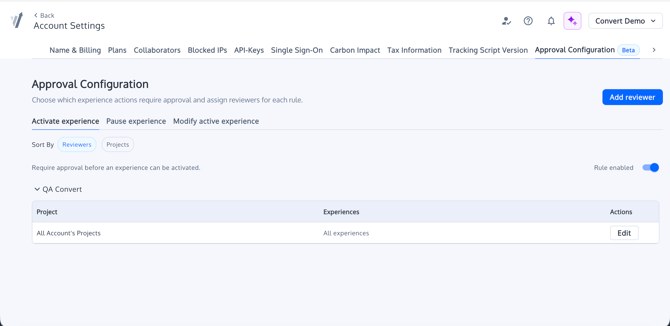
- Choose one of the available rules:
- Enable the rule.
- Assign one or more reviewers.
- Choose where the rule applies.
- Save the rule.
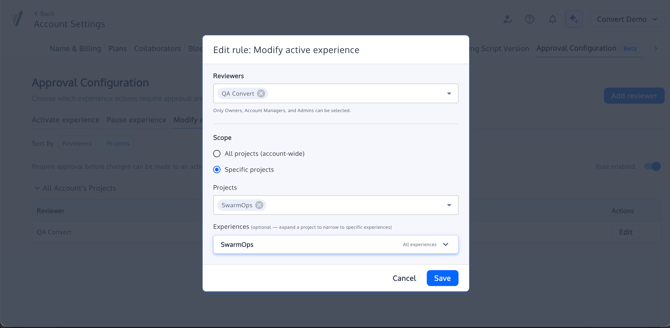
Each rule is independent. For example, you can require approval before activation without requiring approval before pausing.
The configuration is stored per rule, so every rule can have its own reviewers and scope.
Choose Reviewers
Reviewers are assigned separately for each approval rule.
Only users with one of the following roles can be selected:
- Owner
- Account Manager
- Admin
A collaborator cannot be added as a reviewer.
Adding more than one reviewer is recommended when reviewers may also perform restricted actions. This allows another reviewer to act on the request while preventing self-approval.
📒 Note:
Emails are only delivered to reviewers. If an account owner of manager is not added as reviewer, they wont get the email about pending requests. They could always see all requests on dashboard.
Set the Rule Scope
A rule can apply at any of the following levels.
Account-wide
The rule applies to all projects and experiences in the account.
Specific projects
The rule applies only to the selected projects.
Specific experiences
After selecting a project, the rule can be narrowed further to selected experiences within that project.
This allows different teams or projects to use different levels of control without requiring the approval workflow everywhere in the account.
Submit an Approval Request
When a covered user attempts an action protected by an enabled rule, Convert blocks the action and opens the approval-request flow.
To submit a request:
- Attempt the restricted action.
- Review the action displayed in the approval modal.
- Add any available context or note.
- Submit the request.
The request is created with the status Pending.
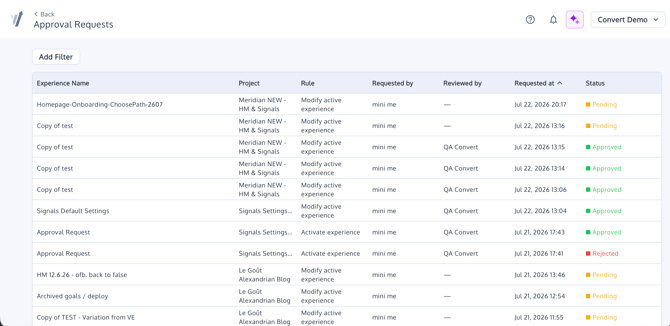
The experience remains in its current status, and the attempted action is not applied while the request is waiting for review.
Examples include:
- Selecting Active
- Scheduling an experience
- Selecting Paused
- Saving a protected change to an active experience
Review an Approval Request
Reviewers can manage approval requests from the Requests view.
Where available, an experience may also show an Approval Requests control. Notification links can open the related experience with its approval requests displayed.
To review a request:
- Open Requests.
- Select the pending request.
- Review:
- Who submitted it
- Which experience it relates to
- The requested action
- Any supplied context
- Select Approve or Reject.
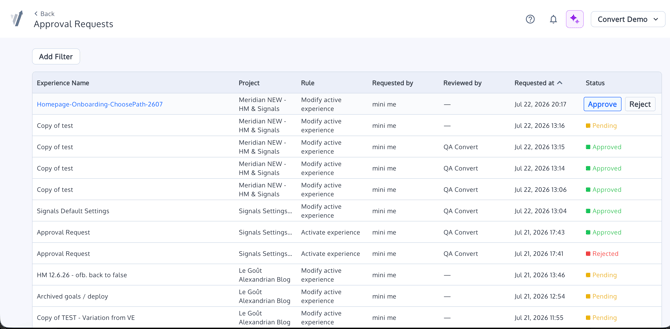
A reviewer can include an optional reason when rejecting a request.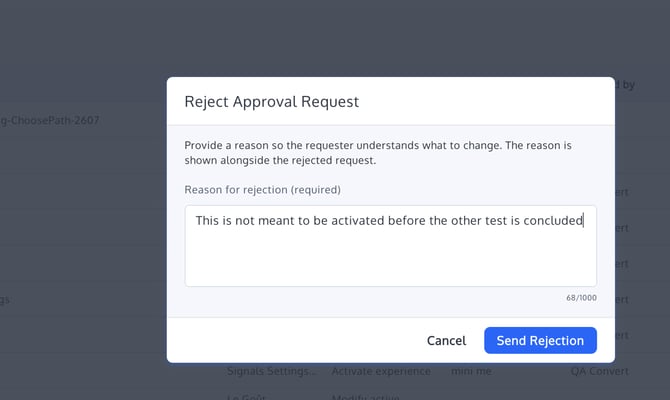
The request records the person who made the decision and when the decision occurred.
What Happens After Approval?
Approving a request changes the request status to Approved.
It does not automatically apply the action.
For an activation request:
- The requester receives an approval notification.
- The requester returns to the experience.
- The requester selects Active again.
- Convert locates the approved, unused request.
- The request is consumed.
- The experience is activated.
⚠️ Important:
Approval does not automatically activate the experience. The requester must select Active again.
The same principle applies to other protected actions. After approval, the requester repeats the approved action so Convert can consume the request and apply it.
An approval is consumed only once.
What Happens After Rejection?
Rejecting a request changes its status to Rejected.
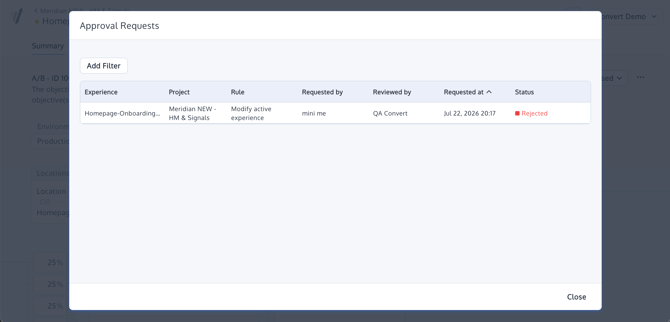
The experience remains in its current status, and the requested action is not applied.
The reviewer may include an optional reason. The requester can then:
- Review the rejection reason.
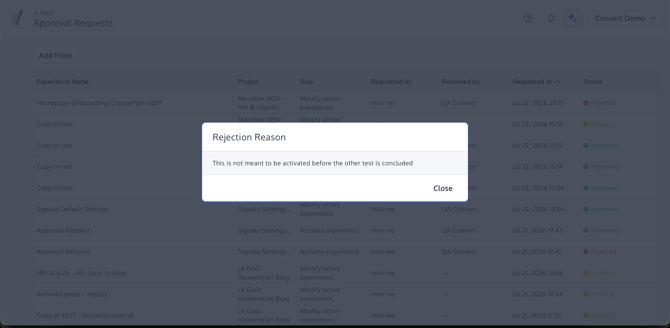
- Revise the experience or intended action.
- Attempt the action again.
- Submit a new approval request.
A rejected request cannot be reused for a later action.
Who Is Required to Request Approval?
The approval check depends on the user performing the action and the reviewers assigned to the rule.
Owners
Owners are exempt by role and can perform restricted actions without submitting an approval request.
Account Managers
Account Managers are also exempt by role.
Admins
Admins can be selected as reviewers, but they are not exempt by role.
An Admin who is covered by a rule and is not bypassed through another condition must submit an approval request like other covered users.
Assigned reviewers
A reviewer cannot approve their own action.
When a rule has multiple reviewers and one of those reviewers performs a restricted action, the request is routed to the other reviewers.
Sole reviewer
When a user is the only reviewer assigned to the rule, there is no other reviewer available to provide a second review.
In that case, the approval check is bypassed for that reviewer’s own action.
Collaborators
A collaborator covered by the rule must request approval before the restricted action can be applied.
The general principle is that no one reviews their own change. Owners and Account Managers are exempt, while other users are routed to an independent reviewer whenever one is available.
Self-Approval Safeguards
Convert prevents users from approving their own requests.
This means:
- The requester cannot approve their own request.
- A reviewer’s own request goes to the other reviewers assigned to the rule.
- A sole reviewer bypasses the check because no independent reviewer exists.
- Owners and Account Managers bypass the approval requirement through their role exemption.
These rules ensure that an approval represents a genuine second review whenever another reviewer is available.
Notifications
Convert sends notifications throughout the approval process.
When a request is submitted
Assigned reviewers receive an email informing them that approval is required.
An in-app toast is also shown where that notification surface is available.
When a request is approved
The requester receives an approval email.
An in-app toast may also appear where supported.
The notification tells the requester to return to the experience and repeat the approved action.
When a request is rejected
The requester receives a rejection email and, where available, an in-app toast.
The notification must include the rejection reason.
Notification links open the related experience or request context so the recipient can continue the workflow.
Approval and Experience Statuses
The experience and the approval request have separate statuses.
An experience continues to use its standard status, such as:
- Draft
- Active
- Paused
- Scheduled
- Completed
An approval request uses one of these statuses:
- Pending
- Approved
- Rejected
Enabling an approval rule does not automatically change existing experiences.
Experiences that are already Active, Scheduled, Paused, or Completed remain unchanged. The rule is enforced when a user makes a new attempt to perform a protected action.
Approval History
Each request records information such as:
- Who submitted the request
- The related experience
- The requested action
- The current request status
- Who approved or rejected it
- When the decision occurred
- The rejection reason, when supplied
This creates an audit trail for restricted actions and their review decisions.
Common Questions
My request was approved, but the experience is not active
This is expected. Approval does not activate the experience automatically. Return to the experience and select Active again. The second activation attempt consumes the approved request and activates the experience.
Does scheduling require approval?
Yes. When the Activate experience rule applies, scheduling is also gated because the experience will automatically activate at its scheduled start time.
I am an Admin. Why am I being asked for approval?
Admins can be reviewers, but they are not exempt from approval by role. An Admin covered by the rule may still need another reviewer to approve the action.
I am a reviewer. Why does my own action require approval?
Reviewers cannot approve their own actions. When other reviewers are assigned to the rule, your request is sent to them. You bypass the check only when you are the sole reviewer assigned to that rule.
Why can I not add a collaborator as a reviewer?
Only Owners, Account Managers, and Admins can be selected as reviewers during this beta.
Can one approval cover several edits?
No. An approval request is tied to one action and is consumed once. For example, an approval for one protected edit does not provide open-ended permission to make unrelated changes afterward.
What happens if a request is rejected?
The experience remains in its current status. No change is applied, and the requester can revise the experience and submit a new request.
Does enabling the system affect experiences that are already running?
No. Existing experience statuses are not changed when approval rules are enabled. The workflow applies to new attempts to perform protected actions.
Availability
The Request Approval System is available as a beta on Convert Pro and Enterprise plans.