
IN THIS ARTICLE YOU WILL:
- Learn what Improve Code does
- Know when to use it
- Understand how to review AI-suggested code changes
- Learn about usage limits
- Know the feature’s current limitations
What is Improve Code?
Improve Code is an AI-assisted feature in the Convert Visual Editor that helps you improve JavaScript added to your experiences.
It can review your existing JavaScript and suggest safer, cleaner, or more reliable code. This is especially useful when your code targets page elements that may not be available immediately when the experience runs.
For example, if your code tries to update an element before that element has loaded on the page, Improve Code can suggest a version that waits for the element before applying the change.
When Should You Use Improve Code?
Use Improve Code when you are adding or editing JavaScript in the Visual Editor and want help with:
- Making code wait for targeted page elements to load
- Improving code structure
- Cleaning up unnecessary or outdated code
- Making JavaScript more reliable for dynamic pages
- Reviewing code before saving or launching an experience
Improve Code is meant to assist with JavaScript improvements. You should still review the suggested code before accepting it.
How to Use Improve Code
- Open your experience in Convert.
- Launch the Visual Editor.
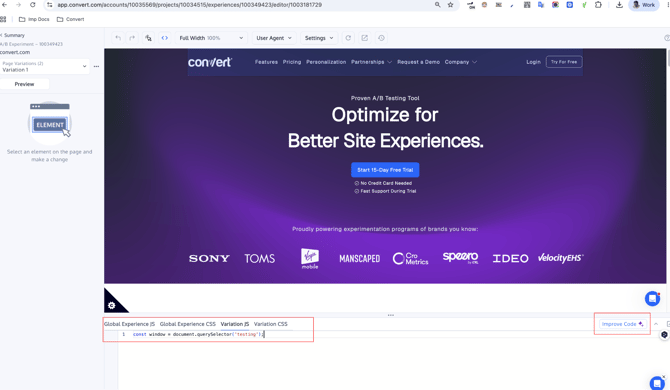
- Open the JavaScript code editor where your code is added.
- Add or edit your JavaScript.
- Click Improve Code.

-
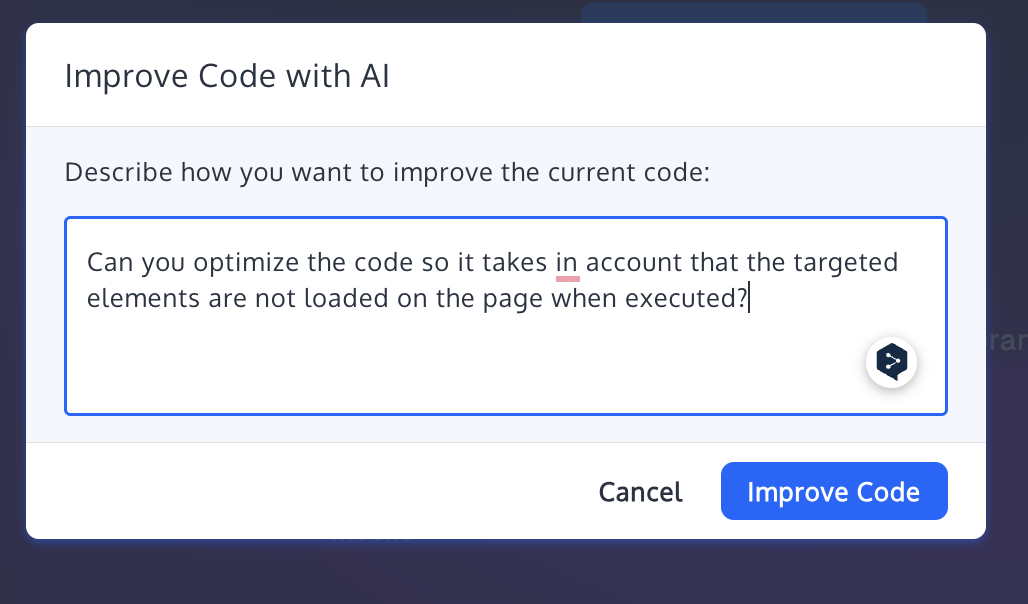
In the prompt box, describe what you want to improve. Example prompt:
-
Can you optimize the code so it takes into account that the targeted elements are not loaded on the page when executed?
-
-
Click Improve Code.
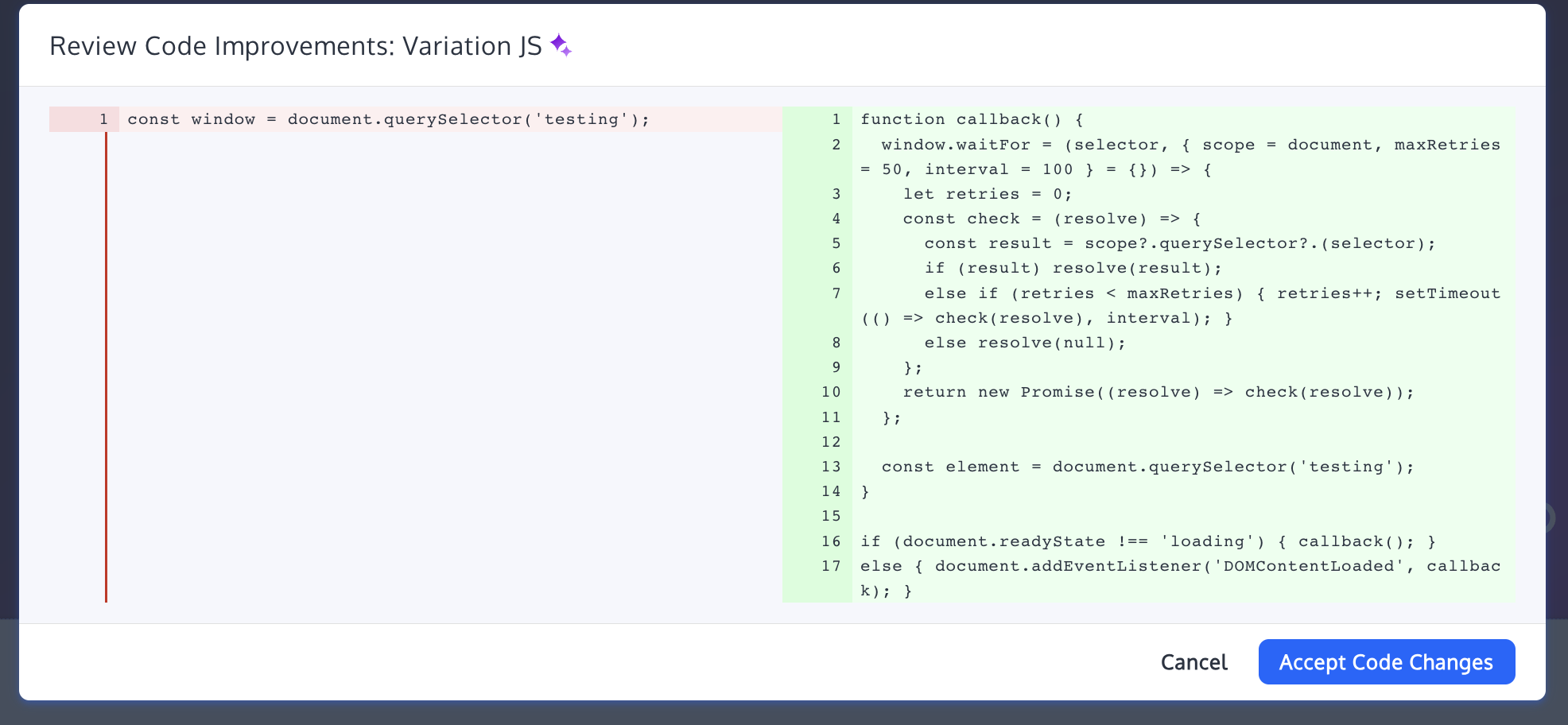
- Review the suggested changes in the comparison window.
- If the suggested code looks correct, click Accept Code Changes.
- Save your changes in the Visual Editor.
Reviewing Suggested Code Changes
After Improve Code runs, Convert displays a comparison between your original code and the suggested improved version.
You can review what changed before applying the suggestion. The comparison view highlights the differences so you can decide whether to accept or cancel the changes.
Only accept the code if it matches what you intended to do.
⚠️ Important Notes
Improve Code can help make your JavaScript more reliable, but it does not replace manual QA.
Before launching your experience, always:
- Preview the experience
- Test the variation on the target page
- Confirm that the intended elements are being changed correctly
- Check that the code does not affect unintended parts of the page
- Run your normal QA process before activating the experience
If you ask Improve Code to create new logic that targets page elements, review the selectors carefully. AI-generated suggestions may not always know your page structure exactly.
Usage Limits
Improve Code has usage limits to keep the feature available and stable for all customers.
Current limits:
- 60 Improve Code requests per 3-hour window per account
- 480 Improve Code requests per 24-hour period per account
If your account reaches the limit, you will see a message asking you to try again later.
Best Practices
For better suggestions, be specific in your prompt.
Instead of:
Fix this code
Try:
Update this JavaScript so it waits for the target element to appear before changing the text.
Good prompts usually explain:
- What the code should do
- What problem you are seeing
- Whether the page content loads dynamically
- Which behavior you want to preserve
Current Limitations
Improve Code is designed for JavaScript improvements in the Visual Editor. It is not intended for CSS editing.
It may not always detect whether a selector exists on your live page, so you should verify selectors manually before accepting the suggestion.
If the current code does not have an actual issue, Improve Code may return only small formatting or whitespace changes. Review the diff before assuming a functional fix was made.
Need Assistance?
If you are unsure whether the suggested code is correct, or if your experience is not behaving as expected after applying the change, contact Convert Support from inside your Convert account.
You can click the ? icon in the top-right corner of the app and choose Contact Support.