
THIS ARTICLE WILL HELP YOU:
- Understand Convert’s native Heatmaps
- Check plan requirements
- Enable Heatmaps in your projects
- Use Heatmaps
- Troubleshoot common issues
What Are Heatmaps?
A heatmap is a color‑coded overlay that shows where visitors click, tap, and scroll on a page. Red, orange, and yellow areas represent high activity, while cooler colors indicate low engagement. By visualizing how users interact with your page, heatmaps complement quantitative metrics and help you spot friction points or content that attracts attention.
Before the native heatmaps feature, Convert users relied on third‑party tools like Hotjar or Microsoft Clarity. Convert’s native heatmaps remove that friction by generating click, tap and scroll heatmaps automatically for every page and variation in your experiment.
Prerequisites & Availability
Heatmaps use the same Visitor Insights infrastructure that powers Convert Signals, our session‑recording feature. This shared tracking means heatmaps are available only when both of the following conditions are met:
- Your plan includes Visitor Insights. Convert Signals is a session recording feature embedded in the Reports and Locations section of Convert Experiences. Plans that include Signals also unlock heatmaps, because they use the same tracking and limits.
- Project‑level setting is enabled. Signals and heatmaps must be turned on in the Project Configuration settings. In the Signals article, the recordings are accessible only if the project‑level setting is enabled. Convert has consolidated this into a single toggle labeled Convert Signals & Heatmaps.
Enable Heatmaps in Your Project
Follow these steps to activate heatmaps for a project:
- Open your project settings. In the Convert app, navigate to Project Settings → Configuration.
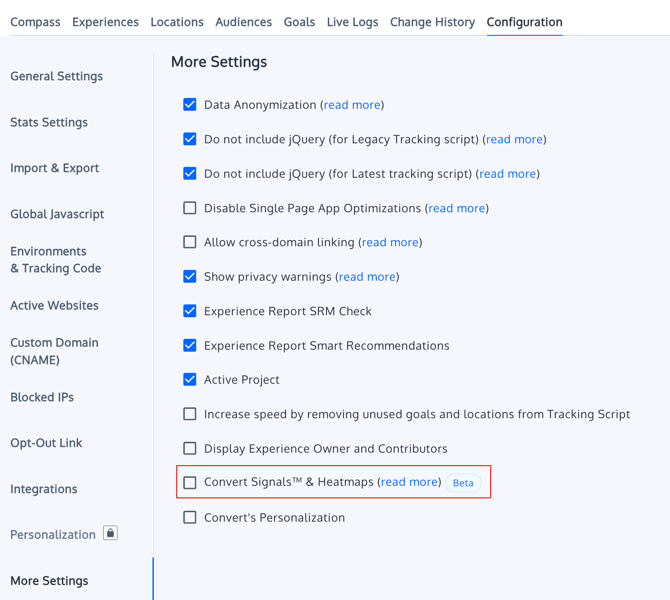
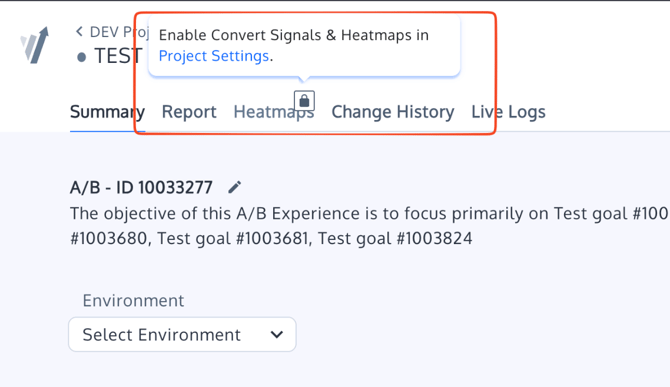
- Locate the Convert Signals & Heatmaps toggle. This toggle controls both session recordings and heatmaps. When off, the Heatmaps tab is locked and displays a message instructing you to enable Signals & Heatmaps. The screenshot below shows the Heatmaps tab locked with the enable message.
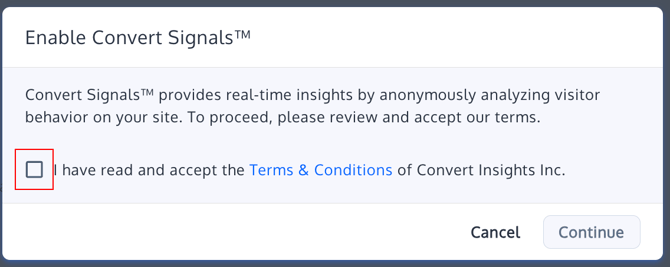
- Enable the toggle. Turn on the Convert Signals & Heatmaps switch. You’ll see a confirmation pop‑up asking you to accept the terms and conditions for session recordings and heatmaps. Click Enable.
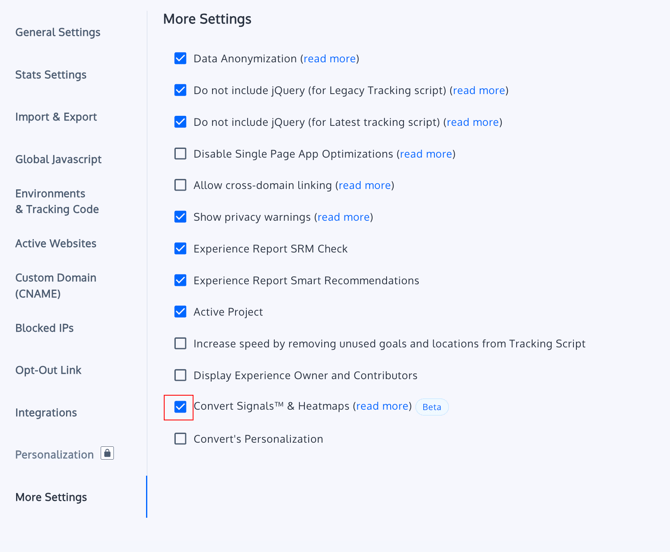
- Publish your changes. Once enabled, heatmaps and Signals become active for all new experiments and deploys in that project. If you return to an experience summary page, you’ll now see the Heatmaps tab visible between Report and Change History.
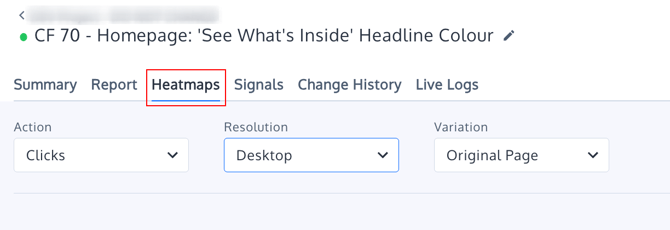
If you disable the toggle later, both features will be hidden and existing heatmaps will stop updating. Enabling again restores access.
Use the Heatmaps Tab
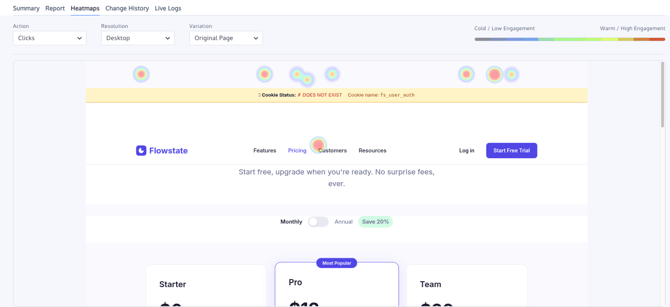
The Heatmaps tab provides a unified interface to explore click, move, tap and scroll behavior across devices, variations and time ranges. When you first open the tab, a screenshot of your page appears with a color overlay and a panel of controls at the top. The example below shows a click heatmap with the left panel listing the most‑clicked elements and a color legend at the bottom.
1. Choose an Action Type
Use the Action dropdown to select Clicks, Taps or Scrolls. Clicks show where users clicked, Moves display mouse movement (helpful for desktop hover interactions) and Taps show touch interactions on mobile. Selecting Taps automatically switches the device to Mobile, and selecting Mobile automatically sets the action to Taps.
2. Select Device & Resolution
Heatmaps can be filtered by device (Desktop, Tablet or Mobile) and resolution. Device and resolution are grouped together in a single dropdown similar to the Visual Editor. This lets you quickly switch between form factors without cluttering the UI. The default view uses the resolution associated with the variation.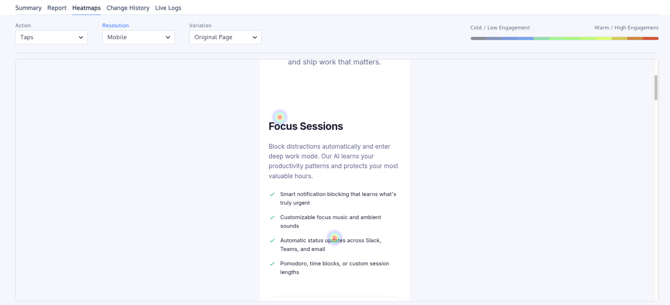
3. Switch Variations
Use the Variation dropdown to view heatmaps for different variations or the original. Each variation in your experience has its own heatmap per variation. When you switch pages or variations, the left panel and legend update automatically.
4. Adjust Date Range
The Duration picker offers preset ranges—Last 7 days, Last 14 days, Full running time—and a Custom option. Changing the date range filters the interactions displayed in the heatmap. Date range filtering works similarly to the date picker in Convert Signals.
Troubleshooting & FAQs
I don’t see the Heatmaps tab. What is wrong?
Confirm that you’re viewing a web project and that the Convert Signals & Heatmaps toggle is enabled in project settings. Heatmaps are not available for full‑stack projects or for plans without Visitor Insights.
Can I use heatmaps on Deploys?
Yes. Heatmaps are available on client‑side Experiments and Deploys. They are not supported for server‑side experiments or full‑stack projects.
Do I need to install additional scripts?
No. Native heatmaps rely on Convert’s tracking integration and therefore require no external scripts. Your existing Convert installation is sufficient. Third‑party tools like Hotjar still require their own scripts and manual triggers.
Can I export heatmap images?
Not yet. We’re working on export options. In the meantime, you can use a screen capture tool to save the view.
Heatmaps are generated from aggregated, anonymous interaction data. They do not capture personal information or sensitive form fields. For more details on privacy and session recording, see the Convert Signals article.