
THIS ARTICLE WILL HELP YOU:
- Understand what Custom Pop-ups are in Convert
- Find the feature
- Create and design a custom pop-up in the Visual Editor
- Configure triggers (first-visit / page-load and click pop-ups)
- Track pop-up performance using goals
What Are Custom Pop-ups?
Custom Pop-ups let you design and launch simple pop-up messages directly from the Visual Editor as part of a web A/B experience.
With this feature you can:
- Add a pop-up even if your site has no existing pop-up solution
- Design the pop-up visually (title, body, image, button, close “X”)
- Trigger it on first visit / page load or when a visitor clicks an element or on scroll to an element.
- Track performance using standard Convert goals (clicks, submissions, revenue, etc.)
Custom Pop-ups are native to Convert—no additional third-party widget is required for basic use cases.
Where to Find Custom Pop-ups in the Visual Editor
- Go to your Convert dashboard.
- Open an existing Web A/B Experience or create a new one.
- In the Experience Summary, under Variations, click Edit to open the Visual Editor.
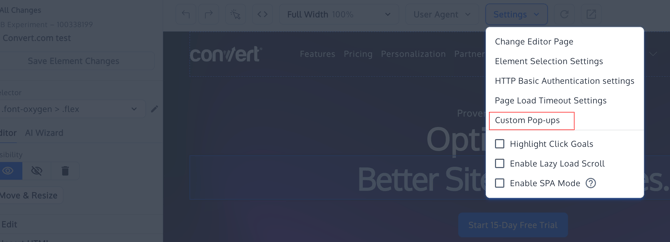
- Inside the Visual Editor, on the top Settings menu, “Custom Pop-ups” OR use the left-hand toolbar or contextual menus and look for Manage Custom Pop-ups (wording may be “Pop-ups” or similar, depending on UI version).
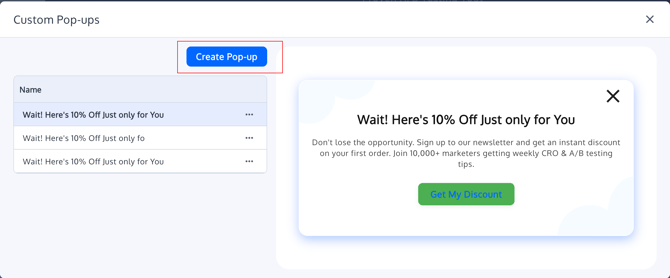
- Click Add Pop-up (or equivalent button) to open the Custom Pop-up Editor.
The pop-up editor opens as an overlay on top of your page so you can see how the pop-up will look in context.
Designing Your Pop-up
When you open the Custom Pop-up Editor, you can configure the content and layout of the pop-up.
1. Title / Heading
- Add a short, clear headline that explains the offer or message.
- Examples:
- “Get 10% off your first order”
- “Subscribe for product updates”
- Examples:
2. Body Text
- Use the main text area for the supporting description.
- Keep copy concise and focused on the desired action.
3. Image (Optional)
- Upload an image (product shot, illustration, logo, etc.).
- You can choose the image position, including top and bottom placements, so the layout can match your design.
- The editor shows a loading indicator when an image is uploading so you know when it’s finished.
Image uploads use the same infrastructure as other Visual Editor image uploads.
4. Close Icon (“X”)
- Every pop-up includes a standard close “X” icon.
- The “X” background is transparent for a cleaner UI and better integration with your site’s design.
- Clicking the “X” simply closes the pop-up and does not need to redirect or fire a goal (unless you add custom code for that).
5. Layout & Styling
- Basic styling (font size, alignment, spacing) follows existing Visual Editor controls.
- Use the side panel to adjust:
- Font size and weight
- Text alignment
- Padding and spacing
Configuring the Button (Optional)
Pop-ups often use a primary call-to-action (CTA) button, but the feature is intentionally flexible.
- The button is optional – you can create a purely informational pop-up with only text + close “X”.
- You can change the button text color to match your branding or improve contrast.
Button Label
Typical examples:
- “Get my discount”
- “Subscribe now”
- “Show me the deal”
Button Action Types
Choose what happens when a visitor clicks the button:
- Open URL
- Redirects the visitor to a page (checkout, category, landing page, etc.).
- Close Pop-up
- Closes the pop-up without navigating anywhere – useful for pure messaging.
- Run Custom JavaScript (Advanced)
- Instead of a URL, you can insert a JavaScript snippet to:
- Fire a custom goal
- Interact with another widget
- Trigger in-page behavior
The field accepts JavaScript but does not show a full code editor, intentionally keeping the UI lightweight while demand for advanced JS is evaluated. For more complex logic, you can combine this with Advanced Goals or integrations. Source: Advanced Goals
Setting Up Pop-up Triggers
Triggers control when and how the pop-up appears.
1. First-Visit / Page-Load Pop-ups
Use this for:
- “Welcome” discounts
- New visitor offers
- Time-limited banners (e.g. “Black Friday Sale”)
In the Trigger settings, configure:
- Trigger type: Page load / first visit
- Optionally, a delay (e.g., show after 2–3 seconds, not immediately).
2. Click Pop-ups (On Element Click)
Use click-based triggers when you want the pop-up to appear after a user clicks an element:
- “Get 10% off” badges or text links
- “More info” buttons
- Product images or banners
Workflow:
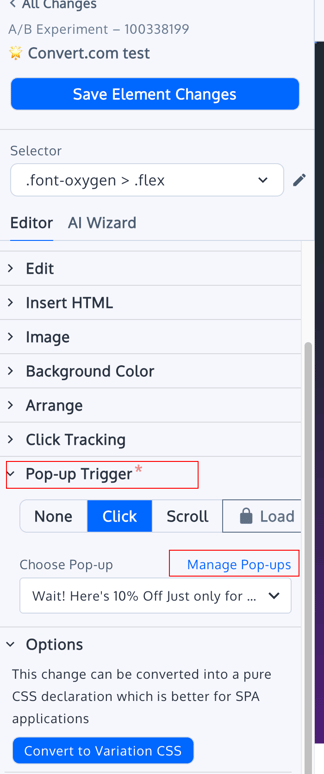
- In the Visual Editor, select an element (text, image, button).
- In the left-hand settings, choose Trigger Pop-up on Click (or equivalent option).
- Select which custom pop-up should open.
When a click trigger is attached:
- The element shows a cursor: pointer on hover to indicate it is clickable.
You can still use standard Visual Editor click tracking on these elements if you want to track clicks separately from the pop-up itself.
Source: The Visual Editor in Convert Experiences
Targeting with Locations & Audiences
Triggers work together with your experience’s Location and Audience settings:
- Use Locations to define which URLs the pop-up can appear on.
- Use Audiences to limit your pop-up to specific visitor segments (e.g., new visitors, geo, campaign).
Tracking Pop-up Performance with Goals
Custom Pop-ups become powerful when tied to goals. You can measure:
- Pop-up interaction (button clicks, custom events)
- Downstream actions (page visits, purchases, form submissions)
- Overall impact in your experiment reports
Tracking Button Clicks as Click Goals
If your pop-up has a button:
- Go to Project → Goals and create a Click Goal in your project if needed.
- In the Visual Editor, open your variation:
- Select the pop-up button
- Use the element settings to enable Click Tracking
- Assign or create a goal name
Using Custom Pop-ups with Existing Pop-up Tools
If you already use tools like Poptin or Ouibounce.js, you can:
- Use Custom Pop-ups for simple, in-experiment messaging
- Keep third-party tools for more advanced flows (e.g., multi-step forms)
- Track third-party pop-ups via goals and JS