
| Author: | Paul Akpami |
THIS ARTICLE WILL HELP YOU:
- Understand what Custom Domains are in Convert
- Configure a custom tracking domain at the project level
- See how domain statuses and lifecycle work (Pending, Active, Error)
- Know what happens before DNS verification and after activation
- Troubleshoot duplicate domains, limits, and error states
- Understand the impact on tracking scripts, environments, and QA
What Are Custom Domains?
Custom Domains let you serve the Convert tracking script and tracking requests through your own subdomain (for example, xyz.example.com) instead of Convert’s default domains such as *.convertexperiments.com.
At a high level:
- Convert manages the underlying CDN configuration for you
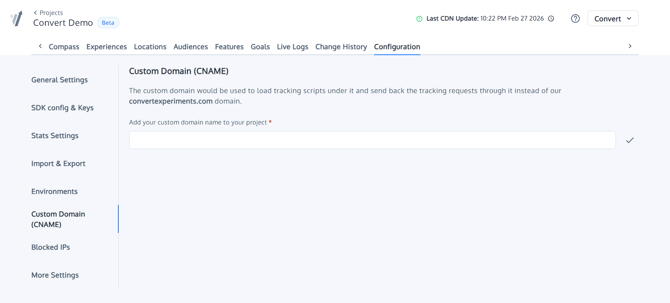
- You add a hostname (subdomain) in your Project Configuration.
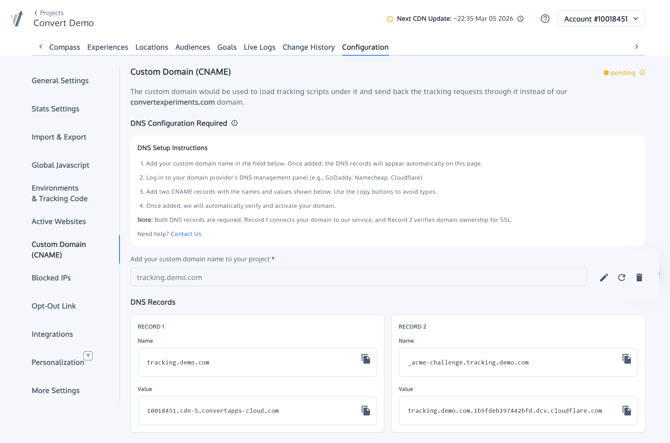
- Convert provisions that hostname and returns DNS records you must add at your DNS provider.
- Once verified and active, your tracking traffic (and, for v1, script loading) can run through your custom domain.
This helps with:
- Using a first-party domain for tracking
- Reducing some forms of ad-blocker and IT/security blocking
- Aligning with stricter CSP / security setups (you can whitelist a single host instead of several Convert domains)
Scope & Limits
Custom Domains are managed per project, but with account-level limits.
- One custom domain per project
Each project can have at most one custom domain configured at a time. If you try to add a second, the app will show an error and block the change. - Account-level limit (total number of domains)
Your account has a maximum number of custom domains it can use across all projects.- If you hit this limit, adding a new custom domain will return an error.
- You can remove a custom domain from another project or contact Support / your CSM to discuss plan changes, similar to how project limits are handled.
- Hostname rules
- Use a subdomain, e.g. xyz.example.com (recommended), not just example.com.
- Wildcards (*.example.com) are not supported as custom domains.
- The hostname must be unique within the same project.
- Reusing a hostname across projects (same account)
- You can reuse the same hostname in multiple projects under the same Convert account.
- Convert will reuse the existing Cloudflare configuration and share status between those projects (if the hostname is Pending/Active/Error for one project, the same status will be reflected in the others).
Where to Configure a Custom Domain
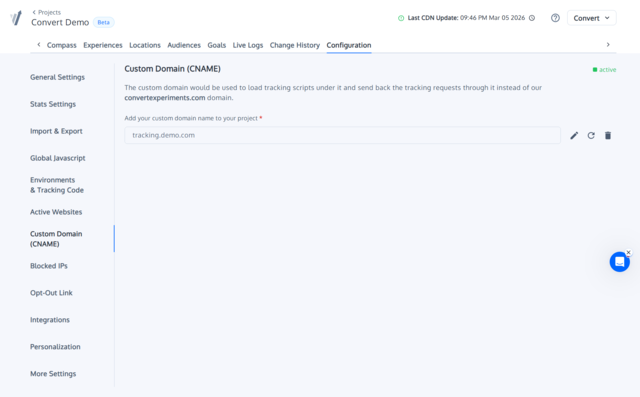
Custom Domains live in Project Configuration, alongside tracking code and environment settings.
Typical navigation:
- Go to Projects and select your project.
- Click Project Configuration.
- Locate the Custom Domain / Tracking Domain section.
- Here you can:
- View current custom domain (if any)
- See its status (Pending / Active / Error)
- Add, edit, or remove the domain
How Custom Domains Work Under the Hood
When you add a custom domain, Convert:
- Creates a “Custom Hostname” in a Convert-managed Cloudflare zone
- Stores an internal object for your project’s custom domain with fields such as:
hostname– your domain (e.g. xyz.example.com)status–pending,active, orerror
- provider – currently cloudflare (internal field, not exposed in public API)
- provider_id – the Cloudflare custom hostname ID
- version – v1
- Receives verification information from Cloudflare:
- DNS records (TXT and/or CNAME) under ownership_verification
- Initial status (usually pending)
- Exposes in the UI:
- The current status
- A table of DNS records to add
- Any error messages returned by Cloudflare for invalid hostnames or configuration issues
Cloudflare is responsible for:
- Issuing and managing the SSL certificate for your hostname
- Validating the required DNS entries
- Reporting the final status (Active / Error etc.)
You never need direct access to Cloudflare for this – Convert manages the integration for you.
Add a New Custom Domain (v1 Flow)
Follow these steps to add and verify a new custom domain using the v1 (new) infrastructure:
- Choose a hostname at your DNS provider
- Example:
xyz.example.com - Make sure you can add TXT / CNAME records for this hostname.
- Example:
- Open your project’s Custom Domain settings
- Project ➝ Project Configuration ➝ Custom Domain
- Click “Add custom domain” (or Edit if you’re updating)
- Enter your hostname (e.g.
xyz.example.com). - Save.
- Enter your hostname (e.g.
- Convert creates the configuration in Cloudflare
Convert sends a request to Cloudflare’s Custom Hostname API with defaults like:hostname– the value you enteredssl.certificate_authority– googlessl.method–txt(TXT-based domain ownership verification)ssl.settings.http2–onssl.settings.min_tls_version–1.2ssl.settings.tls_1_3–on
- Cloudflare responds with:
- A custom hostname ID (stored internally)
- An initial status (usually
pending) - One or more DNS records (name, type, value) in
ownership_verification
- Add the DNS records at your DNS host
- In the Custom Domain UI, you’ll see a table like:
-
Type Name Value TXT _cf-custom-hostname.examplesome-verification-token-from-cfCNAME (optional) xyzsomething.cloudflare.net
-
- Create the exact records at your DNS provider.
- Keep the TTL at a reasonably low value (e.g. 5–15 minutes) while validating.
- In the Custom Domain UI, you’ll see a table like:
- Wait for verification
- Once DNS propagates, Cloudflare validates the TXT (and CNAME, if required).
- Convert periodically rechecks the provider and updates the internal status (details below).
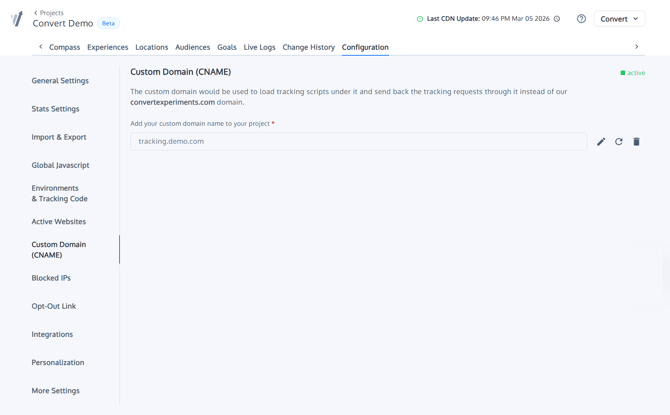
- When everything is OK, the status becomes Active.
- Update your tracking script (if applicable)
Once the domain is Active, the Environments & Tracking Code section will surface snippets that use your custom domain (for v1).- For example, your tracking requests may move from:
https://metrics.convertexperiments.com/v1/track/{account_id}/{project_id}
to:https://xyz.example.com/metrics/v1/track/{account_id}/{project_id}
(Pattern varies slightly per environment, but the base host is your custom domain.) - If you’re embedding the per-environment script manually, ensure you’re using the latest snippet from your Project Configuration after enabling the custom domain.
- For example, your tracking requests may move from:
Domain Lifecycle & Statuses
Custom Domains go through a simple lifecycle:
|
Status |
What It Means |
Typical Actions |
|
Pending |
Domain is created with provider (Cloudflare), but DNS verification not complete yet. |
Add DNS records as instructed, wait for propagation, optionally click “Recheck status” in UI. |
|
Active |
DNS verified, SSL issued, and routing is ready. |
Safe to rely on your custom domain for tracking and script loading (v1). |
|
Error |
Provider reported a problem (invalid hostname, verification failed, expired verification, etc.). |
Fix the underlying issue (DNS, hostname, etc.) then try again or remove/re-add if needed. |
How and When Status Is Checked & Updated
Convert keeps your domain status in sync with Cloudflare via two mechanisms:
- On read / on demand
- When you open Project Configuration (or the Custom Domain area) and the domain is Pending or Error, the backend can:
- Ask Cloudflare for the latest status using the stored provider_id.
- Update the internal status and show the result in the UI.
- Many UIs also expose a “Check status” / “Refresh status” button to force a recheck.
- When you open Project Configuration (or the Custom Domain area) and the domain is Pending or Error, the backend can:
- Background polling
- A background job periodically checks all domains in Pending (and sometimes Error) state.
- When Cloudflare reports a transition (e.g. Pending ➝ Active), Convert:
- Updates the stored status.
- Applies the new status to all projects that use the same hostname within the account.
This ensures:
- You don’t have to guess when the domain is ready.
- Multi-project reuse (same hostname) automatically stays in sync.
What Happens Before DNS Verification vs After Activation
Before DNS is verified (status = Pending):
- Convert has created the configuration with Cloudflare, but the provider cannot yet route traffic for your hostname.
- Depending on your setup:
- Existing pages/scripts that rely on Convert’s default domains (*.convertexperiments.com, *.metrics.convertexperiments.com) continue to work normally.
- Custom-domain snippets should only be rolled out after the status is Active to avoid 404/SSL issues if DNS isn’t ready.
- Best practice:
- Configure the custom domain.
- Add DNS records.
- Wait until the UI shows Active.
- Then roll out the new snippet (using the custom domain) to your site.
After the domain is Active:
- Tracking requests for that project’s environments will be sent to your custom domain instead of Convert’s generic domains.
- With version v1, the tracking endpoints look like:
https://your-custom-domain.example/metrics/v1/track/{project_id}/{environment_id} - All major features continue to work under the custom domain:
- QA Overlay and Preview
- 1:1 Personalization
- Per-environment script
- Goals & conversions
- Audiences and post-segmentation
Duplicate Domains & Error Scenarios
Here’s how Convert handles some common edge cases:
1. Adding the same domain twice in the same project
- If you try to add a hostname that’s already configured for that project, the UI will reject it.
- Expect an error like “This project already uses this custom domain” and no changes will be saved.
2. Adding a second, different domain to a project
- Each project can have only one custom domain.
- Attempting to add another (or replace it without first removing) will result in an error.
- To switch:
- Remove the existing custom domain.
- Add the new one and repeat DNS verification steps.
3. Adding a domain that already exists in another project (same account)
- This is allowed.
- Convert will:
- Reuse the existing provider configuration (no extra Cloudflare host is created).
- Copy the current status (Pending/Active/Error) to the new project.
- Keep statuses in sync between all projects using that hostname.
4. Invalid hostname or Cloudflare API error
- If Cloudflare rejects the hostname (e.g., invalid format, reserved label, unsupported TLD), Convert will:
- Show an error in the UI (often including the message from Cloudflare).
- Not save the custom domain.
- Fix:
- Adjust the hostname (usually to a valid subdomain).
- Try again.
5. DNS misconfiguration / verification timeout
- If DNS records are missing, mis-typed, or never propagate, Cloudflare will not complete verification.
- After some time, the status may remain Pending or move to Error.
- Fix:
- Double-check that the TXT/CNAME records match exactly what Convert shows.
- Verify DNS with tools like dig/nslookup.
- Re-check status from the UI after correcting.
Removing or Changing a Custom Domain
You can remove or update a custom domain from Project Configuration.
To remove the custom domain:
- Go to Project Configuration ➝ Custom Domain.
- Click Remove (or clear the hostname).
- Save.
What happens:
- Future tracking snippets you copy from the app will no longer use that hostname.
- The project falls back to Convert’s default tracking domains.
- Any pages still using an old snippet that points to the custom host should be updated to avoid errors.
To change the custom domain:
- Remove the old hostname.
- Add the new hostname and repeat DNS verification.
- Update any snippets / environment configurations that you deploy manually.
In the UI:
- Projects that already had a old custom domain may show a notice similar to:
“You are using a deprecated custom domain setup (former CNAME feature). To enable the updated custom domain feature, please save your domain again and follow the DNS setup instructions.” - Even if the hostname doesn’t change, clicking Save in the new UI:
- Migrates your project from version = v0 to version = v1.
- Ensures the tracking script and endpoints use the new infrastructure (e.g. https://your-custom-domain/metrics/v1/...).
- Lets you benefit from the full custom domain behavior and any future improvements.
Impact on Tracking Scripts, Environments & QA
Once you have an Active custom domain (v1) and have updated your snippet:
- Per-environment script
- Each environment still has its own unique snippet.
- The host for tracking moves to your custom domain; the rest of the URL structure (project/environment IDs) remains familiar.
- QA overlay & preview
- QA overlay, preview URLs, and debugger behavior remain the same, just under the new host.
- Make sure browser extensions and internal tools trust your custom hostname.
- Goals, audiences, and post-segmentation
- All tracking logic (including advanced goals or triggered-goal audiences) continues to work exactly as before; only the network endpoints change.
- CSP and security settings
- If you use a strict Content Security Policy, be sure to add your custom hostname to the relevant directives (script-src, connect-src, etc.) in addition to (or in place of) Convert’s default domains.
- Cloudflare features on your own site
- If you also use Cloudflare on your origin site (separate from the Convert-managed zone), features like Rocket Loader can delay or modify script loading.
- We recommend excluding the Convert tracking script (whether on a Convert domain or your custom domain) from Rocket Loader to avoid flicker.
Quick FAQ
Q: Do I need my own Cloudflare account to use Custom Domains?
No. Convert manages the Cloudflare integration internally. You only need control over DNS for your domain (where you can add TXT/CNAME records).
Q: Can I use the same custom domain in multiple projects?
Yes, within the same Convert account you can assign the same hostname to more than one project. They all share the same status (Pending/Active/Error) and verification.
Q: What happens if I hit my custom domain limit?
You’ll see an error when trying to add another domain. Remove a custom domain from another project or contact Support to discuss upgrading your plan or adjusting limits.
Q: Will my experiments break if the custom domain is in Error?
If you’ve already rolled out snippets that depend on the custom domain and the domain becomes unreachable, tracking may fail.
We recommend:
- Waiting for Active before deploying custom-domain snippets.
- Keeping a clear rollback path (switching back to the default snippet if needed).
Q: Does this affect cross-domain testing or cookie behavior?
No changes to cookie behavior are introduced purely by enabling Custom Domains. Convert still uses first-party cookies under your main site domain and supports cross-domain testing via Active Websites and cookie forwarding as before.
Q: Where can I get help if my custom domain won’t verify or keeps showing errors?
Please reach out to our Support team via in-app chat or email at support@convert.com, and include:
- Your account ID and project ID
- The custom hostname
- A screenshot of your DNS records
We’re happy to help you debug DNS, CSP, or tracking script issues.