
THIS ARTICLE WILL HELP YOU:
- Understand What are Convert Notifications
- Know the Notification Scope and Frequencies
- Understand Notification Groups
- Setup Statistical Alerts
- Setup Metric Performance Alert
- Setup SRM Detected Alert
- Setup Low Confidence Alert
- Setup Low Traffic Alert
- Setup Metric Stopped Reporting Alert
- Get Experience Activity Notifications
- Get Convert Report Summary
- Configure Convert Report Summary
- Get Tracking Script Update Notification
- Configure Delivery Channels
- Disable Notification
- Troubleshoot
- Know the Limitations
Convert Notifications
Convert Notifications help you stay informed about important activity across your experimentation program without continuously checking individual experience reports. Notification rules can be configured for:
- All projects
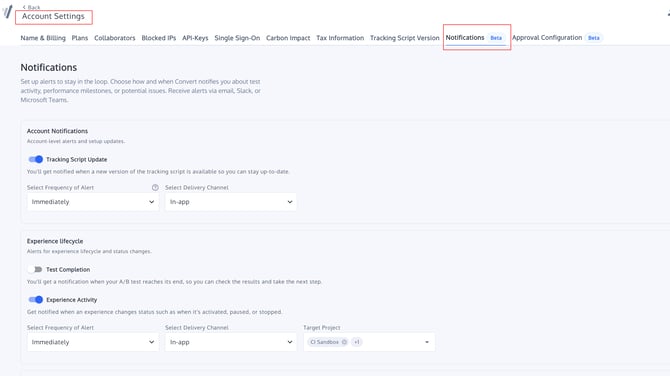
- One project
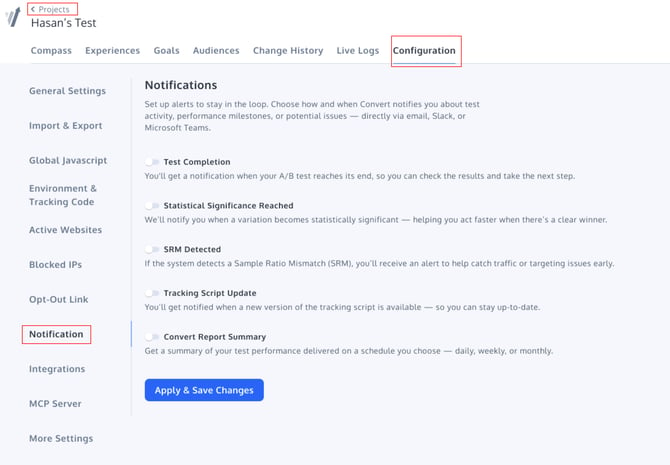
For experience-based notifications, Convert evaluates each relevant experience inside the selected project scope separately. For example, if a statistical alert is enabled for a project containing five live experiences, Convert evaluates the alert conditions independently for each of those live experiences. The Tracking Script Update notification is different because it is an account-level notification rather than an experience-level notification.
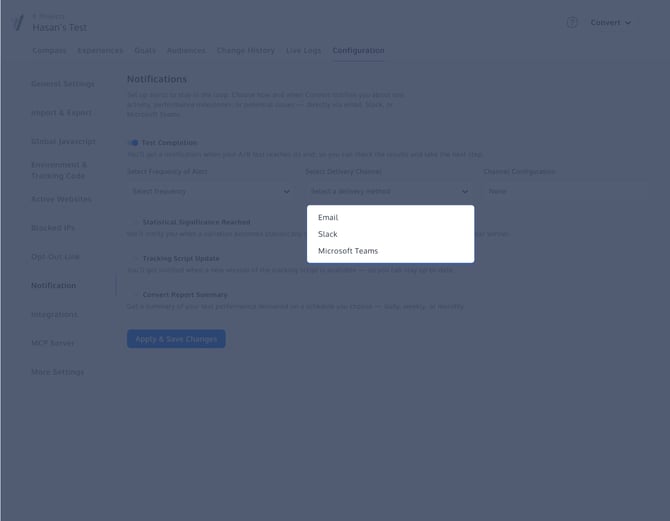
Notifications can be delivered through:
- In-app
- Slack
- Microsoft Teams
📒 Note:
Notifications is currently presented as a Beta feature in Convert. Availability may depend on your account.
Who Can Configure Notifications?
The following roles can configure Notifications:
- Owner
- Admin
- Account Manager
Other roles cannot modify notification settings. If you do not have permission to configure Notifications, the settings may appear locked. Email recipients do not need to have one of the roles above. Eligible active collaborators can still receive email notifications even if they cannot modify the notification configuration themselves.
Access Notifications
Open the Notifications settings in Convert. The page displays the notification types available to your account. Each notification type can be enabled or disabled independently. When you enable a notification, additional configuration options can appear depending on the notification type, including:
- Project scope
- Frequency
- Delivery channel
- Channel configuration
- Report options
After making your changes, click Apply & Save Changes.
Notification Scope
Notification settings use a project-level scope. You can configure a notification for:
- All projects
- One project
Experience-based notifications then evaluate the applicable experiences inside that project scope individually. For the six statistical alerts described later in this article, checks run independently for each live experience in the selected scope. The Tracking Script Update notification is account-level and does not depend on an experience being live.
Notification Frequencies
Different notification types support different delivery frequencies. The available frequencies are:
- Immediately
- Daily
- Weekly
- Monthly
Not every frequency is available for every notification type.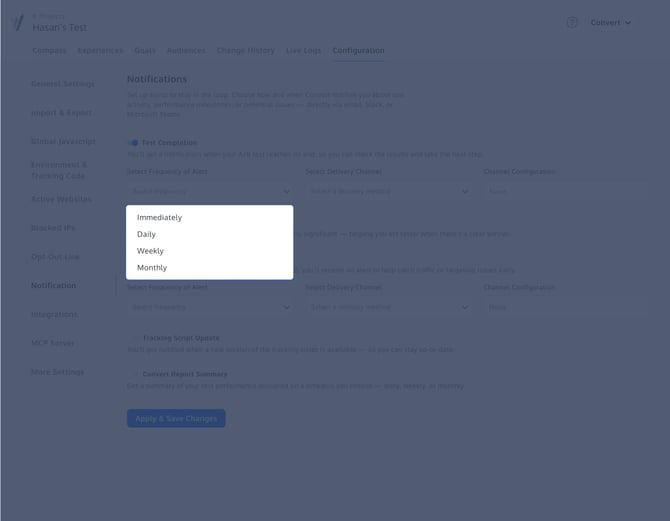
Immediately
The notification is sent as soon as Convert detects the triggering event or condition and processes the notification. For example, if statistical significance is detected at 3:17 PM, an Immediate notification is sent around that time.
Daily
Daily notifications are delivered at 12:00 AM on the following day. For example, an event detected on Tuesday afternoon is delivered on Wednesday at midnight.
Weekly
Weekly notifications are delivered at 12:00 AM on the next Monday. This uses the next weekly calendar boundary rather than exactly seven days after the event occurs.
Monthly
Monthly notifications are delivered at 12:00 AM on the first day of the following month. For example, an event detected on March 15 is delivered on April 1.
📒 Note:
Scheduled notifications follow the relevant project's local timezone. Daily, Weekly, and Monthly delivery is based on calendar boundaries rather than a fixed number of hours or days after the event.
Notification Groups
Convert Notifications are organized into four groups:
|
Group |
Notification Types |
|
Statistical Alerts |
Statistical Significance Reached, Metric Performance Alert, SRM Detected, Low Confidence Alert, Low Traffic Alert, A Metric Has Stopped Recording Data |
|
Experience Activity |
Test Completion, Experience Activity |
|
Report Summary |
Convert Report Summary |
|
Account / Tracking Updates |
Tracking Script Update |
Statistical Alerts
Convert includes six statistical notification types. These alerts are evaluated per live experience inside the selected project scope. Each alert is generated once for the same detected situation when its applicable conditions are met. The six statistical alerts fall into two broad categories:
Decision and Data-Quality Alerts
- Statistical Significance Reached
- Metric Performance Alert
- SRM Detected
Experience Health Alerts
- Low Confidence Alert
- Low Traffic Alert
- A Metric Has Stopped Recording Data
The three health alerts are evaluated only after an experience has been live for at least 48 hours.
Statistical Significance Reached
Receive an alert when a goal reaches a statistically significant result. Statistical Significance is not limited to the primary goal. A notification can be generated when:
- The primary goal reaches a significant winner or loser result.
- A secondary goal reaches a significant winner or loser result.
The alert is evaluated separately for each live experience in the selected project scope.
Available Frequencies
- Immediately
- Daily
- Weekly
- Monthly
Supported Delivery Channels
- In-app
- Slack
- Microsoft Teams
Notifications May Include
- Experience name
- Project
- Goal or result information
- Winning or losing variation
- Statistical result information
- Link to the experience
The exact statistical result depends on the statistics model and data available for the experience.
Metric Performance Alert
Receive an alert when a metric shows unexpected performance relative to its baseline. Metric Performance Alert is not limited to secondary goals. For example, suppose:
- The primary goal uses Conversion Rate as its primary metric.
- Revenue per Visitor is also available as another metric.
Convert can generate a Metric Performance Alert when that secondary metric behaves unexpectedly, even though the goal itself is the primary goal. A secondary goal can also produce a Metric Performance Alert independently of a Statistical Significance notification. The two notifications therefore serve different purposes:
- Statistical Significance tells you when a goal reaches a statistically significant winner or loser result.
- Metric Performance Alert highlights unexpected movement in a metric compared with its baseline.
There is no separate metric filter that you need to configure for this notification.
Available Frequencies
- Immediately
- Daily
- Weekly
- Monthly
Supported Delivery Channels
- In-app
- Slack
- Microsoft Teams
SRM Detected
Receive an alert when Convert detects a Sample Ratio Mismatch (SRM) for a live experience. An SRM means the observed variation allocation differs statistically from the expected allocation. It can indicate a problem that deserves investigation, such as unexpected bucketing or traffic-allocation behavior.
Available Frequencies
- Immediately
- Daily
- Weekly
- Monthly
Supported Delivery Channels
- In-app
- Slack
- Microsoft Teams
Notifications May Include
- Experience name
- Project
- A message indicating that observed allocation differs from expected allocation
- SRM statistical information such as a p-value, where available
- Link to the experience
⚠️ Important:
SRM notifications are not sent for experiences using multi-armed bandit traffic allocation.
The SRM notification does not necessarily include the expected traffic split, observed traffic split, or a calculated impact value.
Low Confidence Alert
Receive an alert when a live experience is progressing too slowly and is unlikely to reach a trustworthy decision within the configured time expectations. Low Confidence is an experience health alert, so Convert waits until the experience has been live for at least 48 hours before evaluating it. The alert uses two conditions:
- Experiment progress is below the configured progress threshold.
- The estimated number of remaining days is greater than the configured maximum.
The notification is generated only when both conditions are true. For example:
Alert me if this experience is still below 25% progress and is expected to require more than 60 additional days to complete.
Additional Requirements
The experience must:
- Be live
- Have been live for at least 48 hours
- Have received traffic during the evaluation period
Available Frequencies
- Immediately
- Daily
- Weekly
- Monthly
Supported Delivery Channels
- In-app
- Slack
- Microsoft Teams
Low Traffic Alert
Receive an alert when a live experience has stopped receiving traffic. Low Traffic is an experience health alert, so Convert waits until the experience has been live for at least 48 hours before evaluating it. The alert can be generated when:
- The experience is live.
- It has been live for at least 48 hours.
- It has recorded zero visitors during the previous 48 hours.
Frequency
- Immediately only
Supported Delivery Channels
- In-app
- Slack
- Microsoft Teams
📒 Note:
Low Traffic is specifically intended for the no-traffic condition. A small amount of traffic does not meet the zero-visitor condition.
A Metric Has Stopped Recording Data
Receive an alert when a live experience continues receiving meaningful traffic but one or more goals record no conversions. This is an experience health alert, so Convert evaluates it only after the experience has been live for at least 48 hours. The notification can be generated when:
- The experience is live.
- It has been live for at least 48 hours.
- It has received at least 5 visitors during the previous 48 hours.
- One or more goals have recorded zero conversions during the previous 48 hours.
If several goals meet the condition, they are included together in the alert. You do not select individual goals for this notification. Convert checks the goals on the experience automatically.
Frequency
- Immediately only
Supported Delivery Channels
- In-app
- Slack
- Microsoft Teams
📒 Note:
This is different from Low Traffic. Low Traffic applies when there are zero visitors. Metric Stopped Recording requires at least 5 visitors during the 48-hour window but no conversions for one or more goals.
Experience Activity Notifications
Test Completion
Receive a notification when an experience reaches Completed status. The Test Completion notification is intentionally simple. It informs you that the experience has completed and provides a way to open it in Convert.
Available Frequencies
- Immediately
- Daily
- Weekly
- Monthly
Supported Delivery Channels
- In-app
- Slack
- Microsoft Teams
Notification Contents
The notification includes information such as:
- Experience name
- Project
- A message stating that the experience has completed
- Link to the experience
The Test Completion notification does not include a full statistical result summary such as winning variation, confidence, primary-goal performance, or conversion rates. Completion events are handled by the Test Completion notification rather than being duplicated as Experience Activity notifications.
Experience Activity
Receive a notification when the status of an experience changes. This helps teams stay aware when an experience is started, stopped, or otherwise changes state.
Available Frequencies
- Immediately
- Daily
- Weekly
- Monthly
Supported Delivery Channels
- In-app
- Slack
- Microsoft Teams
When an experience reaches Completed status, Convert uses the Test Completion notification instead.
Convert Report Summary
Convert Report Summary delivers scheduled performance reports for experiences in the selected project scope. Unlike statistical alerts, Report Summary is not restricted to live experiences. The backend supports report summaries for:
- Active / live experiences
- Paused experiences
- Completed experiences
Available Frequencies
- Daily
- Weekly
- Monthly
Immediately is not available for Report Summary notifications.
Supported Delivery Channels
- In-app
- Slack
- Microsoft Teams
Depending on the report configuration available in your account, Report Summary can include options such as:
- Export format
- Goal selection
- Raw Data event types
Configure a Convert Report Summary
Step 1: Enable Convert Report Summary
Turn on the Convert Report Summary notification.
Step 2: Select the Project Scope
Choose whether the Report Summary applies to:
- All projects
- One project
The report can include eligible experiences in active, paused, or completed state within that scope.
Step 3: Select a Frequency
Choose:
- Daily
- Weekly
- Monthly
Step 4: Select a Delivery Channel
Choose one available delivery method:
- In-app
- Slack
- Microsoft Teams
Step 5: Configure Report Options
Where available, configure the report options shown in the interface. These can include:
- PDF Export
- CSV Daily
- CSV Aggregated
- Raw Data
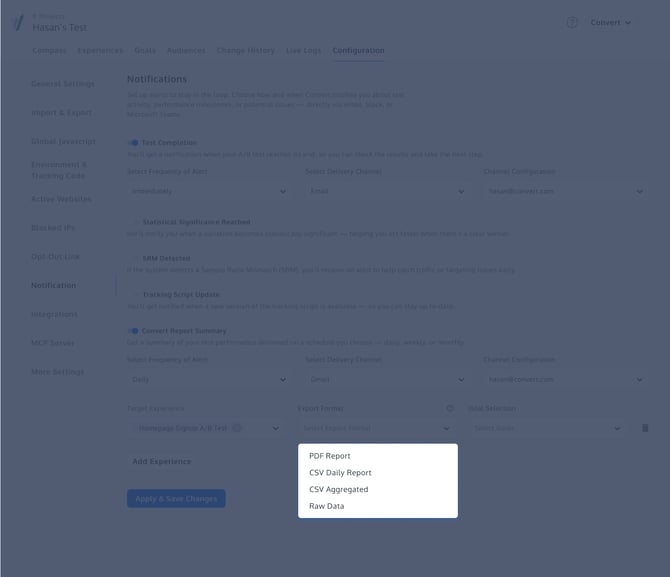
You may also be able to select goals or event types depending on the selected report format.
PDF Export
PDF reports support only one selected goal. When PDF is selected, Convert displays a reminder similar to:
Only one goal can be selected when exporting PDF format.
Raw Data
When Raw Data is selected, available event types can include:
- Bucketing
- Conversion
- Transaction
Step 6: Save the Configuration
Click Apply & Save Changes.
Tracking Script Update
Receive a notification when a new version of the Convert tracking script becomes available. Tracking Script Update is an account-level notification and is not evaluated per live experience.
Frequency
Tracking Script Update notifications are sent once per relevant release.
Supported Delivery Channels
- In-app
- Slack
- Microsoft Teams
Notifications May Include
- New tracking script version
- Important improvements
- Bug fixes
- Implementation recommendations
- Link to additional information
Configure Delivery Channels
The Convert interface currently allows you to select one delivery channel for each notification configuration. Different notification types can use different channels.
For example:
- Statistical Significance → Slack
- Low Traffic → Email
- Report Summary → Microsoft Teams
In-App
In-app notifications are delivered directly inside Convert. The notification bell in the application header provides access to recent notifications. When unread notifications exist, a blue indicator dot appears on the notification bell. Opening the notification panel lets you review recent notifications. An experience-related notification can display:
- Notification type
- Message
- Experience name
- Project information
- Delivery time
Hovering over a notification highlights it. Clicking an experience-related notification:
- Marks the notification as read.
- Opens the associated experience.
When no unread notifications remain, the unread indicator disappears.
Notification Inbox
The notification panel includes a View all notifications option. Selecting it opens the full Notification Inbox. The full inbox provides tools for reviewing notifications, including:
- Search
- Filtering
- Read/unread status
- Notification details
- Experience links
The dedicated Notification Inbox is accessed through View all notifications rather than occupying a permanent section of the application's primary navigation.
Email notifications can be delivered to active collaborators associated with the Convert account. When Email is selected:
- Select Email as the delivery channel.
- Select the available recipient or recipients from the account.
- Save the notification configuration.
External email addresses that are not associated with active account collaborators cannot be used. A notification can have up to two email recipients. Recipients are configured per notification, allowing different notification types to be sent to different collaborators.
Slack
Slack can be selected after a Slack integration has been connected. Connecting Slack and selecting Slack as a notification channel are separate steps. If Slack has not been connected, the channel is unavailable. Hovering over the unavailable Slack option displays a message similar to:
Slack isn't connected yet. Use Add Channels above to connect.
Use Add Channels or the relevant integration settings to connect Slack before selecting it for notifications.
Microsoft Teams
Microsoft Teams can be selected after the Microsoft Teams integration has been connected. If Microsoft Teams has not been connected, the channel is unavailable. Hovering over the disabled option displays a message similar to:
Ms Teams isn't connected yet. Use Add Channels above to connect.
Connect Microsoft Teams through Add Channels before selecting it as a notification delivery channel.
Disable a Notification
You can stop receiving a notification at any time.
To disable it:
- Open the Notifications settings.
- Turn off the toggle for the relevant notification.
- Click Apply & Save Changes.
Disabling one notification does not disable the other notification types.
Troubleshooting
I Cannot Configure Notifications
Only users with one of the following roles can configure Notifications:
- Owner
- Admin
- Account Manager
If the settings are locked, contact a user with one of these roles.
Slack Is Disabled
Slack has not yet been connected to the account. Use Add Channels to configure the Slack integration before selecting Slack as a notification channel.
Microsoft Teams Is Disabled
Microsoft Teams has not yet been connected. Use Add Channels to connect the integration first.
I Cannot Select an Email Address
Notification recipients must be active collaborators on the Convert account. External email addresses cannot be added directly as notification recipients.
I Cannot Select More Than One Delivery Channel
The current Convert interface allows one delivery channel per notification configuration. You can use different delivery channels for different notification types.
I Cannot Select Immediate for Report Summary
This is expected. Report Summary supports:
- Daily
- Weekly
- Monthly
It does not support Immediate delivery because reports are generated on a schedule.
I Cannot Change the Frequency for Low Traffic
Low Traffic notifications use Immediate delivery only. The alert is evaluated after an experience has been live for at least 48 hours and has recorded zero visitors during the previous 48 hours.
I Cannot Change the Frequency for Metric Stopped Recording
Metric Stopped Recording also uses Immediate delivery only. The alert is evaluated after the experience has been live for at least 48 hours, has received at least 5 visitors during the previous 48 hours, and one or more goals have recorded zero conversions in that same period.
Why Haven't I Received a Low Traffic or Metric Stopped Recording Alert?
Both are health alerts and use a 48-hour observation period.
For Low Traffic:
- The experience must be live for at least 48 hours.
- It must have zero visitors during the previous 48 hours.
For Metric Stopped Recording:
- The experience must be live for at least 48 hours.
- It must have at least 5 visitors during the previous 48 hours.
- One or more goals must have zero conversions during that period.
Why Haven't I Received a Statistical Alert for a Paused or Completed Experience?
The six statistical alerts run while the experience is live. They are not continuously evaluated for paused or completed experiences. Report Summary is different and can include active, paused, and completed experiences.
Why Haven't I Received an SRM Notification?
Verify that:
- The experience is live.
- An SRM condition has actually been detected.
- The experience is not using multi-armed bandit traffic allocation.
- The notification is enabled for the relevant project scope.
Why Did Metric Stopped Recording Include Several Goals?
This is expected. The notification does not use a manually selected goal list. When the condition is met, Convert can include all goals on the experience that recorded zero conversions during the evaluation window.
Why Did a Secondary Goal Trigger Statistical Significance?
This is expected. Statistical Significance notifications are not limited to the primary goal. A secondary goal can generate a notification when it reaches a statistically significant winner or loser result.
Why Can a Secondary Goal Produce Both Statistical Significance and Metric Performance Notifications?
The two alerts monitor different things.
- Statistical Significance reports when the goal has reached a statistically significant result.
- Metric Performance Alert highlights unexpected performance of a metric relative to its baseline.
Because they evaluate different conditions, both notifications can be relevant to the same secondary goal.
Why Didn't I Receive My Daily Notification Exactly 24 Hours Later?
Scheduled notification frequencies use calendar boundaries. For example:
- Daily → next day at midnight
- Weekly → next Monday at midnight
- Monthly → first day of the next month at midnight
They are not calculated as exactly 24 hours, seven days, or one month after the original event.
Why Can I Select Only One Goal for a PDF Report?
PDF Report Summary exports support one selected goal. Use another export format when you need a broader report configuration.
Notes and Limitations
- Owners, Admins, and Account Managers can configure Notifications.
- Notification scope is project-based: All Projects or One Project.
- Experience-based notifications are evaluated independently for experiences inside that scope.
- The current UI allows one delivery channel per notification configuration.
- Email recipients must be active account collaborators.
- Slack and Microsoft Teams must be connected before they can be selected.
- The six statistical alerts run only while an experience is live.
- Low Confidence, Low Traffic, and Metric Stopped Recording wait until an experience has been live for at least 48 hours.
- Metric Stopped Recording requires at least 5 visitors in the previous 48 hours.
- SRM notifications are not sent for multi-armed bandit experiences.
- Report Summary supports active, paused, and completed experiences.
- Report Summary does not support Immediate delivery.
- Tracking Script Update is account-level.
- Convert currently supports In-app, Email, Slack, and Microsoft Teams notification delivery.
- Webhook delivery is not currently part of the released notification channels.