
THIS ARTICLE WILL HELP YOU:
- Introduction
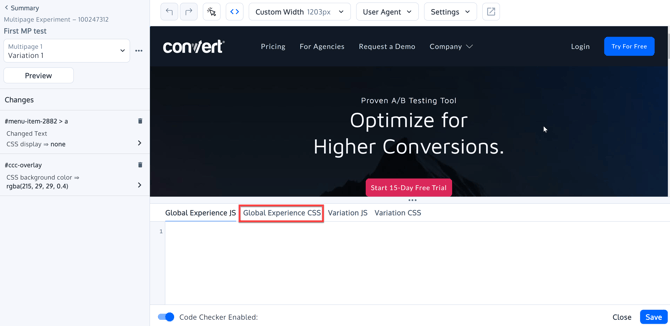
- Global Experience CSS
- Variation CSS
- Variation JS
- Global Experience JS
- Global Project Javascript
- Code Call Order (Priority)
- JavaScript Syntax and the Syntax Check
Introduction
This article explains each of the different Code Editors within the Convert app and removes any confusion about them. After reading this, you will be able to differentiate between them and decide where your code should go.
There are 5 different editors in the Convert App that we will describe next.
Global Experience CSS
Here's how to style an element on your site with CSS and apply the changes on the experience level:
Variation CSS
You can also apply CSS changes on the variation level.
This editor is to insert plain CSS that will be appended to the web page when the visitor is assigned that specific variation.
CSS is more persistent than changes included in the other editors, as CSS rules are permanent, and are not a victim of race conditions.
Whenever, CSS code is appended, but not working, you can append !important, to supersede all other rules already included in the page.
Variation JS
This editor is to insert any standard javascript you desire to include in the variation assigned to the visitor. 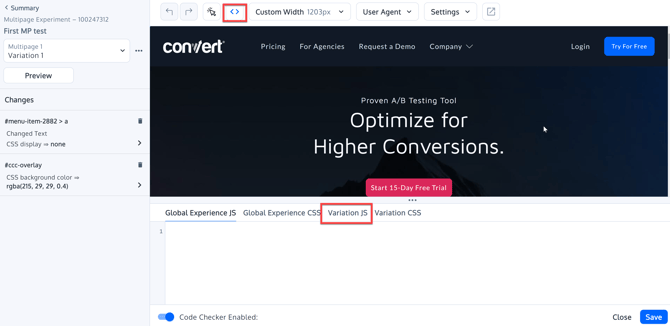
However, the code inserted in this section needs to consider that it might be executed before the elements of the page have loaded. So, you either have to insert a special code to deal with this or execute after JavaScript's DOM Loaded event, which might bring flashing or blinking.
Global Experience JS
In this section, you can insert standard JavaScript that will be included on the page of any visitor bucketed on the experiment. This can be done to include JavaScript code that can be shared across variations, but not triggered outside the experiment. This code is also called before any variation code. 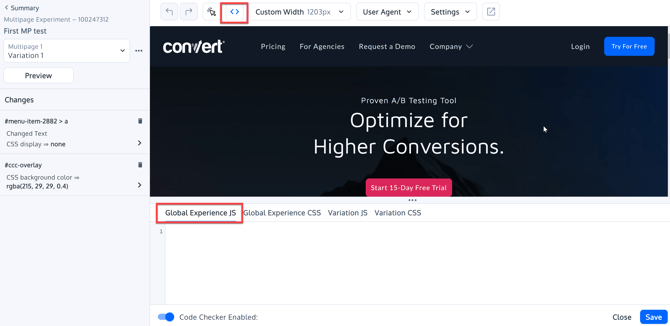
Global Project Javascript
This code can be found in the Configuration > Global Project Javascript area. The code in this section gets included wherever the Convert tracking code is placed. Also, this code gets called before any of the other codes included in the code sections above. Common usage is to include analytics snippets or any code you want to trigger in every experiment/experience that is included in your project.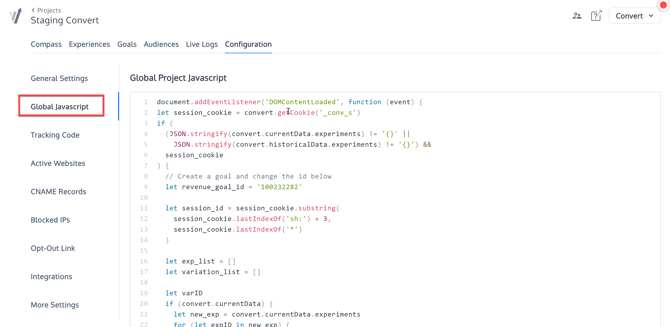
Code Call Order (Priority)
The JavaScript call order of the code included in Convert's code editors is the following:
- Global Project Javascript
- Global Experience JS
- (Variation) Custom Javascript Editor
There is also a code calling order based on the experiment id for the code within each experiment. Code from experiments with lower experiment's id is called first, later experiment code with higher ones.
JavaScript Syntax and the Syntax Check
In Convert Experiences, there is no fixed JavaScript version for Variation JS, Global Experience JS and Global Project Javascript. Convert saves your code as you wrote it and doesn't convert it to older JavaScript. Your code runs for a visitor if that visitor's browser supports the syntax you used.
How your code runs
Your code runs as a function. This means:
- A
returnat the top level of your code works on your site. It stops the rest of the code. importandexportstatements don't work.awaitworks only inside anasyncfunction, for example(async () => { await ... })();. A top-levelawaitis a syntax error.
As in any JavaScript, private class fields such as #count are valid only inside a class body.
⚠️ Important: A syntax error that reaches your site can stop your experiences from running. Code that a visitor's browser can't read can do the same for that visitor. Never save code with a real syntax error.
What the syntax check does
The Variation JS, Global Experience JS and Global Project Javascript editors check your code as you type:
- The check runs in your own browser, so it accepts any syntax that browser supports. An outdated browser can flag modern syntax that is valid.
- It only catches syntax errors. It doesn't catch errors that happen when the code runs on your page, such as a selector that matches nothing.
- It catches a syntax error anywhere in your code, even inside a function that never runs.
- Code saved through the API, or with the Code Checker turned off, isn't checked. Convert saves it as it is.
In the Visual Editor
- On a JavaScript tab, the bottom bar shows Code Checker Enabled: followed by "Valid JavaScript Code" or "Syntax error".
- A tab with a syntax error shows a warning icon with the tooltip "Warning! There's a syntax error".
- While the Code Checker is on, Save stays disabled as long as any JavaScript tab has a syntax error. An error in one tab blocks saving the other tabs too.
- You can turn the switch off. It then shows Code Checker Disabled and you can save. The Code Checker is on again the next time you open the Visual Editor.
- The code editors also save your code when you click outside the editor. While the Code Checker is off, this happens even if the code has a syntax error.
In Global Project Javascript
- Go to Configuration and open the Global Javascript tab.
- As you type, the line below the editor shows "Valid JavaScript Code" or "Syntax Error".
- Save Changes stays disabled until you fix the error. There is no switch to turn the check off here.
- With Compare JS Code on, Save Changes stays disabled while any environment has a syntax error.
When the check flags code that works
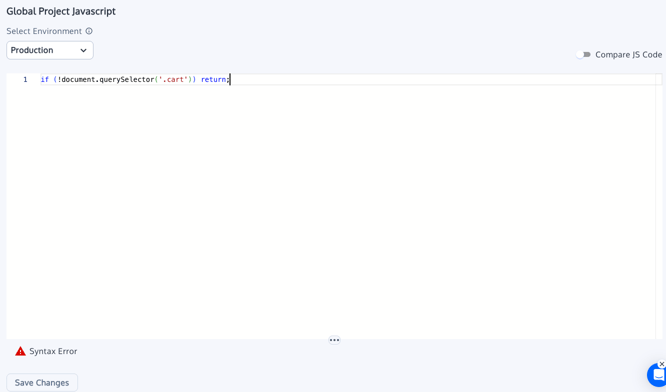
The check flags a return at the top level of your code, even though it works on your site. Put the code inside a function instead:
(function () {
  if (!document.querySelector('.cart')) return;
  // the rest of your code
})();
This passes the check in every editor, including Global Project Javascript, where you can't turn the check off.
If the check flags modern syntax that you know is valid, update the browser you edit in, or use a current version of another browser. In the Visual Editor, you can also turn the Code Checker off, save, and turn it back on.
Good practice
- Think about your visitors' browsers before you use new syntax. Code that a visitor's browser can't read doesn't run for that visitor.
- Turn the Code Checker off only for code you know is valid. Never save a real syntax error with the checker off.
- After you save, preview the variation and look for errors in your browser's console.
JavaScript conditions
JavaScript conditions in Audiences, Locations and Goals, and the Callback JavaScript trigger of a Location, have their own check. It shows "Invalid JavaScript Expression", and you need to fix the code before you can save. A JavaScript condition must be a single expression, such as window.innerWidth < 768. See Targeting Experiments and Firing Goals Based on a JavaScript Condition.