
THIS ARTICLE WILL HELP YOU:
- What is the Post-Segmentation feature?
- How to use the Post-Segmentation feature?
- Filter by campaign or ad (Campaign UTM and Content UTM)
- Filter reports for a specific
utm_sourcevalue - Know how Convert records UTM values
What is the Post-Segmentation feature?
The Post Segment feature allows you to analyze experiment reports and results on basis of segments like browser used, device used, new v/s old visitors and so on.
Convert offers segmentation as part of all paid plans.
Basic post-segmentation covers Device, User Type, Browser and GEO: Countries.
Advanced Post-segmentation feature includes all basic post-segmentation segments, plus segmentation by
- traffic source,
- continent,
- campaign (Campaign UTM, the
utm_campaignvalue), - ad or link (Content UTM, the
utm_contentvalue), and - custom segments.
How to use the Post-Segmentation feature?
After your experiment starts receiving traffic, you can analyze the experiment reports by clicking Segmentation.
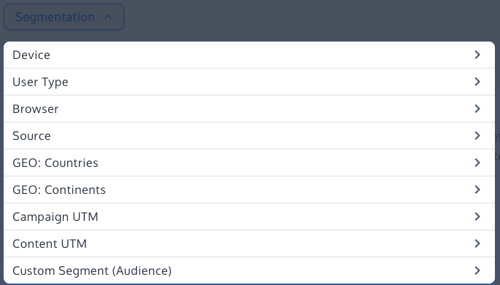
You can choose to either filter and analyze the results by a single segment or you can choose multiple filters to analyze results with a combination of segments.
The Segmentation menu lists these filters. The advanced ones show a lock icon on a plan without advanced post-segmentation.
- Basic: Device, User Type, Browser, GEO: Countries
- Advanced: Source, GEO: Continents, Campaign UTM, Content UTM, Custom Segment (Audience)
When using the advanced post-segmentation filters, it is important to distinguish between Source, Campaign UTM, Content UTM, and Custom Segment:
- Source groups visitors into broad traffic-source categories: Campaign, Search, Referral, and Direct. It does not list individual
utm_sourcevalues such asgoogle,facebook, ornewsletter. - Campaign UTM lists the
utm_campaignvalues recorded for visitors of this experience. - Content UTM lists the
utm_contentvalues recorded for visitors of this experience. - Custom Segment lists the segments saved in the current Convert project.
How Convert picks the Source group for a visit:
- Campaign: the link has a
utm_campaignvalue, or the visitor came through Google Ads auto-tagging. A visit with autm_campaignvalue counts as Campaign even when it also came from a search engine or another site. - Search: the visitor came from a search engine.
- Referral: the visitor came from a link on another website.
- AI tool: the visitor came from an AI assistant that Convert recognizes, such as ChatGPT, Claude, Perplexity, Gemini or Copilot. The report's Source filter has no AI tool option. The Source dimension in an export does. See Export & Download.
- Direct: none of the above, for example someone who types your address or opens a bookmark. A visit from a source that hides where it came from also lands here.
Add utm_campaign to your links to have those visits counted as Campaign. Without it, a tagged visit can land in another group such as Direct.
Filter by campaign or ad (Campaign UTM and Content UTM)
UTM parameters are tags at the end of a link that tell Convert where a visitor came from. Two of them have their own filters:
utm_campaignnames the campaign, for examplespring_sale. Its filter is Campaign UTM.utm_contenttells apart the ads or links inside one campaign, for examplebanner_blueandbanner_green. Its filter is Content UTM. Use it to filter results by individual ad as well as by campaign.
Example: you run one campaign with two banners. Tag the two links like this:
https://example.com/pricing?utm_campaign=spring_sale&utm_content=banner_blue
https://example.com/pricing?utm_campaign=spring_sale&utm_content=banner_green
Choose Campaign UTM and tick spring_sale to see both banners together. Choose Content UTM and tick banner_blue to see only the visitors who arrived through the blue banner.
To filter the report:
- Open the experience and go to the Report tab.
- Click Segmentation.
- Choose Campaign UTM or Content UTM.
- Tick one or more values.
The report then shows only the visitors recorded with the values you ticked. You can combine these filters with the other ones, such as Device.
Each list shows every distinct value Convert recorded for the experience, in alphabetical order. A list holds up to 5,000 values, the ones with the most visitors. A list is empty when no visitor of the experience arrived with that parameter.
📒Note: Campaign UTM and Content UTM are part of advanced post-segmentation. On a plan without it, both show a lock icon, and the tooltip reads Feature not available in current plan.
How to filter for a specific utm_source
If you want to analyze results for one particular utm_source value, do not use the Source filter.
Instead:
- Create an Audience with a UTM Source condition.
- Set the condition to the
utm_sourcevalue you want to analyze, for examplefacebook. - Save the Audience as a Segment.
- Open the experiment report and click Segmentation.
- Select the saved segment from Custom Segment.
For example, if a visitor arrives through a URL containing utm_source=facebook, the Source filter will not show facebook as an option. To report specifically on those visitors, create a segment using the UTM Source condition and then filter the report using that saved segment.
⚠️ Important: when visitors qualify for a segment
Post-segmentation using a saved segment only classifies visitors who qualified for that segment before they were bucketed into the experience. A segment created or matched after a visitor has already been bucketed does not retroactively classify that visitor for this purpose.
Know how Convert records UTM values
- Start of the visit only. Convert reads UTM values from the link a visitor lands on at the start of a session. If the same visitor later opens a different tagged link in that session, the first values stay. How Do You Fill Medium, Keyword and Source Name? has the details.
- 64 characters. The tracking script keeps only the first 64 characters of each UTM value for the visit. Keep your
utm_campaignandutm_contentvalues shorter than that. - Exact spelling. Values are listed as they appear in the link, so
spring_saleandSpring_Saleshow up as two separate entries. Use one spelling in all your links. - Content UTM history. Visitors counted before Convert started capturing
utm_contenthave no content value. On an experience that started earlier, Content UTM lists only the values of later visitors. - Medium and Term.
utm_mediumandutm_termare not report filters, and they are not available as export dimensions. - CSV exports. To get Campaign, Content or Source in a CSV file, use Attribution dimensions in Export & Download.
Want to learn more about Post-segmentation feature? Get in touch with us to discuss more.