
| Author: | George F. Crew |
THIS ARTICLE WILL HELP YOU:
Introduction
Shopify offers a wide variety of themes to enhance the look and functionality of your online store. But have you ever wondered how a different theme might impact conversions? With Convert’s Shopify integration and Theme Rules, you can compare Shopify themes in a structured A/B experiment. This guide will walk you through creating an A/B experience and assigning an unpublished Shopify theme to a variation using Theme Rules.
📒 Note:
The Convert Shopify app relies on Shopify app embed blocks and therefore requires Online Store 2.0-compatible themes.
Step 1: Select Your Shopify Themes
To begin, choose two Shopify themes:
- Main Theme → This is the live theme currently displayed to all visitors.
- Variation Theme → This is an unpublished theme that you will test against the live one.
The variation theme will remain in preview mode and will only be visible to visitors assigned to that variation in the test.
Step 2: Install Convert Tracking Code in Both Themes
Before starting the experiment, make sure the Convert tracking code is installed on both the published theme and the unpublished variation theme.
Using the Convert Shopify app:
-
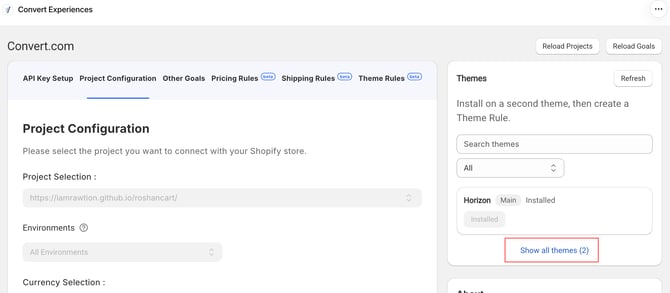
In Shopify Admin, go to Apps > Convert Experiences.
-
In the Themes section, verify that the published theme shows “Installed.”
-
Click “Show all themes” to display your unpublished themes.
-
Find the variation theme and click “Install Tracking Script.”
-
Shopify’s theme editor will open for that specific theme. Enable the “Convert Tracking Script” app embed and click “Save.”
-
Return to the Convert app and click “Refresh.” Confirm that the variation theme now shows “Installed.”
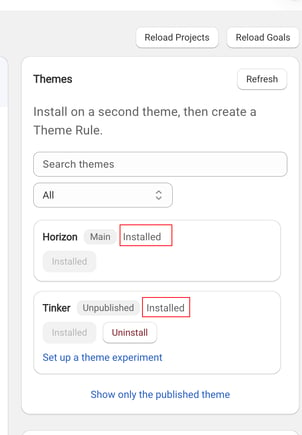
Repeat this process for every theme that will participate in your experiment.
Step 3: Create an A/B Experience in Convert
You no longer need to copy a Shopify preview theme ID or manually create a preview URL. Theme selection is handled by the Convert Shopify app through Theme Rules.
In Convert:
-
Create a regular A/B experience.
-
Configure the URL/location where the experience should run.
-
Configure your goals and traffic distribution as needed.
-
Create the variation that you want to associate with the alternate Shopify theme.
Do not create a Split URL experience for Shopify theme testing.
⚠️ IMPORTANT:
Do not delete a Shopify theme while it is assigned to an active Theme Rule. If Shopify can no longer load the theme assigned to a variation, visitors assigned to that variation may reach a Shopify error page.
Before deleting a theme used in an experiment, pause or finish the experiment and remove its Theme Rule first.
Step 4: Configure a Theme Rule
After creating the A/B experience:
-
Return to Shopify Admin > Apps > Convert Experiences.
-
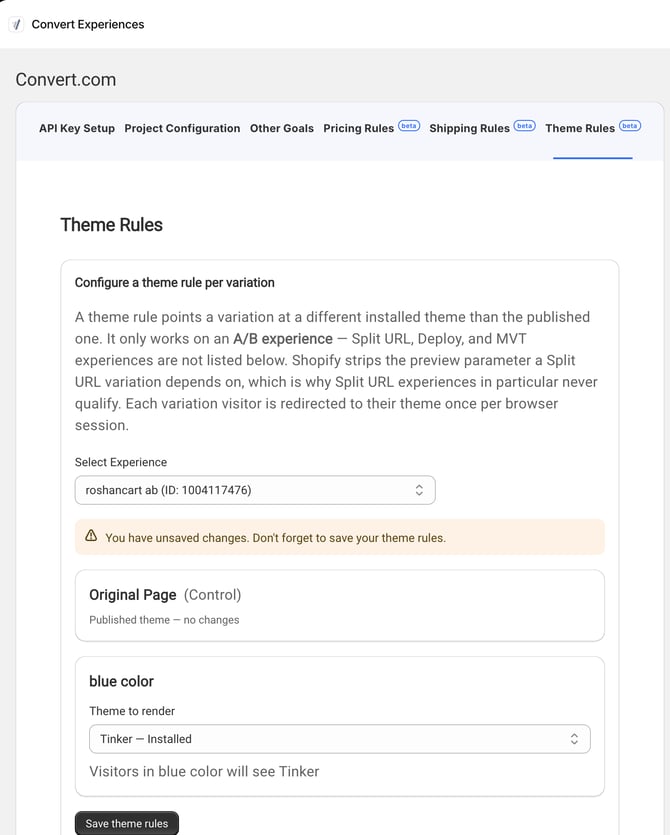
Open the “Theme Rules” tab.
-
Create a Theme Rule.
-
Select the A/B experience you created in Convert.
-
Select the variation that should display the alternate Shopify theme.
-
Select the Shopify theme that should be assigned to that variation.
-
Save the rule.
For example:
- Original/Control → Published Shopify theme
- Variation 1 → Unpublished variation theme
Control visitors continue using the published theme. When a visitor is assigned to a variation with a Theme Rule, Convert checks which Shopify theme is currently rendering. If necessary, the visitor is redirected once to the assigned theme. After Shopify establishes the preview session, the visitor remains on that theme while navigating through the store.
Step 5: Verify the Theme Experiment
Before sending production traffic to the experiment, test it in a fresh browser or private/incognito window.
For a visitor assigned to the alternate-theme variation, confirm that:
-
The visitor is redirected to the alternate theme only once when required.
-
The alternate theme loads successfully.
-
Navigation to other pages remains on the alternate theme without repeated redirects.
-
The Convert tracking script loads and the visitor is recorded in the correct experience and variation.
-
Your configured goals continue to be recorded.
For a visitor assigned to the control, confirm that the published theme loads normally and no theme redirect occurs.
Theme Rules do not rely on preview_theme_id remaining in the visitor’s browser URL, so you do not need to create a location exclusion for that parameter.
Step 6: Shopify Preview Bar Handling
No manual preview-bar configuration is required when using Theme Rules. Convert handles the Shopify theme transition and suppresses the Shopify preview bar as part of the theme assignment flow.
Step 7: Troubleshooting
If the alternate theme does not load:
-
Confirm that the experiment is a regular A/B experience, not a Split URL experience.
-
Confirm that the correct experience, variation, and Shopify theme are selected in Theme Rules.
-
Confirm that the alternate theme still exists in Shopify.
If the alternate theme loads but Convert does not track the visitor:
-
Confirm that the theme shows “Installed” in the Themes section of the Convert Shopify app.
-
Open the theme’s App embeds settings in Shopify and confirm that “Convert Tracking Script” is enabled and saved.
-
Return to the Convert app and click “Refresh” to update the displayed installation status.
If you are reviewing a standalone Shopify theme preview while already bucketed into an active theme experiment, your existing experiment assignment may affect which theme you see. Use a fresh browser session or pause the experiment while reviewing the standalone preview.
By following these steps, you can compare Shopify themes using a standard Convert A/B experience while Theme Rules manage which Shopify theme each variation displays.