
THIS ARTICLE WILL HELP YOU:
- Change Your Password
- Reset your password if you cannot sign in
- Sign in if you use Google
- Access Convert if you have been invited to an account
Change Your Password
To change your Convert Experiences password you have to click on "My Profile" and then Password:
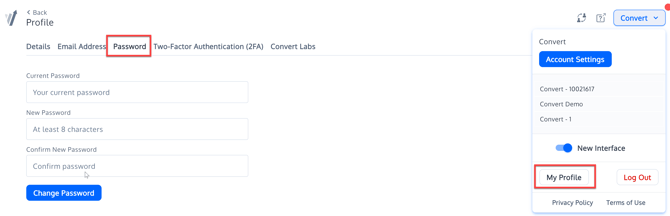
In the Password section, enter and save your new password.
Reset Your Password If You Cannot Sign In
If you are signed out and have forgotten your password:
- Go to the Convert Experiences login page at app.convert.com.
- Click “Forgot Password?”.
- Enter the email address associated with your Convert account.
- Click “SEND RESET LINK”.
- Open the password reset email and follow the instructions to set a new password.
If you do not receive the reset email, check your spam or junk folder and make sure you entered the email address associated with your Convert account. If the email still does not arrive, contact Convert Support.
If You Sign In With Google
If your Convert account uses Google sign-in, use “Login with Google” on the login page rather than trying to reset a Convert password.
Google-login users do not use a separate Convert password for that sign-in method.
If You Were Invited to a Convert Account
If you have been invited to join a Convert account, open the invitation email and follow the invitation link first.
Complete the account-access flow from that invitation before attempting to sign in normally.
Need Help?
If you cannot access your account after following the steps above, contact Convert Support for assistance.