
Convert plans include a number of tested users per billing period. This article explains what happens when you go past that number, how to allow or stop over-quota charges, and where to find your over-quota rate.
What you can do after reading this article
- Know what counts toward your quota
- See how many tested users you've used
- Know what happens when you reach your quota
- Allow or stop over-quota charges
- Get warned before you reach your quota
- Find your over-quota rate
- Keep testing without over-quota charges
What Counts Toward Your Quota
Your plan's quota is a number of tested users. On current plans, a visitor becomes a tested user the first time they enter a running experience, and counts once however many experiences they see after that.
Deploys don't add tested users, and neither does a Completed experience that keeps showing its winning variation. Your plan may still limit how many deploys can be active at the same time.
See How Many Tested Users You've Used
The Projects page you see after signing in shows your account's usage in the row above the project list:
- Included Users: the tested users your plan includes per billing period, or Unlimited.
- Used Users: the tested users counted so far in this billing period.
- Remaining Users: Included Users minus Used Users. It drops below zero once you're over your quota.
- Next Billing Cycle: the date your next billing period starts.
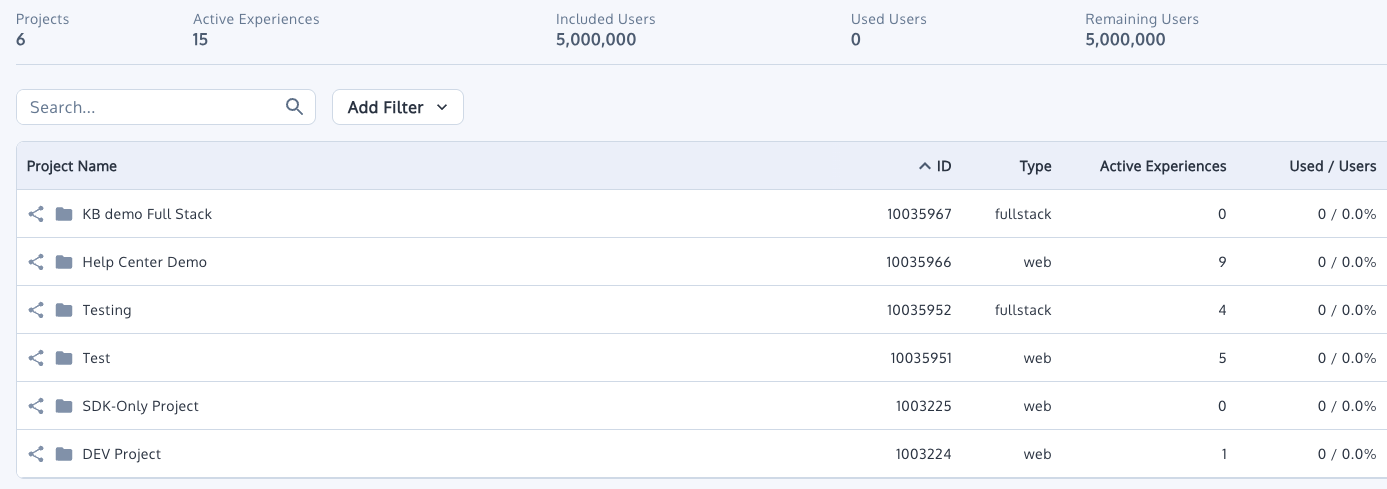
Only account Owners, Admins and Account Managers who can access every project see these numbers. Everyone else sees a dash (-). The row isn't shown on a phone-sized screen.
The Used / Users column in the project list shows each project's tested users and their share of your plan's quota. If you can't see the account numbers, the column shows your projects' counts without the share.
On older plans billed by tested visitors, the row shows Included Visitors and Remaining Visitors, and adds Used Visitors next to Used Users.
What Happens When You Reach Your Quota
It depends on the Subscription Settings row in your account's billing page:
- Over Quota charges: Allowed. This is the setting unless someone on your account has changed it. Your experiences keep running, and the extra tested users are billed at your plan's over-quota rate. If your plan doesn't include over-quota usage, Convert emails you a warning each day instead, and your experiences stop running at the third warning or once you pass 120% of your quota.
- Over Quota charges: Not Allowed. Once you pass your quota, the experiences in your account stop running. They start again automatically when your next billing period begins (on a yearly plan, at your renewal date), or as soon as you allow over-quota charges again.
A project can also have its own limit, set in Max. Project's Tested Visitors in Project Configuration. When a project reaches it, only its deploys keep running, whatever your Subscription Settings.
Convert checks usage about once an hour, so your experiences can keep running for a short while after you pass your quota. On very high-traffic sites, the tested users from that time can lead to over-quota charges even with the setting turned off.
Allow or Stop Over-Quota Charges
Only account Owners and Account Managers can change this setting.
- Click the account menu at the top right of the app (it shows your account name), then click Account Settings.
- On the Name & Billing tab, find the Subscription Settings row. It shows Over Quota charges: Allowed or Not Allowed.

- Click the pencil icon at the end of the Subscription Settings row.
- In the Subscription Settings dialog, tick Do not allow Over Quota charges to stop charges, or clear the box to allow them. Then click Save. The row changes to Not Allowed or Allowed.
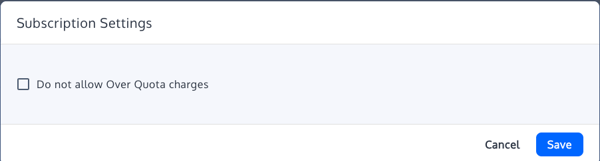
To allow over-quota charges, your account needs a payment method. Without one, Convert shows "Payment method details missed. Please add your payment method details first." Add it in the Payment Method row on the same tab, then try again.
Warnings Before You Reach Your Quota
- The Projects page you see after signing in shows a banner when you reach 80%, 90% and 100% of your tested users, and again once you go over. Only people who can manage billing see it.
- Convert also sends emails when your usage passes 90% and 100%, when your experiences stop running because of the quota, and when they start again.
Find Your Over-Quota Rate
The app doesn't show your over-quota rate. For current plans, you'll find it on the Convert pricing page, and the emails Convert sends when you go over your quota also state it.
If you're on an older plan, a yearly plan or a custom contract, ask your account manager or contact Convert support for your rate.
Keep Testing Without Over-Quota Charges
- Deploy your winners. A winning variation left running in an Active experience keeps adding tested users. Turn it into a deploy instead. See What about Deployments?
- Upgrade your plan from the Plans tab in Account Settings. Convert never upgrades your plan unless you ask.
- Turn off over-quota charges as shown above if you'd rather have your experiences stop than pay for extra tested users.